
Section 1.2.2.4 · Chapter 1: Introduction
Text Toolbar

|
Icon |
Tool Tip |
Description | |
|---|---|---|---|
 |
Text Type | Select the type of text you are working on. | |
| Text Type | Description | ||
| Inner Text | Text displayed inside of an object. | ||
| External Text | Text of the external label of an object. | ||
 |
Language | Select a language that you are defining the text for. | |
 |
Font | Select a font for the text. | |
 |
Size | Select a font size for the text. | |
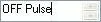 |
Text |
Edit the text. Click
 to select the text from text database. |
|
 |
Text |
Select the text from the text database. Click
 to edit text. |
|
 |
Text Color | Select a color for the text. | |
 |
Background Color | Select a color for the background of the object. | |
 |
Center Position | Position the text at the center within the object. | |
 |
Horizontal Position | Change the horizontal position of the text within the object. | |
 |
Vertical Position | Change the vertical position of the text within the object. | |
 |
Align Left | Align the text to the left of the text body. | |
 |
Center | Align the text to the center of the text body. | |
 |
Align Right | Align the text to the right of the text body. | |
 |
External Label Position | Change the position of the external label. | |
Need PM Designer itself?
V4 for current PK, PT, ITV and PM panels, V2 for older models. Free, sent by email.
Source.Section 1.2.2.4 of the PM Designer Software User Manual, Edition 2.0, © Cermate Technologies Inc. (www.cermate.com, service@cermate.com). Reproduced online, with the manual's own figures, by TSL Automation Solutions, authorised Cermate distributor, for users of Cermate HMI panels. PM Designer and PanelMaster are trademarks of Cermate Technologies Inc.
Text and figures are the manufacturer's and may describe features your panel or software version does not have. For a plain-language introduction read the PM Designer guide; for help with a specific panel contact TSL Automation.