
PM Designer guide
PM Designer Guide: how to program Cermate HMI panels
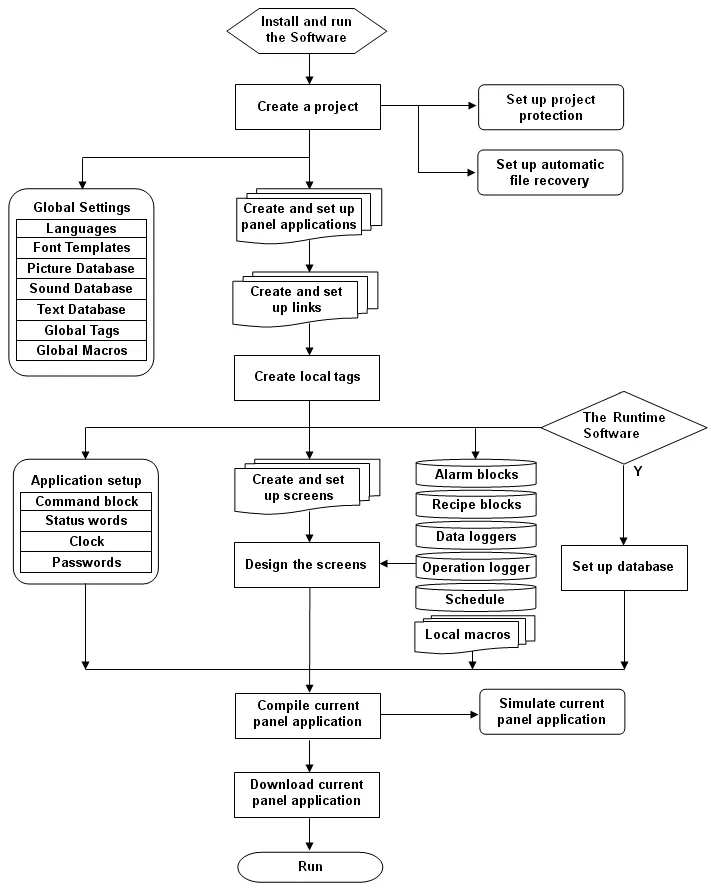
PM Designer is the free Windows software that programs Cermate HMI panels: you draw the operator screens, define tags, connect a PLC, write macros, then compile and download the project to the panel. This guide takes you from installation to a running panel in thirteen short chapters, written from the official user manual and from the questions our support team answers every week.
Applies to PM Designer V2.1 and V4.0Updated 11 Nov 2026Manual reference: Preface, Chapter 1
The 13 chapters
- 1Install PM DesignerInstall PM Designer V4 or V2 on Windows 7 to 11: get the download, run setup as administrator, keep both versions side by side and set up the USB driver.
- 2Your first projectStep-by-step PM Designer tutorial: create a project, pick the panel model, add a PLC link, draw a screen, compile, simulate and download to the HMI panel.
- 3PLC communicationSet up PM Designer communication links: COM and Ethernet, Modbus RTU and TCP driver choice, Siemens S7 rack and slot, sub-links, timeouts and LINK_STS codes.
- 4Tags and internal memoryPM Designer addressing: $U, $N and $S memory, index registers, tags, array and structure tags, and the command block that lets the PLC drive the panel.
- 5Screens and objectsHow screens and objects work in PM Designer: normal and window screens, bit buttons, switches, function buttons, lamps, numeric and character entries.
- 6Graphs and chartsConfigure PM Designer bar graphs, circular bars, meters, line charts and scatter charts: data sources, read triggers, pens, axes and the PLC word layouts.
- 7AlarmsSet up alarms in PM Designer: discrete and analog alarm blocks, alarm displays, acknowledgement, history and counts, saving to file and clearing from the PLC.
- 8RecipesBuild recipes in PM Designer: recipe blocks and data items, selectors and tables, transfers between PLC, HMI, flash and USB, plus macro and command control.
- 9Data loggingLog process data in PM Designer: data logger settings, sampling methods, LDF files, historic data tables and trend graphs, file buffers and FB_REC macros.
- 10MacrosWrite PM Designer macros in native script: macro types, syntax, data transfer, IF and FOR, timers, link control and file commands, with worked examples.
- 11Compile, simulate, downloadCompile, simulate and download a PM Designer project: off-line and on-line simulation, USB, Ethernet and COM transfer, PRP packages, upload and keeping data.
- 12V4 vs V2What PM Designer V4 adds over V2: MQTT, JSON macros, OPC UA, CANbus, time zones, IDCS SMS, file buffer records and 64-bit builds, and how V2 projects convert.
- 13TroubleshootingFix common PM Designer problems: panel not found over USB or Ethernet, download fails, developer password prompts, communication and compile errors, recovery.
Reference
The complete PM Designer user manual, online and searchable
Twenty chapters, more than 500 topics and 1,000 figures from the manual that ships with V2.1 and V4.0, published with Cermate's text so that every property and command can be found by search.
- Preface
- 1. Introduction
- 2. Creating Projects
- 3. Creating Panel Applications
- 4. Designing Screens
- 5. Buttons and Switches
- 6. Lamps
- 7. Displaying and Inputting Data
- 8. Graphs and Charts
- 9. Animated Objects
- 10. More Objects
- 11. Recipes and Recipes Objects
- 12. Alarms and Alarm Displays
- 13. Data Collection and Historic Displays
- 14. Operation Logging
- 15. Using Macros
- 16. Schedule
- 17. Increase Efficiency
- 18. Compiling/Simulating/Downloading A Panel Application
- 19. Using Tools
- 20. Setting up Target Panel
What PM Designer is
PM Designer is the configuration and programming tool for Cermate's PM series operator panels (the manual calls them PanelMaster HMI units). One project file holds everything a panel needs: the screens an operator touches, the tags that map screen objects to PLC addresses, alarm and recipe definitions, data loggers, macros and the communication settings for up to 16 links. The software compiles all of that into a runtime image and sends it to the panel over USB, Ethernet or a serial cable.
Two releases are in use. PM Designer V4 (4.0) is the current version and the right choice for any panel sold in the last few years and for every new project. PM Designer V2 (2.1) is the legacy version for older panels that V4 does not support and for projects that were authored in V2. Both are available from the PM Designer download page. The user manual that ships with both versions is the same document, so this guide applies to both unless a section says otherwise; Chapter 12 lists what V4 adds.
Which Cermate panels PM Designer programs
PM Designer V4 ships a runtime operating system for each panel family it supports, and the file names in its installation folder tell you which: the PK series (4.3" to 15", PK2043 to PK2150), the PT series (PT2043 to PT2150), the ITV series (ITV407, ITV410, ITV415) and the PM series. V2 carries the earlier generations instead: PT1070 to PT1150, PA43 to PA100, the first PK043 to PK100 models and several gateway and special units. If your panel is listed below you are on V4; if it predates these ranges, start with V2 and keep a backup of the project before you ever open it in V4.
Cermate panels are sold under the manufacturer's own model numbers and, by some distributors, with an extra letter in front. TSL Automation lists the same hardware with an "I" prefix, so PK2070-31ST and IPK2070-31ST are one and the same panel. The table maps the families you will meet in this guide.
| Cermate model | Display | TSL listing | Software |
|---|---|---|---|
| PK2043-30ST / PK2043-31ST | 4.3" TFT, ARM9 | IPK2043-31ST | V4 |
| PK2070-30ST / PK2070-31ST | 7" TFT, Ethernet on -31 | IPK2070-31ST | V4 |
| PK2080-31ST | 8" TFT | IPK2080-31ST | V4 |
| PK2100-30ST / PK2100-31ST | 10.1" TFT | IPK2100-31ST | V4 |
| PK2120-31ST / PK2121-31ST | 12.1" TFT | IPK2121-31ST | V4 |
| PK2150-31ST | 15" TFT | IPK2150-31ST | V4 |
| PT2043-41ST, PT2070-51ST, PT2080-51ST | 4.3" to 8", faster CPU | IPT2070-51ST and family | V4 |
| PT2100-51ST, PT2104-51ST, PT2120-51ST, PT2150-51ST | 10.1" to 15" | IPT2104-51ST and family | V4 |
| ITV407, ITV410, ITV412, ITV415 | 7" to 15", dual Ethernet | ITV407-22 and family | V4 |
| PM series (IPM204 to IPM210) | 4.3" to 10.1", IIoT | IPM207 and family | V4 |
| PT1070, PT1080, PT1100, PT1150, PA43 to PA100 | Earlier generation | Spares and replacements on request | V2 |
Not sure which version your panel needs? Enter the model on the download form and we will tell you, or check the Cermate HMI panel listings for the current equivalent of a discontinued unit.
How the guide is organised
The chapters follow the order in which you actually build a project. If you are new to the software, read Chapters 1 to 3 in sequence: install, build a first project, connect the PLC. From Chapter 4 onwards each page stands on its own, so an experienced user can jump straight to alarms, recipes or macros. Each chapter answers its question in the first paragraph, mirrors the section names of the manual so you can find the matching reference page, cites the manual section it draws on, and ends with the problems people actually report to us.
- Getting started: install, first project, PLC communication, tags and internal memory.
- Building screens: screens and objects, graphs and charts.
- Process functions: alarms, recipes, data logging, macros.
- Shipping and support: compile, simulate and download, V4 vs V2, troubleshooting.
Limits worth knowing before you design
A few numbers from the manual shape how you plan a project. A project can hold up to 128 panel applications and 10 languages. One panel application has no limit on tags, macros or objects per screen, up to 7,999 screens, 4 or 16 communication links depending on the model, 131,072 words each of regular ($U) and battery-backed ($N) user memory, 64 discrete and 64 analog alarm blocks, 16 recipe blocks of up to 65,535 recipes, 16 data loggers of up to 4,194,304 samples, and 80 schedules. The compiled application must fit the panel: about 50 MB on the T series and about 20 MB on the K series, less whatever the runtime needs for temporary storage. Pictures are what fill that space, so keep bitmaps at the panel's native resolution.
Where to get help
The complete user manual is published on this site, chapter by chapter with the original figures and a search box, so you do not need the software open to look something up. It is also installed with the software (Help menu, or Hlp\1033\UserManual_EN.chm in the installation folder) and the macro command reference is MacroHelp_EN.chm next to it. The Note folder holds application notes on topics the manual only touches, several of which are summarised in Chapter 12. For anything panel-specific, contact TSL Automation with the model number, the PM Designer version and a screenshot; we have supplied and supported Cermate panels in India since 2015 and can also quote spares and replacements for models that are no longer made.
Frequently asked questions
Is PM Designer free?
Yes. Cermate supplies PM Designer free of charge to users of its panels. TSL Automation hosts the original V4 and V2 installers on the download page and emails you the link; there is no licence fee, activation or time limit for programming Cermate panels.
Which version do I need, V4 or V2?
Use PM Designer V4 for every current PK, PT, ITV and PM series panel and for all new projects. Use V2 only for older generations (PT1070 to PT1150, PA43 to PA100, the first PK models) or to open a project that was written in V2. If in doubt, send us the model number.
Can PM Designer V4 open a V2 project?
V4 converts a V2 project on opening. Keep a copy of the original file first, check every communication link and macro after conversion, and recompile before downloading, because the target panel must also be one that V4 supports.
Does PM Designer work on Windows 10 and Windows 11?
Yes. Both V4 and V2 install and run on Windows 7, 8, 10 and 11, including 64-bit editions. Run the installer as an administrator and install the USB driver from the Usb folder if Windows does not recognise the panel.
Does the panel need a licence to run a project?
No. A PK, PT, ITV or PM panel runs any project compiled for its model. The only password involved is the developer password stored in the project, which the panel asks for when a different project tries to overwrite the one it holds.
Where is the PM Designer manual?
It is installed with the software: open Help in the menu bar, or browse to the Hlp folder of the installation directory for UserManual_EN.chm. The native script commands are documented separately in MacroHelp_EN.chm.
Stuck on a Cermate panel?
TSL Automation has supplied and supported Cermate HMIs since 2015. Send us the model, the PM Designer version and a screenshot of the error.
Written by TSL Automation Solutions from the PM Designer user manual and application notes that ship with the software, and from our own support work. Screenshots are from the manual and remain the property of Cermate Technologies Inc. PM Designer and PanelMaster are trademarks of Cermate Technologies Inc. Check your panel's own manual for model-specific limits.