
Section 14.2 · Chapter 14: Operation Logging
Setting up Operation Logging
You can set up operation logging with the Operation Logging dialog box. In this dialog, you can determine the required memory for the operation logging buffer, and specify how to save the operation logs to a text file. To open the dialog box, double click the Operation Logging node in the Project Manager tool window, or use the Operation Logging… command on the Panel menu. The following is an example of the Operation logging dialog box.
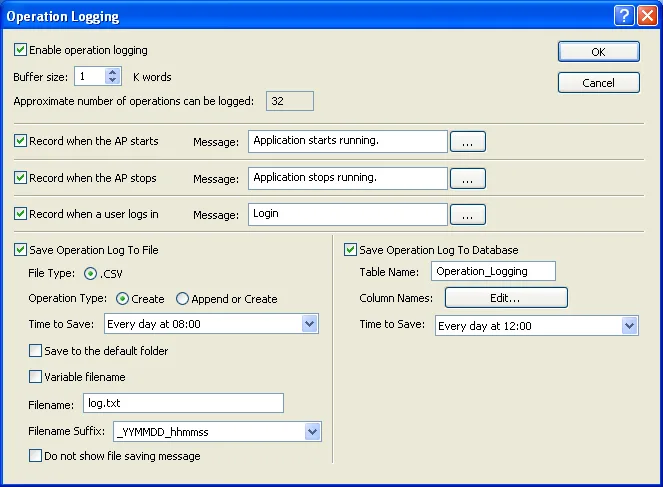
The table below describes each property in the Operation Logging Properties dialog.
|
Property |
Description | ||||
|---|---|---|---|---|---|
| Enable operation logging | <Check Box> | Check this option to enable operation logging. | |||
| Buffer Size | The size of the operation logging buffer. The unit is K words. The buffer size can be specified between 1 and 512 K words. | ||||
| Approximate number of operations can be logged | The maximum number of operation loggers that the operation logging buffer can hold. The formula to calculate the approximate number is: Number = Buffer Size * 1024 * 2 / 64 | ||||
| Record when the AP starts | <Check Box> | Check this option to record a specified message when the application starts running. | |||
| Message | Enter the operation message of the first language for AP starting. | ||||
 |
Click the button to bring up the Operation Message dialog box to edit the message for all the languages. Please see details in Section 14.2.1. | ||||
| Record when the AP stops | <Check Box> | Check this option to record a specified message when the application stops running. | |||
| Message | Enter the operation message of the first language for AP stopping. | ||||
|
|
Click the button to bring up the Operation Message dialog box to edit the message for all the languages. Please see details in Section 14.2.1. | ||||
| Record when a user logs in | <Check Box> |
Check this option to record a specified message when a
user logs in. The following is an example of the recorded logins. The numbers in the parentheses show the user levels. The message "Login (0)" indicates a logoff. 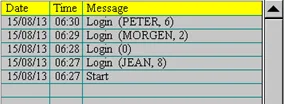 |
|||
| Message | Enter the operation message of the first language for user login. | ||||
|
|
Click the button to bring up the Operation Message dialog box to edit the message for all the languages. Please see details in Section 14.2.1. | ||||
| Save Operation Log to File | <Check Box> | Check this option so new operation loggers will be written to a specified file periodically. Each time when a save is performed, the panel writes only the operation loggers that have not been saved to a file before. | |||
| File Type | The type of file to save the operation loggers. | ||||
| File Type | Description | ||||
| .CSV | The operation logging is saved in CSV format. You can use any text editor or Microsoft Excel to view the file. | ||||
| Operation Type | Specifies how to open a file to save the operations. | ||||
| Operation Type | Description | ||||
| Create | Creates a new file with the specified filename to save the operation loggers. | ||||
| Append or Create | If the specified file exists, appends the operations to that file; otherwise creates a new file with the specified filename to save the operation loggers. | ||||
| Time to Save | Specifies the period to save the operation loggers. This item is available when the option Save Data to File is checked. There are nine periods available: Every hour on the hour ; Every 8 hours (00:00, 08:00, 16:00) ; Every 12 hours (00:00, 12:00) Every day at 00:00; Every day at 08:00; Every day at 12:00; Every Sunday at 00:00; Every Monday at 00:00; Every month's first day at 00:00. | ||||
| Save to the default folder | Check the option to save the file in the default folder. Please see Section 3.1.4 for details about specifying default folder. | ||||
| Variable filename | Check the option to specify the variable representing the filename to save the operation loggers at runtime. | ||||
| File Name | The filename or the prefix of the filename of the file to save the operation loggers as. The filename must be a null terminated ASCII character string and follows the rule of Windows filenames. The operation logger are saved in text format and the file extension name must be same as the file type. You can use any text editor or Microsoft Excel to view the operation loggers directly. This item is available when the option Save operation log to file is checked. | ||||
| Filename Suffix | Available when the Operation Type is Create. This property guarantees that the created file has a unique name and no existing file will be overwritten. There are four kinds of filename suffixes available as shown in the following table. | ||||
| Filename Suffix | Description | Example | |||
| _YYMMDD_hhmmss |
YY: year (00-99) MM: month (01-12) DD: day (01-31) hh: hour (00-23) mm: minute (00-59) ss: second (00-59) |
Log_090423_102358 (Assume that the specified Filename is "Log", the current date is April 23, 2009, and the current time is 10:23:58.) |
|||
| _YYMMDD_hhmm | Log_090423_1023 | ||||
| _YYMMDD_hh | Log_090423_10 | ||||
| _YYMMDD | Log_090423 | ||||
| Do not show file saving message | Check this option to hide the file saving message at runtime. | ||||
| Record Operation Log To Database | <Check Box> | Check this option so the most current operation logger will be written to a specified database periodically. Each time the operation is performed, the panel writes only the record that has not already been saved to the database. This item is available only when the target panel is the HMI Runtime.. | |||
| Table Name | Specifies a name as the table name in the database. | ||||
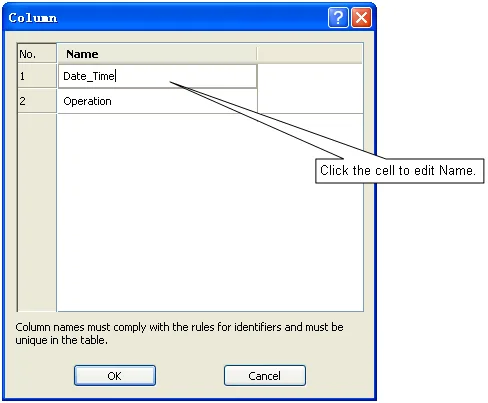
| Column Name |
Click the edit button to bring
up the following dialog box to
specify the column names. Note
that the name must comply with
the rules for database
identifiers.
|
||||
| Time to Save | Specifies the period to save the operation logger. This item is available when the option Save Operation Log to Database is checked. There are nine periods available: Every hour on the hour ; Every 8 hours (00:00, 08:00, 16:00) ; Every 12 hours (00:00, 12:00) Every day at 00:00; Every day at 08:00; Every day at 12:00; Every Sunday at 00:00; Every Monday at 00:00; Every month's first day at 00:00, Every minute (For test only), Every 5 minutes, Every 10 minutes, Every 15 minutes, Every 30 minutes. | ||||
In this section
Need PM Designer itself?
V4 for current PK, PT, ITV and PM panels, V2 for older models. Free, sent by email.
Source.Section 14.2 of the PM Designer Software User Manual, Edition 2.0, © Cermate Technologies Inc. (www.cermate.com, service@cermate.com). Reproduced online, with the manual's own figures, by TSL Automation Solutions, authorised Cermate distributor, for users of Cermate HMI panels. PM Designer and PanelMaster are trademarks of Cermate Technologies Inc.
Text and figures are the manufacturer's and may describe features your panel or software version does not have. For a plain-language introduction read the PM Designer guide; for help with a specific panel contact TSL Automation.