
Section 10.3.2 · Chapter 10: More Objects
Video View - General Settings
This section describes how to define the general settings for a video view. The following is an example of the General page of the Video View dialog box.
| The target panel is Windows based device with the HMI Runtime. | The target panel is X series HMI unit. |
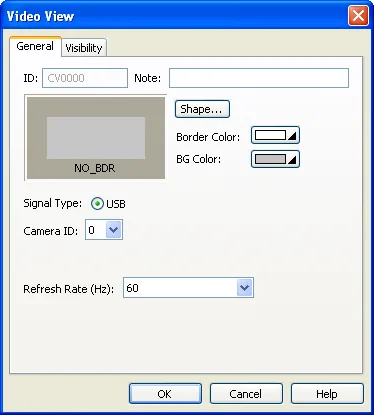 |
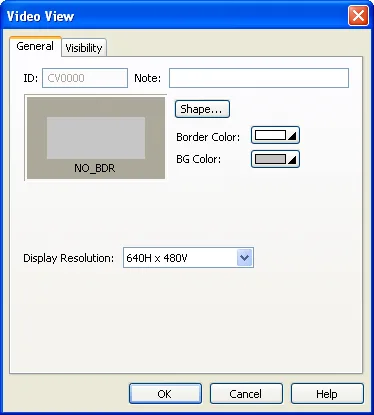 |
The following table describes each property in the General page.
| Property | Description |
|---|---|
| ID | The object’s identifier. It is generated when the object is created. The identifier is unique within the screen where the object is located and is unchangeable. The format of the IDs for the camera view is CVnnnn. |
| Note | You can type a note for the object. |
| Shape settings |
For details about the following properties, see
Section 4.3.4 Setting up the Shape
of an Object.
 ,
Border Color, BG Color |
| Signal Type | Select a signal type of the camera or video. |
| Camera ID | The camera's identifier. The HMI runtime supports max 4 USB cameras. You can use the general command to take and save the picture of the camera with the predefined camera ID. For details about general command, see Section 3.6.7 Using General Commands. |
| Display Resolution | The display resolution of the video. |
| Refresh Rate (Hz) | Specifies a refresh rate from 60Hz, 30Hz, 15Hz, 7.5Hz. The larger the Refresh Rate is, the faster the web camera will be refreshed, but the refresh rate of other objects will be slower. |
Need PM Designer itself?
V4 for current PK, PT, ITV and PM panels, V2 for older models. Free, sent by email.
Source.Section 10.3.2 of the PM Designer Software User Manual, Edition 2.0, © Cermate Technologies Inc. (www.cermate.com, service@cermate.com). Reproduced online, with the manual's own figures, by TSL Automation Solutions, authorised Cermate distributor, for users of Cermate HMI panels. PM Designer and PanelMaster are trademarks of Cermate Technologies Inc.
Text and figures are the manufacturer's and may describe features your panel or software version does not have. For a plain-language introduction read the PM Designer guide; for help with a specific panel contact TSL Automation.