
Section 17.1.3 · Chapter 17: Increase Efficiency
Quick Find and Replace in Macro Editor Window
Quick find and replace allows you to search the text in a
currently active macro editor window. The selection moves from match to match,
allowing you to review each match within its context.
In the currently active macro editor window, quick find and replace can search
or replace through a macro forward from the insertion point. The search or
replace automatically continues past the end of the macro into the unsearched
portion. A message appears when the entire macro has been searched or replaced.
Note: The matches found are not listed in
the Find Results window
To display the Replace dialog box, use the Replace… command on the Edit > Find
and Replace menu. The following is an example of the Replace dialog.
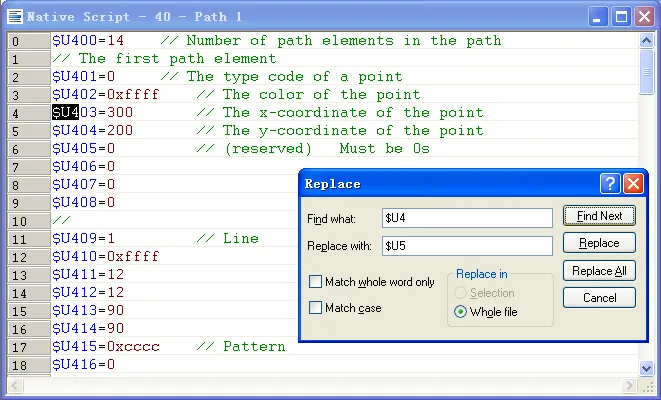
The following table describes each property in the Replace dialog box.
|
Property |
Description | ||||||
|---|---|---|---|---|---|---|---|
| Find what | Type the text you want to search for or paste it from the clipboard. | ||||||
| Replace with | Type the text you want to replace the found text with or paste it from the clipboard. | ||||||
| Match whole word only | Check this option to search only for whole words rather than matching the text you enter in the Find what box as it occurs within words. | ||||||
| Match case | Check this option to search only for occurrences that match the combination of uppercase and lowercase characters you enter in the Find what box. | ||||||
| Replace in |
Select one of the following portions for the project you
want to search in
|
||||||
| Find Next | Click the button to find the next occurrence of the text specified in the Find what box with the selected options until there are no more occurrences. The matches for the search will be highlighted in the window. | ||||||
| Replace | Click this button to search for text that matches the found text, and then replace it with the text in the Replace with field. | ||||||
| Replace All | Replaces all occurrences of the found text with the text in the Replace with field. | ||||||
| Cancel | Click the button to close the dialog box. |
Need PM Designer itself?
V4 for current PK, PT, ITV and PM panels, V2 for older models. Free, sent by email.
Source.Section 17.1.3 of the PM Designer Software User Manual, Edition 2.0, © Cermate Technologies Inc. (www.cermate.com, service@cermate.com). Reproduced online, with the manual's own figures, by TSL Automation Solutions, authorised Cermate distributor, for users of Cermate HMI panels. PM Designer and PanelMaster are trademarks of Cermate Technologies Inc.
Text and figures are the manufacturer's and may describe features your panel or software version does not have. For a plain-language introduction read the PM Designer guide; for help with a specific panel contact TSL Automation.