
Section 17.5 · Chapter 17: Increase Efficiency
Object List
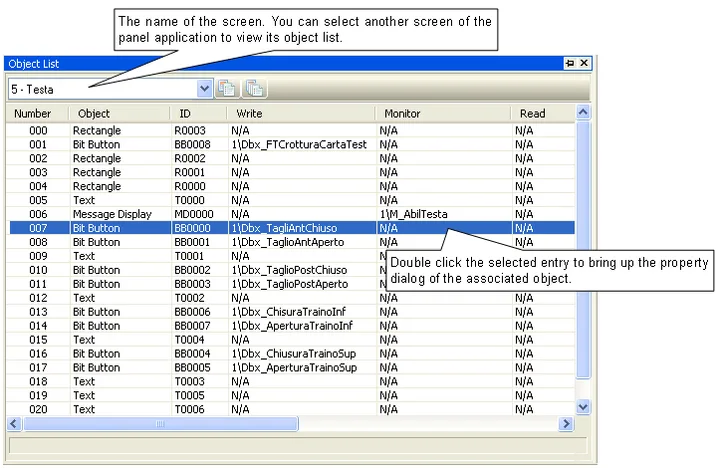
The Object List window is a dockable window. It shows the
screen objects and the associated I/O addresses.
You can modify the object properties in the Object Property dialog box by
double-clicking each entry in the Object List window.
You can right-click anywhere inside the Object List window to get the pop-up
menu. In the pop-up menu, check any of the menu items such as ID, Write,
Monitor, Read, Notification, TCtrl, VCtrl, and Note to display that column. Use
the Select All command in the pop-up menu to display all the columns.
To open the Object List, check the Object List menu item in the View menu. The
following is an example of the Object List.
Need PM Designer itself?
V4 for current PK, PT, ITV and PM panels, V2 for older models. Free, sent by email.
Source.Section 17.5 of the PM Designer Software User Manual, Edition 2.0, © Cermate Technologies Inc. (www.cermate.com, service@cermate.com). Reproduced online, with the manual's own figures, by TSL Automation Solutions, authorised Cermate distributor, for users of Cermate HMI panels. PM Designer and PanelMaster are trademarks of Cermate Technologies Inc.
Text and figures are the manufacturer's and may describe features your panel or software version does not have. For a plain-language introduction read the PM Designer guide; for help with a specific panel contact TSL Automation.