
Section 18.3.1 · Chapter 18: Compiling/Simulating/Downloading A Panel Application
Downloading Data to Panel
- To download data by using the software, you may do the followings:
In the menu bar, click Panel to bring up the Panel sub-menu. Click Download…in the Panel sub-menu.
Alternatively, click the Download icon on
the standard toolbar.
- In the Download Data to Panel dialog, select the options and settings before
downloading.
The following is an example of the Download Data to Panel dialog.
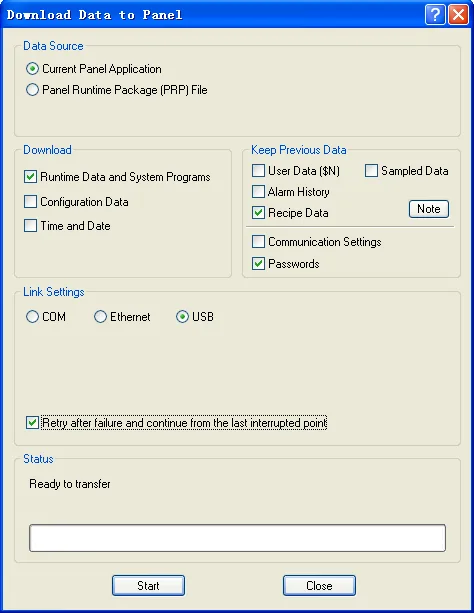
Note: If the application is modified, the software will automatically compile the application before downloading.
The following table describes each property in the Download Data to Panel dialog.
|
Property |
Description | |
|---|---|---|
| Data Source |
Select the data you want to download. The current panel
application is the data generated by the compiler. The
panel runtime data package includes the current panel
application data and system programs saved in a PRP
file. You need to select a PRP file to download if the
Panel Runtime Data Package (PRP) File option is
selected. |
|
| Download |
Check Runtime Data and System Programs, Configuration
Data, Time and Date if you want to download them.
Available only when the data source is the current panel
application. You can select the configuration data to backup the panel application to the target panel. The data format is the same as the Panel Application Files(PLF) |
|
| Keep Previous Data |
Check the previous data of User Data ($N), Alarm
History, Recipe Data or Sampled Data if you want the
selected data to be kept instead of being cleared after
downloading. The selected data will be kept only if: 1) The previous application was compiled and downloaded by the software V1.2.26 or later. 2) The configurations of battery backed user memory, recipe blocks, data loggers, alarm blocks, and the alarm logging buffer for both the old and new applications are exactly the same. |
|
| Link Settings | Select the communication port that is used to download the data. | |
| Communication Port | Description | |
| COM |
Use the serial port to perform the download and select
the communication port and the baud rate used. |
|
| Ethernet |
Use the Ethernet to perform the download. Type the IP
Address where the target panel is located, or choose a
recently connected entry from the list. |
|
| USB | Use the USB to perform the download. You need to install the USB driver before transferring data with the USB cable. To know how to install a USB driver, please see Section 18.3.3. | |
| If the target panel has sufficient memory, you can perform data transmission in safe mode. | ||
| Mode | Description | |
| Direct Mode | Download data directly to flash memory. | |
| Safe Mode | Buffer the data in the RAM of the target panel to prevent download problems in large files. The transmission has to be done successfully before the data in the SDRAM will be saved to the flash memory. | |
| Status | Display the transmission status and progress. | |
| Start | Click the button to start download the data. | |
| Cancel | Cancel the download operation. | |
| Close | Exit the dialog. | |
Note: On the standard toolbar, you can click
 the Download
Immediately icon to immediately download data using the existing settings of the
Download Data to Panel dialog to the target panel.
Need PM Designer itself?
V4 for current PK, PT, ITV and PM panels, V2 for older models. Free, sent by email.
Source.Section 18.3.1 of the PM Designer Software User Manual, Edition 2.0, © Cermate Technologies Inc. (www.cermate.com, service@cermate.com). Reproduced online, with the manual's own figures, by TSL Automation Solutions, authorised Cermate distributor, for users of Cermate HMI panels. PM Designer and PanelMaster are trademarks of Cermate Technologies Inc.
Text and figures are the manufacturer's and may describe features your panel or software version does not have. For a plain-language introduction read the PM Designer guide; for help with a specific panel contact TSL Automation.