
Section 18.3.3 · Chapter 18: Compiling/Simulating/Downloading A Panel Application
Installing a USB Driver to Transfer Data Using a USB Cable
This section describes how to install a USB driver for downloading an application to the target panel on a Microsoft Windows based computer.
Step 1: Log on to your computer as an administrator.
Step 2: Connect the computer and the target panel through a USB cable
Step 3: Start installing the driver
You can use one of the following methods as appropriate to begin installing the driver:
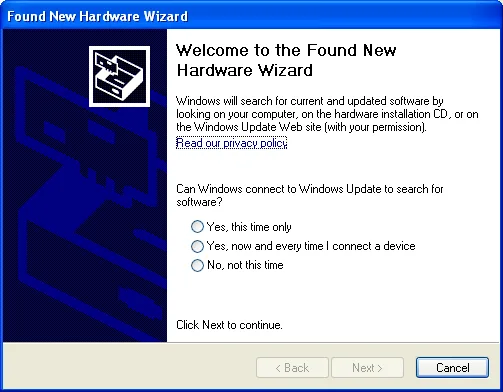
■ With the Found New Hardware Wizard
Power on the target panel, “Found New Hardware Wizard” will automatically pop-up
in Windows to guide you to install the driver.
■ With the Upgrade Device Driver Wizard
If the “Found New Hardware Wizard” does not appear or if it
is turned off, you can do the following to bring out the Upgrade Device Driver
wizard:
1. On the desktop, right-click My Computer, and then click Manage.
2. Under System Tools, click Device Manager.
The devices that are installed on the computer are listed in
the right pane.
3. Expand the Other devices category
4. Right-click the device named Neo HMI for which you want to install the
driver, and then click Properties.
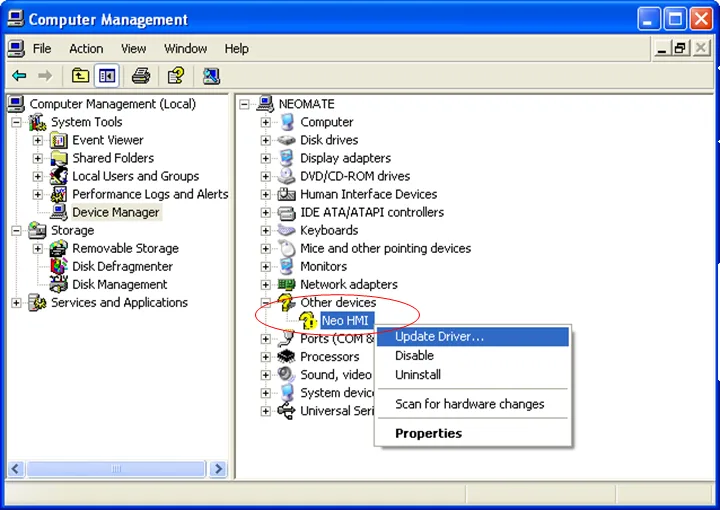
5. Click the Driver tab, and then click Update Driver. The
Upgrade Device Driver wizard starts.
Step 4: Install the driver by following the wizard instructions
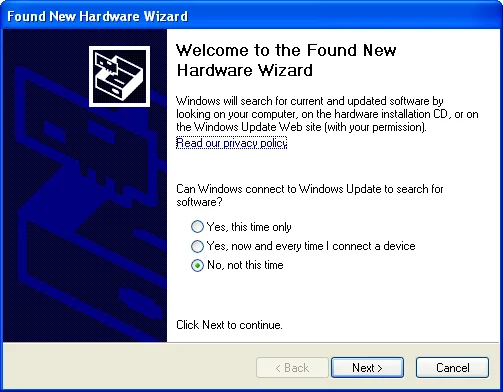
1. Click Next.
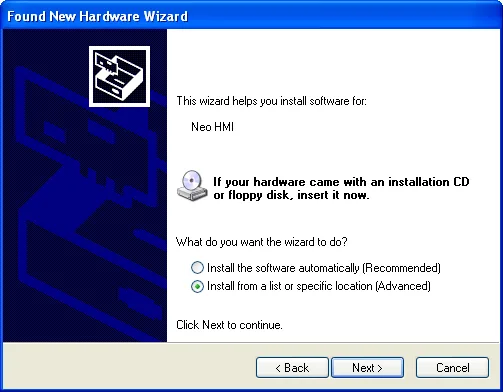
2. Click Install from a list or specific location (Advanced), and then click Next.
3. Click Search for the best driver in these locations, and then select Include this location in the search, click Browse, select \Usb in the software’s installation folder as the folder that contains drivers, and then click Next.
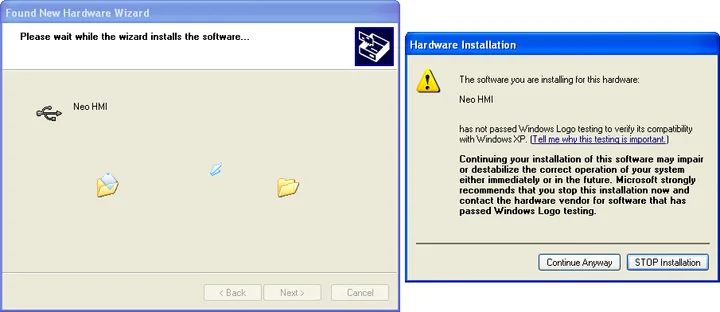
4. Click Continue Anyway if the Hardware Installation dialog box shown as below appears.
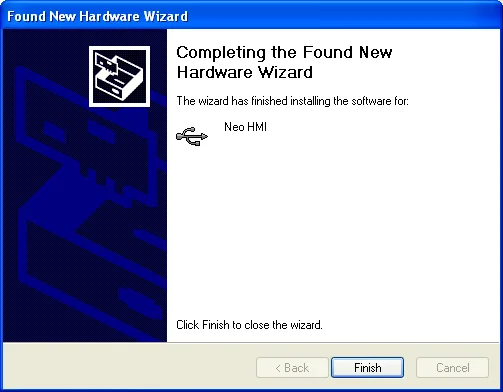
Step 5: Click Finish to complete installing the driver for Neo HMI
Note: The first time you connect a target panel that plugs into any of the USB ports on the computer, you need to install a driver for that device.
After installing the driver, you can use the USB to transfer data between the PC and the target panel which supports USB transferring. In the software, you need to select USB as the link settings in the Download Data to Panel/Upload Data from Panel dialog box before transferring.
Need PM Designer itself?
V4 for current PK, PT, ITV and PM panels, V2 for older models. Free, sent by email.
Source.Section 18.3.3 of the PM Designer Software User Manual, Edition 2.0, © Cermate Technologies Inc. (www.cermate.com, service@cermate.com). Reproduced online, with the manual's own figures, by TSL Automation Solutions, authorised Cermate distributor, for users of Cermate HMI panels. PM Designer and PanelMaster are trademarks of Cermate Technologies Inc.
Text and figures are the manufacturer's and may describe features your panel or software version does not have. For a plain-language introduction read the PM Designer guide; for help with a specific panel contact TSL Automation.