
Section 18.1.1 · Chapter 18: Compiling/Simulating/Downloading A Panel Application
Compiling an Application
To compile an application, you can do the following:
-
In the menu bar, click Panel to bring up the Panel sub-menu. Click Compile… in the Panel sub-menu.
Alternatively, click the Compile icon
in the main toolbar.
-
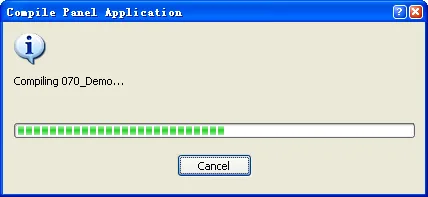
The Compile Panel Application dialog will pop-up and show the progress of the compiling process. If you want to cancel the compiling operation, click the Cancel button.
The following is an example of the Compile Panel Application dialog in the process of compiling.
-
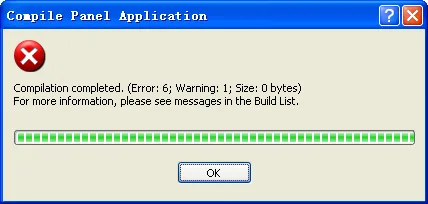
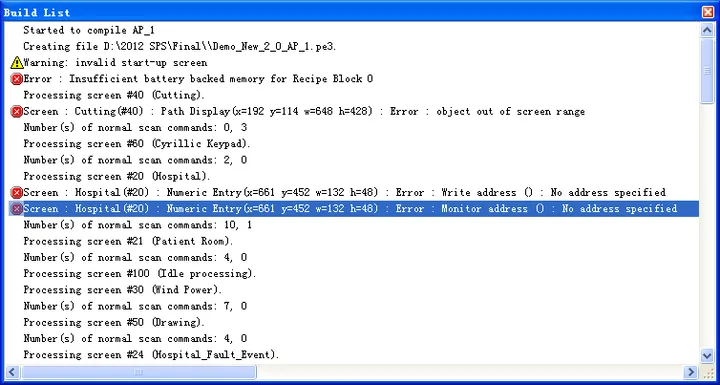
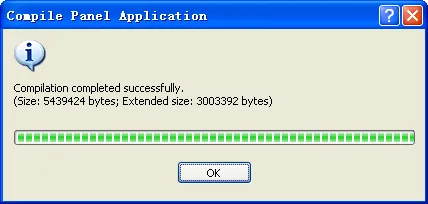
After the compilation is complete, the Compile Panel Application dialog will display the compilation information according to the result and the target panel model. And all the details will be listed in the Build List Window. To know about the Built List Window, please see Section 18.1.3 Built List Window.
The following are the examples of the Compile Panel Application dialog and the Built List Window when the compilation is complete.
| Panel Model and Compile Result | Compile Panel Application dialog and Build List Window |
|---|---|
| If the compilation fails |
The Compile Panel
Application dialog will display the error count and warning
count.
|
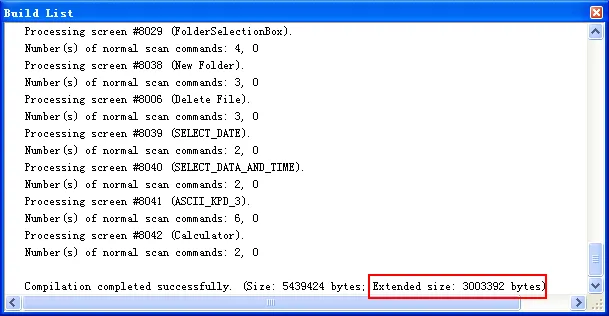
| If the target panel is HMI, and the compilation is completed successfully |
The Compile Panel
Application dialog will display the total file size of the panel runtime data. The runtime data of the
current panel application will be saved into a file
named Project Name_Application Name.pl3. The extended
data will be saved on a mass storage device. You need to
specify the device for extended data saving in the
Custom page of General Setup properties dialog box.
Please see details in
Section 3.1.2 Custom Settings.
|
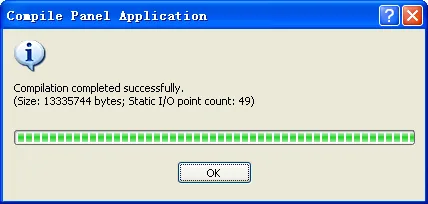
| If the target panel is the HMI Runtime, and the compilation is completed successfully |
The Compile Panel
Application dialog will display the total file size of the panel runtime data
and the total static I/O point count. The runtime data of the
current panel application will be saved into a file
named Project Name_Application Name.pe3. To find the
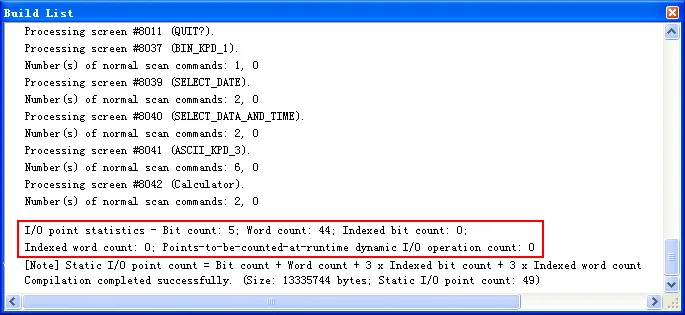
details about the I/O point statistics which includes
Bit I/O count, Word I/O count, Indexed Bit count
and Indexed Word count, please open the build list
window.
|
Need PM Designer itself?
V4 for current PK, PT, ITV and PM panels, V2 for older models. Free, sent by email.
Source.Section 18.1.1 of the PM Designer Software User Manual, Edition 2.0, © Cermate Technologies Inc. (www.cermate.com, service@cermate.com). Reproduced online, with the manual's own figures, by TSL Automation Solutions, authorised Cermate distributor, for users of Cermate HMI panels. PM Designer and PanelMaster are trademarks of Cermate Technologies Inc.
Text and figures are the manufacturer's and may describe features your panel or software version does not have. For a plain-language introduction read the PM Designer guide; for help with a specific panel contact TSL Automation.