
Chapter 11 of 13 · PM Designer guide
Compile, simulate and download a PM Designer project to the HMI
Compiling turns a PM Designer project into the runtime image a panel executes; simulating runs that image on the PC, off-line against virtual registers or on-line against the real PLC; downloading sends it to the panel over USB, Ethernet or a COM port. This chapter covers all three, plus PRP packages for field updates, uploading a project back from a panel, and how to keep recipes and alarm history when you download a new version.
Applies to PM Designer V2.1 and V4.0Updated 11 Nov 2026Manual reference: Chapters 18, 19 and 20
Compiling an application
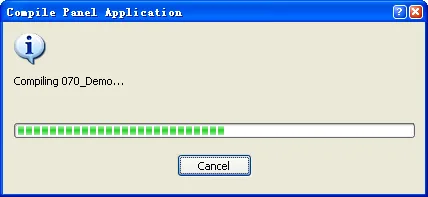
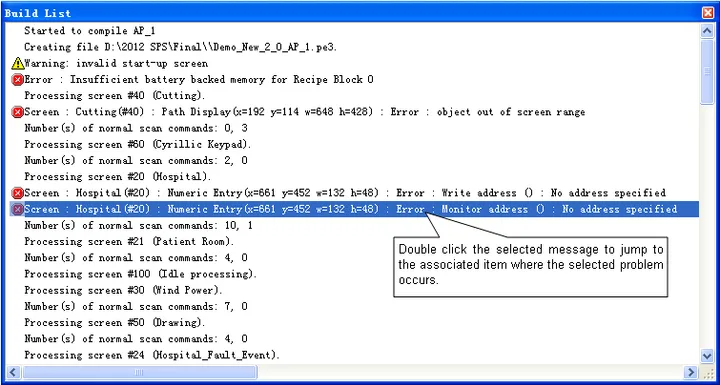
Choose Panel > Compile or click the Compile icon. The compiler checks every object, address and macro, optimises the communication reads, translates macros into executable code and writes the runtime data to a file named ProjectName_ApplicationName.pl3 (.pl4 in V4) next to the project. The Compile Panel Application dialog shows progress and the result; the Build List window below the editor lists every error and warning, each marked with an icon, and double-clicking an entry opens the object or macro concerned.
The result line also tells you the size of the runtime data. The T series accepts roughly 47 to 50 MB and the K series 18 to 20 MB depending on display size, and the real limit is somewhat lower because the panel needs working memory. If a project is close to the limit, pictures are almost always the cause: reduce bitmap resolution to the panel's native size and reuse one picture group instead of importing variants.
Building a Panel Runtime Package (PRP)
Panel > Build Panel Runtime Package compiles the application and bundles it with the panel's system programs into one portable .prp file. A PRP can be copied to a USB stick and loaded on the panel from its Panel Setup screen (Update from File), or sent with Data Transfer Helper, so a technician in the field can update a machine without PM Designer or the project source. When the package is built the software shows a PRP password, derived from the project's developer password; give that to whoever applies the update instead of the developer password itself, which would let them do anything on the panel. Panels with OS V2.0.5.00 or later accept PRP passwords.
Simulating on the PC
The simulator runs the compiled application in a window that looks like the panel, keypads and all. The application must be saved and compiled first. There are two modes:
| Mode | How it talks to the PLC | Use it for |
|---|---|---|
| Off-line simulation Tools > Run Off-line Simulation | It does not. The PC allocates a memory block for every register of every device in the project and the simulator reads and writes that memory. A communication error can never occur. | Screen layout, object behaviour, state colours, keypads, macros and logic. Anything that does not depend on real PLC data. |
| On-line simulation Tools > Run On-line Simulation | The PC uses its own COM port or network card to talk to the real device with the project's link settings. | Proving the driver, cable and parameters before the panel is involved; troubleshooting a communication error with the PLC on the bench. |
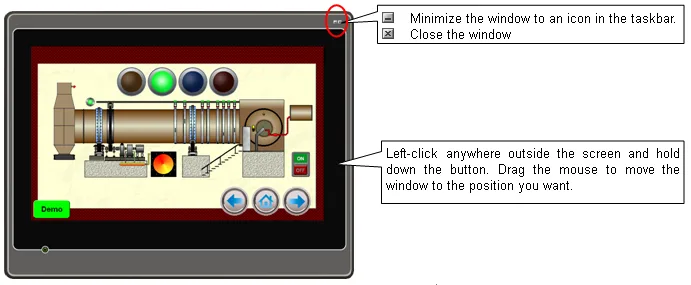
For on-line simulation the PC must have the port the link expects: a USB-to-RS232 or RS485 adapter for serial links, or an Ethernet connection on the same subnet as the PLC. The PC's COM number does not have to match the panel's; the simulator asks which port to use when it starts.
Downloading to the panel
Panel > Download (or the Download icon) opens the Download Data to Panel dialog. If the application has changed since the last compile it is compiled first.
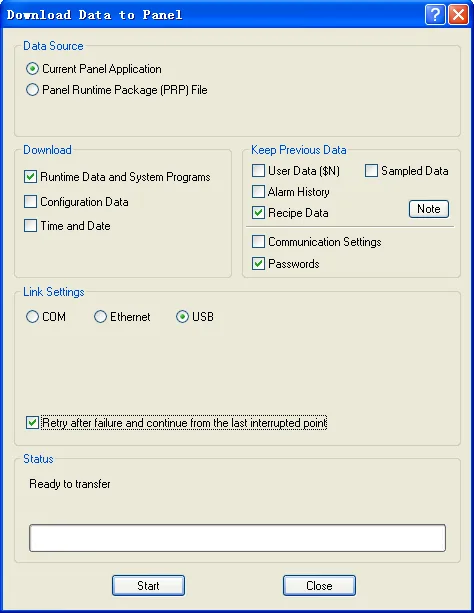
- Data Source: the current panel application, or a PRP file built earlier.
- Download: Runtime Data and System Programs is the application; tick Configuration Data as well to store a copy of the project (in PLF form) in the panel so it can be uploaded later; Time and Date sets the panel clock from the PC.
- Keep Previous Data: tick User Data ($N), Alarm History, Recipe Data or Sampled Data to preserve them across the download. This only works if the old application was compiled with V1.2.26 or later and the memory layout of battery-backed memory, recipe blocks, data loggers and alarm blocks is identical in both versions; change any of those and the data is cleared.
- Link Settings: COM (choose port and baud rate), Ethernet (type the panel's IP address or pick a recent one) or USB (needs the driver from Chapter 1).
- Mode: Direct Mode writes straight to flash; Safe Mode buffers the whole transfer in the panel's RAM and only writes flash once it is complete. Use Safe Mode for large applications and for any connection that has ever dropped mid-transfer.
A new panel accepts the download at once. A panel that already holds a project with a different developer password asks for that password first; after a successful download it adopts the new project's password. Set the panel's IP address beforehand in its Panel Setup screen (General page) if you download over Ethernet, and keep the PC on the same subnet.
Uploading from the panel
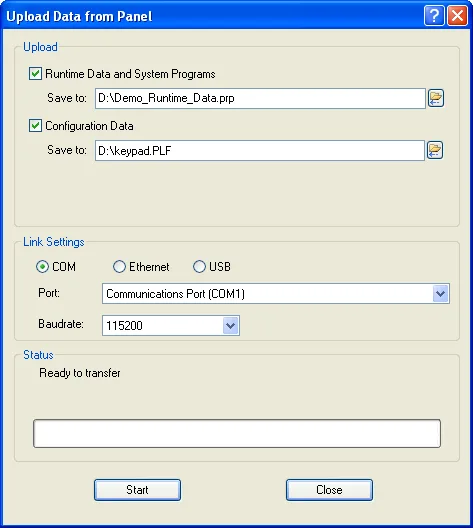
Panel > Upload reads data back from a panel. It can retrieve the panel application in configuration form (a PLF file, which PM Designer imports as a new panel application via the project node's Import Panel Application command) as well as recipe data and logged data. Uploading the application only works if Configuration Data was ticked when it was downloaded; otherwise the panel holds only the compiled runtime, which cannot be turned back into an editable project. For that reason tick Configuration Data on every production download and keep the .pm4 file under version control anyway.
Data Transfer Helper for the field
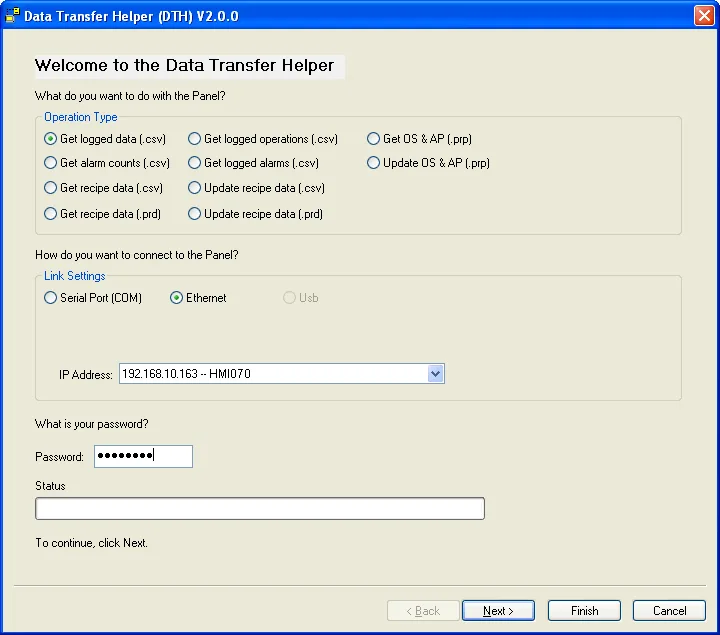
Data Transfer Helper (DTH, dth2.exe in the installation folder and in the Start menu) is a standalone tool for people who do not have, or should not have, the project. Over COM or Ethernet it can get logged data, logged operations, alarm counts, alarm history and recipe data from a panel into CSV, TXT or PRD files, update recipe data from a file, and get or update the complete OS and application as a PRP file. It asks for a level 8 password (the default level 8 password is 88888888 unless the project changed it) and, for an OS and AP update, the developer or PRP password.
The panel's own setup screen
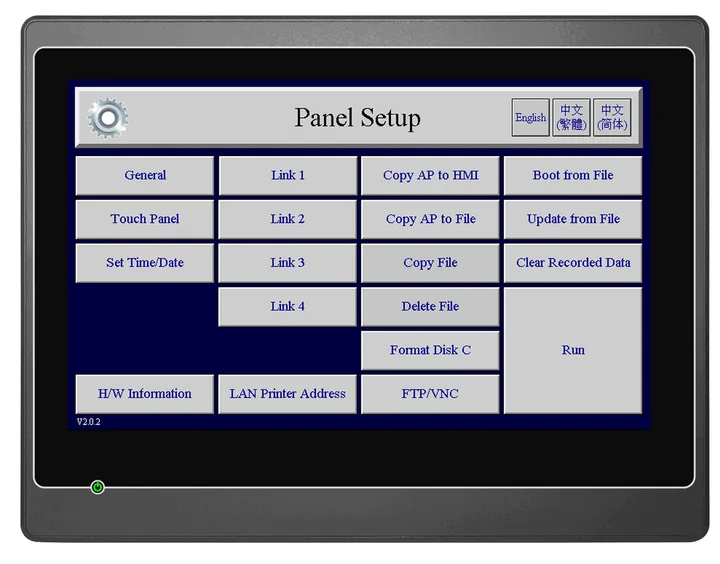
With "Run AP After Power On" set to False, a panel boots into its Panel Setup screen instead of the application. From a running application you reach the same screen by touching the top-left, top-right and top-left corners in turn (a red square blinks at each corner when the touch registers), provided "Allow To Run Panel Setup" is True in the panel's General settings. Panel Setup is where you set the IP address, subnet mask and gateway, calibrate the touch panel, set the clock, adjust brightness and the screen-saver time, inspect the link parameters, copy the application to a file or another HMI, load or update from a PRP file, format the built-in disk, clear recorded data, and configure the FTP and VNC servers.
System loader recovery
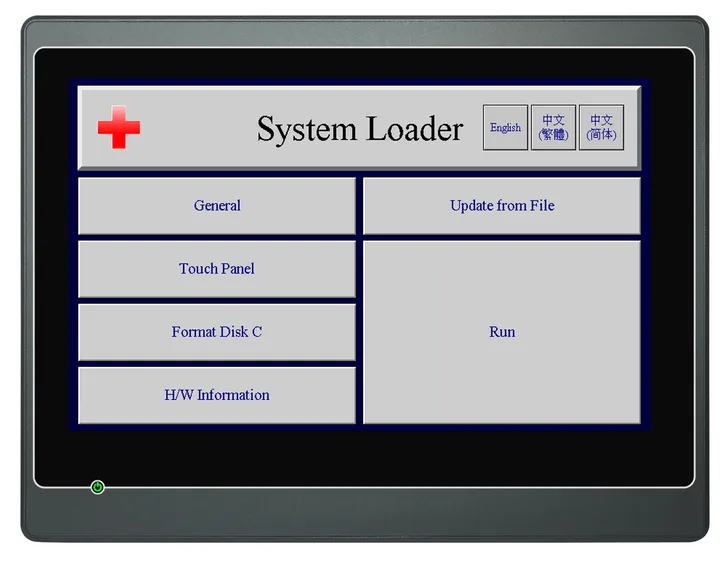
If a panel no longer boots normally, hold the upper-left corner of the touch screen for about three seconds while powering on. After a beep the System Loader appears. It offers the IP address and brightness settings, touch calibration, hardware information, Format Disk C and, most usefully, Update from File, which reloads the system programs and application from a PRP file on a USB stick. That is the path back from a corrupted download or a failed OS update, and the reason to keep a PRP of every machine's current application on file.
Frequently asked questions
What is the difference between a PL4 file and a PRP file?
The .pl4 (.pl3 in V2) is the compiled runtime data of one panel application. A .prp package adds the panel system programs, so it can update a panel on its own from a USB stick, DTH or the system loader without PM Designer.
Can I get my project back from a panel?
Only if Configuration Data was ticked when it was downloaded. Then Panel > Upload retrieves a PLF file that imports as a panel application. A panel holding just the runtime cannot be decompiled.
Will a download erase my recipes and alarm history?
By default yes. Tick the items under Keep Previous Data in the Download dialog; they survive if the recipe blocks, data loggers, alarm blocks and battery-backed memory are configured identically in the old and new application.
How do I download without a USB driver?
Use Ethernet. Set the panel IP address, subnet mask and gateway in its Panel Setup screen, put the PC on the same subnet, and choose Ethernet with that address in the Download dialog.
Stuck on a Cermate panel?
TSL Automation has supplied and supported Cermate HMIs since 2015. Send us the model, the PM Designer version and a screenshot of the error.
Written by TSL Automation Solutions from the PM Designer user manual and application notes that ship with the software, and from our own support work. Screenshots are from the manual and remain the property of Cermate Technologies Inc. PM Designer and PanelMaster are trademarks of Cermate Technologies Inc. Check your panel's own manual for model-specific limits.