
Section 19.1.2 · Chapter 19: Using Tools
Setting Transparent Communication Through Ethernet
When you want to monitor or modify something of your PLC with the PLC software running on a PC and the only serial port of the PLC is connected to the HMI unit, what can you do without disconnecting the HMI and reconnecting the PC with the PLC? The solution is right here. The Software allows you to make the HMI unit work as an Ethernet-to-serial converter and therefore a virtual COM port is provided for the PLC software to communicate with the PLC through the Ethernet and the HMI unit. Thanks to this feature, working on the operator interface and the PLC program at the same time with only one serial port is easier than before.
The following is an example of a link illustration.
To Install the driver for the transparent communication through Ethernet, please do the following:
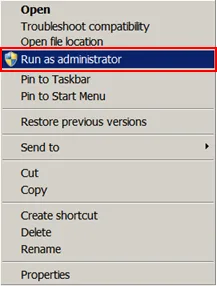
1) Use "Run as Administrator" to start the Software.
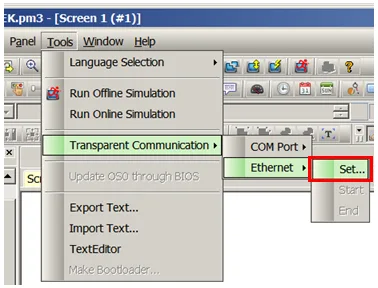
2) Click the menu item "Tools > Transparent Communication > Ethernet > Set" to bring up the Transparent Communication Through Ethernet dialog box.
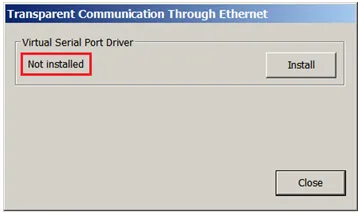
3) If the status of Virtual Serial Port Driver in the dialog box is "Not installed", click the Install button to install the driver. If the status is "Installed", the driver has been installed and you don't need to install it again.
4) During the installation, skip the automatic search for the driver/software offered by the Windows as the driver is already in the local disk.
5) After the installation is done successfully, the dialog box displays the following contents.
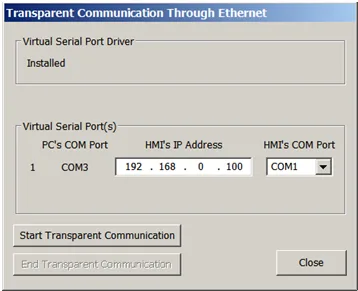
The following table describes each item on the keypad screen.
| Property | Description |
|---|---|
| PC's COM Port | The virtual COM port provided by the installed driver. You need to configure the PLC software to use this port to communicate with the PLC. |
| HMI's IP Address | The IP address of the HMI unit that is used as an Ethernet-to-serial converter. The default address is 192.168.0.100. |
| HMI's COM Port | The serial port of the HMI unit that is physically connected to the PLC. The default is COM1. |
To start or end the transparent communication through Ethernet, please do the following:
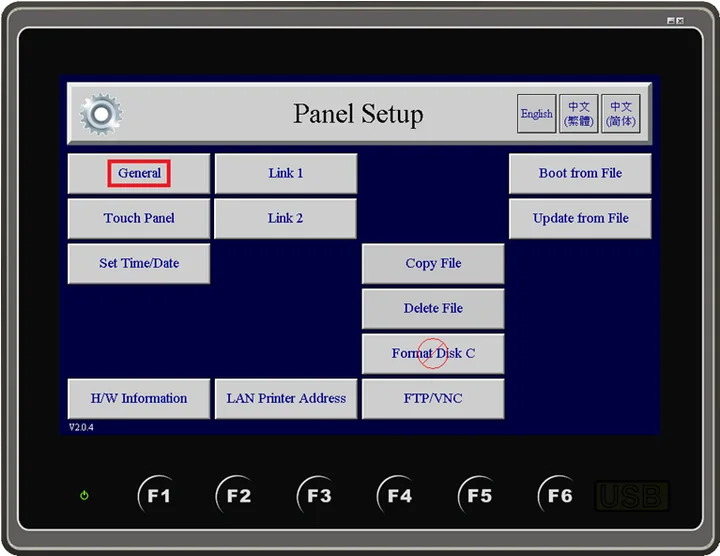
1) Connect the HMI unit to the LAN and turn on its power. Run the Panel Setup.
a. Press General button to open the General dialog box.
b. Set the Transparent Communication to True in the General dialog box.
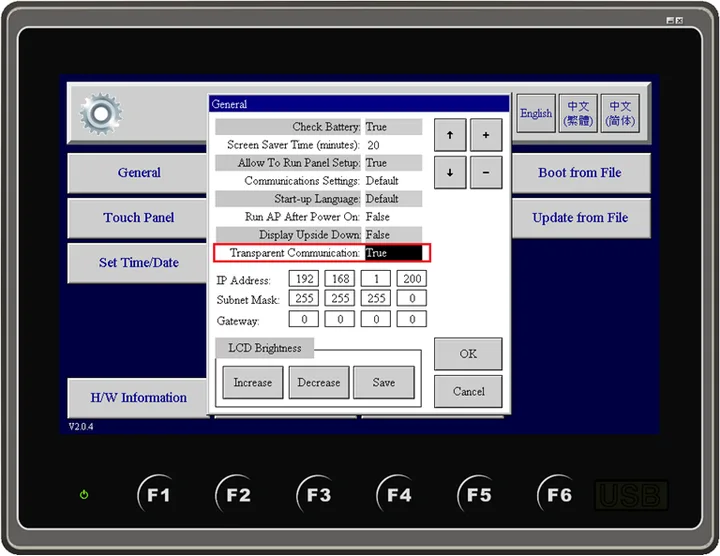
c. Press OK button to save the setting.
2) Run the Software.
a. Click the menu item "Tools | Transparent Communication | Ethernet | Set..." to bring up the Transparent Communication Through Ethernet dialog box.
b. Make sure the status of the Virtual Serial Port Driver is "Installed".
c. Memorize the PC's COM Port, i.e. the virtual COM port provided by the screen design software, to set up the PLC software later.
d. Set the Panel's IP Address to the HMI unit's IP address.
e. Set the Panel's COM Port to the serial port of the HMI unit that is connected to the PLC.
f. Click the "Start Transparent
Communication" button. The HMI unit will display the message box as shown below
when it is ready to perform the transparent communication.
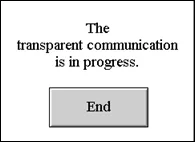
g. Click Close button to exit the dialog box.
3) Run the PLC software.
a. Set the serial communication port to the virtual COM port provided by the Software.
b. Start your operation.
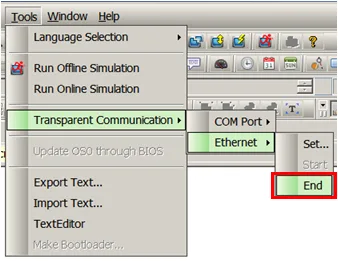
4) To end the transparent communication, close the PLC software first then click the menu item "Tools | Transparent Communication | Ethernet | End" on the menu bar of the Software.
Need PM Designer itself?
V4 for current PK, PT, ITV and PM panels, V2 for older models. Free, sent by email.
Source.Section 19.1.2 of the PM Designer Software User Manual, Edition 2.0, © Cermate Technologies Inc. (www.cermate.com, service@cermate.com). Reproduced online, with the manual's own figures, by TSL Automation Solutions, authorised Cermate distributor, for users of Cermate HMI panels. PM Designer and PanelMaster are trademarks of Cermate Technologies Inc.
Text and figures are the manufacturer's and may describe features your panel or software version does not have. For a plain-language introduction read the PM Designer guide; for help with a specific panel contact TSL Automation.