
Section 19.2.1 · Chapter 19: Using Tools
Data Transfer Helper (DTH) - Operation Settings
The following table lists all the operation types supported by DTH and shows how to make the settings for each type.
|
Operation Type |
Settings |
|---|---|
| Get logged data (.csv/.txt) |
Saves the data collected by the selected data logger in
a specified file.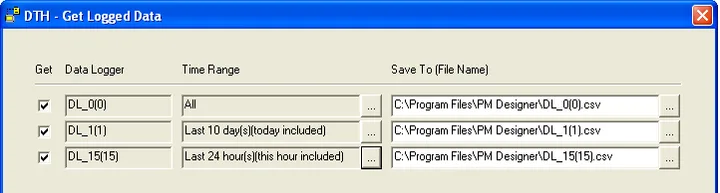 The above dialog lists all the data loggers in the application. You may do the following in the dialog: * Check the data logger you want to get the data from. * Click  button in Time Range to bring up the Time Range dialog
to specify the duration of the collected data. For more
about the Time Range dialog, please see
Section 19.2.3. * Type in a file name or click
button of Save To (File Name) to bring up the Open File
dialog to specify the file name. |
| Get logged operations(.csv/.txt) |
Saves the operation history in a text file or a csv
file.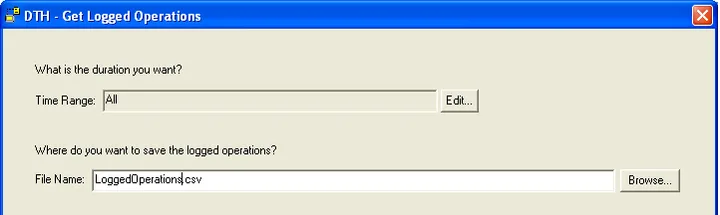 You need to do the following in the dialog: * Click  button to bring up the Time Range dialog to specify the
duration of the operation history data. For more about
the Time Range dialog, please see
Section 19.2.3. * Type in a file name or click  button to bring up the Open File dialog to specify the
file name. |
| Get alarm counts(.csv/.txt) |
Saves the alarm counts in a text file or a csv file. Type in a file name or click
button to bring up the Open File dialog to specify the
file name in CSV or TXT format |
| Get logged alarms(.csv/.txt) |
Saves the alarm history in a text file or a csv file.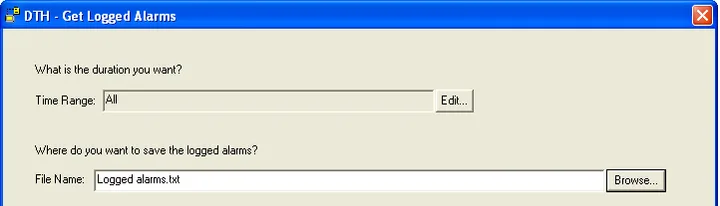 You may do the following in the dialog: * Click
button of Time Range to bring up the Time Range dialog
to specify the duration of the alarm history data. For
more about the Time Range dialog, please see
Section 19.2.3.* Type in a file name or click
button to bring up the Open File dialog to specify the
file name. |
| Get recipe data(.csv/.txt/.prd) |
Saves the data of the specified recipe block in a file
using the CSV/TXT/PRD format.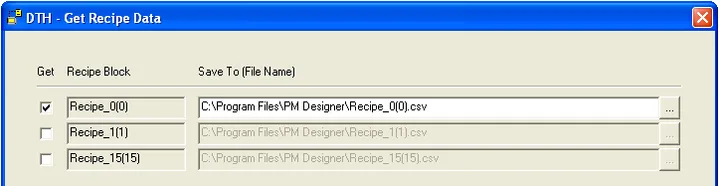 The above dialog lists all the recipe blocks in the application. You may do the following in the dialog: * Check the recipe block you want to get the data from. * Type in a file name or click
button of Save To (File Name) to bring up the Open File
dialog to specify the file name. |
| Update recipe data(.csv/.txt/.prd) |
Updates the data of the selected recipe block from a CSV
or TXT or PRP file.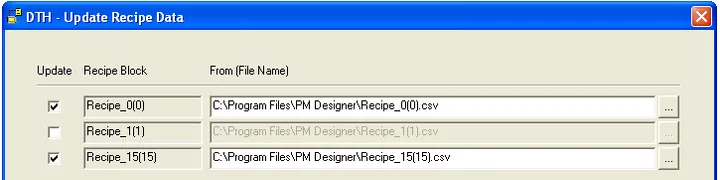 The above dialog lists all the recipe blocks in the application. You may do the following in the dialog: * Check the recipe block you want to update the data of. * Type in a file name or click
button of Save To (File Name) to bring up the Open File
dialog to specify the file name. |
| Get OS & AP (.prp) |
You need to enter a valid developer password to get and
save the system programs and application runtime data in
a specified PRP file..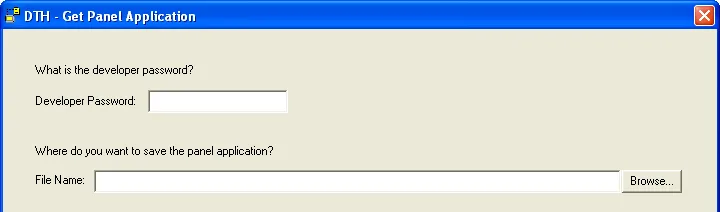 |
| Update OS & AP(.prp) |
Updates the system programs and the application runtime
data from a specified PRP file. The original system
programs and the application runtime data are replaced
by the new ones. |
Need PM Designer itself?
V4 for current PK, PT, ITV and PM panels, V2 for older models. Free, sent by email.
Source.Section 19.2.1 of the PM Designer Software User Manual, Edition 2.0, © Cermate Technologies Inc. (www.cermate.com, service@cermate.com). Reproduced online, with the manual's own figures, by TSL Automation Solutions, authorised Cermate distributor, for users of Cermate HMI panels. PM Designer and PanelMaster are trademarks of Cermate Technologies Inc.
Text and figures are the manufacturer's and may describe features your panel or software version does not have. For a plain-language introduction read the PM Designer guide; for help with a specific panel contact TSL Automation.