
Section 19.3.3 · Chapter 19: Using Tools
TextEditor
TextEditor is an independent executable program. It is used
to edit all the screen texts in multi-languages
To run TextEditor, choose Start > All Programs > “The software” >
 TextEditor.
Alternatively, click Tools to bring up the Tools sub-menu from the menu bar.
Then, click TextEditor in the Tools sub-menu.
The following is an example of the TextEditor:
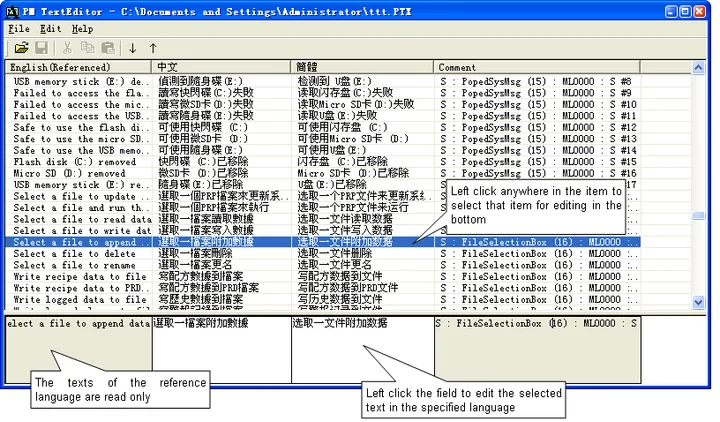
The following table lists all the buttons on the toolbar.
|
Icon |
Tool Tip | Description |
|---|---|---|
 |
Open | Open the PTX file which saved all the screen texts in multi-language. You can create the PTX file by using Export Text Tool provided by the software. Please see details about Export Text in Section 19.3.1. |
 |
Save | Save the current PTX file. |
 |
Cut | Cut the selection and put it on the Clipboard. |
 |
Copy | Copy the selection and put it on the Clipboard. |
 |
Paste | Place the Clipboard contents on to the current screen. |
 |
Alt+Dn | Move the selection down from the previous item |
 |
Alt+Up | Move the selection up from the next item |
Need PM Designer itself?
V4 for current PK, PT, ITV and PM panels, V2 for older models. Free, sent by email.
Source.Section 19.3.3 of the PM Designer Software User Manual, Edition 2.0, © Cermate Technologies Inc. (www.cermate.com, service@cermate.com). Reproduced online, with the manual's own figures, by TSL Automation Solutions, authorised Cermate distributor, for users of Cermate HMI panels. PM Designer and PanelMaster are trademarks of Cermate Technologies Inc.
Text and figures are the manufacturer's and may describe features your panel or software version does not have. For a plain-language introduction read the PM Designer guide; for help with a specific panel contact TSL Automation.