
Section 15.2.3 · Chapter 15: Using Macros
Naming and Finding a Macro
When adding a new macro for global use or for the panel application, you need to specify the macro name with the following dialog.
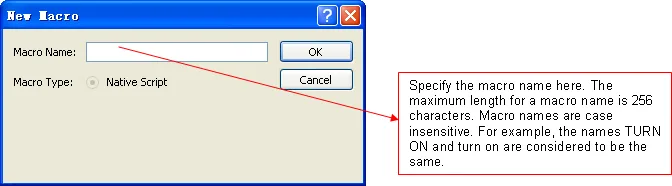
When importing a file as the macro, the file name will be the macro name as the
default.
In each panel application, the local macro name has to be unique, but a local
macro name can be the same as a global macro name.
■ Renaming a macro from Project Manager:
-
Locate the macro you would like to rename
-
Right-click on the macro to display the macro item's pop-up menu; and then click Rename, the second menu item.
-
Once the macro name is selected, simply type the new name over the selected text, and then press the ENTER key.
■ Finding a macro:
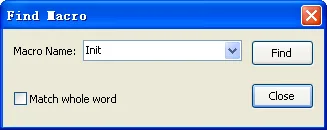
To find a macro used in the whole application, use the Find Macro… command on the Edit > Find and Replace menu. The following is an example of Find Macro dialog:
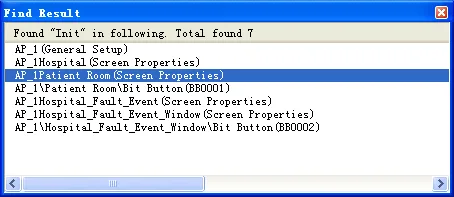
The search result will be listed in Find Result window. The following is an example of find result. About the Find Result window, please see 17.1.2 Find Result Window for details.
Need PM Designer itself?
V4 for current PK, PT, ITV and PM panels, V2 for older models. Free, sent by email.
Source.Section 15.2.3 of the PM Designer Software User Manual, Edition 2.0, © Cermate Technologies Inc. (www.cermate.com, service@cermate.com). Reproduced online, with the manual's own figures, by TSL Automation Solutions, authorised Cermate distributor, for users of Cermate HMI panels. PM Designer and PanelMaster are trademarks of Cermate Technologies Inc.
Text and figures are the manufacturer's and may describe features your panel or software version does not have. For a plain-language introduction read the PM Designer guide; for help with a specific panel contact TSL Automation.