
Section 15.2.6 · Chapter 15: Using Macros
Macro Settings in the Dialog
You can open and edit a specified macro or create a new macro in the configuration dialog that contains the macro page. The following is an example of the Macro page in the Bit Button configuration dialog.
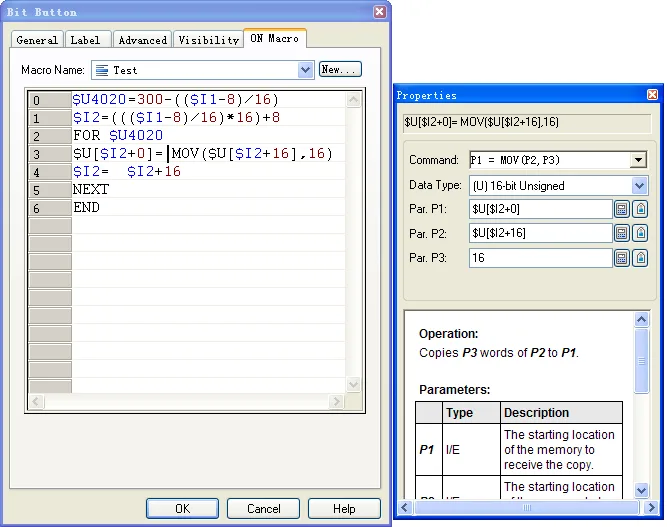
The following table describes each property in the General page.
| Property | Description |
|---|---|
| Macro Name |
Select an existing local macro or global macro from the
drop-down list. The following is a sample in the
dropdown list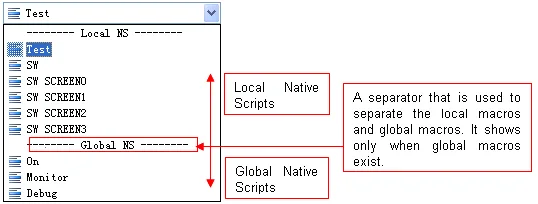 |
| New… | Click the button to bring out the New Macro dialog box to create a new and blank local macro. |
| Macro Editor Window |
Write and edit the macros here. For details, see
Section 15.3.1. If the
editor window is too small, you may drag out the window
and resize it. To drag and move the window, left-click
anywhere on the window frame and hold down the button,
then drag the mouse to move the window outside to
another area. It will “float” over the rest of the
dialog, allowing you to position it wherever you want it
to be. Release the mouse button to let go of the window.
Click on the resized tabs located at the bottom right
corner of the window to resize the window. Press the
close button to dock the window back into the dialog.
The following is a sample of the floating macro editor
window.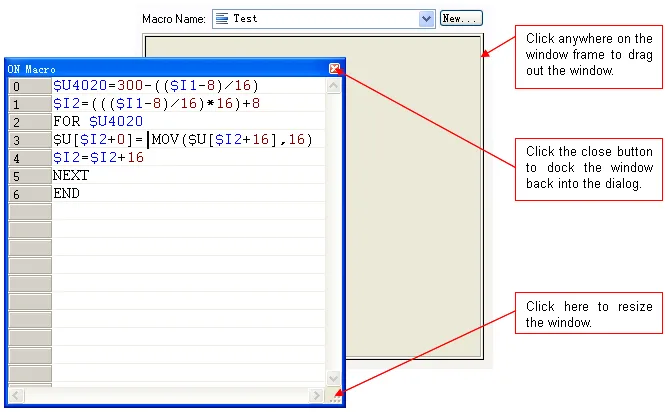 |
| Properties | A floating dialog allows you specify the macro command. For details, see Section 15.3.2. The macro command properties dialog can be moved anywhere and resized to any size you want. However, it can’t be closed until the dialog is closed. |
Need PM Designer itself?
V4 for current PK, PT, ITV and PM panels, V2 for older models. Free, sent by email.
Source.Section 15.2.6 of the PM Designer Software User Manual, Edition 2.0, © Cermate Technologies Inc. (www.cermate.com, service@cermate.com). Reproduced online, with the manual's own figures, by TSL Automation Solutions, authorised Cermate distributor, for users of Cermate HMI panels. PM Designer and PanelMaster are trademarks of Cermate Technologies Inc.
Text and figures are the manufacturer's and may describe features your panel or software version does not have. For a plain-language introduction read the PM Designer guide; for help with a specific panel contact TSL Automation.