
Chapter 10 of 13 · PM Designer guide
Macros in PM Designer: native script, commands and worked examples
Macros are small programs that run on the panel, written in PM Designer's native script: one command per line, in the form P1 = COMMAND(P2, P3) with an optional data type in brackets. They run at start-up, cyclically, on a trigger bit, on a timer, when a screen opens or closes, when a button is pressed, or when a data logger samples. This chapter explains the macro types, the syntax, the commands you will use most, and gives worked examples you can paste into a project.
Applies to PM Designer V2.1 and V4.0Updated 11 Nov 2026Manual reference: Chapter 15
Where a macro can run
PM Designer has one scripting language and many places to attach a script (Section 15.1). Pick the attachment point by when the code should run:
| Macro | Runs | Set in |
|---|---|---|
| Startup Macro | Once when the application starts; the start-up screen waits for it. Initialise data here. | Panel > General Setup |
| Main Macro | All the time, cyclically, with a preset delay between passes. | Panel > General Setup |
| Event Macro 1 to 4 | Once each time the associated trigger bit goes from 0 to 1. | Panel > General Setup |
| Time Macro 1 to 4 | Periodically at a chosen interval. | Panel > General Setup |
| Open, Cycle, Close Macro | When a screen opens, while it is open (cyclically), when it closes. | Screen Properties |
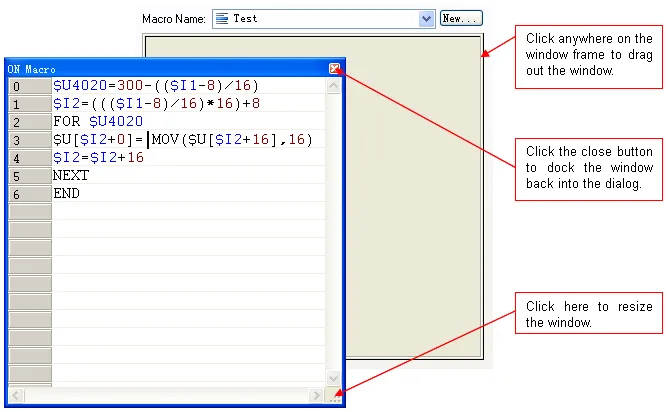
| On Macro, Off Macro | When a bit button or toggle switch sets its bit on or off. The bit is written after the macro ends, so keep it short. | The button's property sheet |
| Object Macro | When a screen button, function button or keypad button is activated. | The object's property sheet |
| Query Processing Macro | For each record an alarm display or historic table considers; return QRET(1) to keep it. | The object's Query page |
| Data Logging Macro | After every sample of a data logger, to convert data before SAVE2LB stores it. | The data logger |
| Start and End Macro | At the start and end time of a schedule. | The schedule |
| Sub-macro | When another macro calls it with CALL; must end with RET. | Macros node |
Macros are local to a panel application or global to the project (Project > Global Macros); global macros can only use internal variables and can be password protected. Create one by right-clicking Macros > Native Scripts and choosing Add Script, or import an existing .mcr or .txt file (Section 15.2.1). The editor has line numbers and syntax colouring (keywords black, comments green, addresses blue, constants red), and the Native Script Command Properties window beside it builds a command from drop-downs when you do not remember the syntax.
Syntax essentials
- One command per line:
P1 = COMMAND(P2, P3)or an operator form such asP1 = P2 + P3. Most commands take a data type in brackets at the end:(U)16-bit unsigned,(S)16-bit signed,(UD)and(SD)32-bit,(F)32-bit float,(B)bit. The default is U. - Operands are internal variables (
$U100,$N5.3), external addresses (W60,2\D100), tags, or constants. - Constants: decimal as written; hexadecimal with an
Hsuffix or0xprefix; binary with aBsuffix. When a number could also be a PLC address (40001 on a Modbus link) addKorDto force a constant, andFfor a float constant:40001K,-12.3F. - Strings:
$U60 = "TEST"copies a null-terminated ASCII string;L"..."is a Unicode string (used by the JSON and MQTT commands in V4). - Comments:
//to end of line, or/* ... */blocks. - Structure:
IF/ELIF/ELSE/ENDIFnest up to 20 deep;FOR n...NEXTloops;JMP labelandlabel:;CALL subandRET;ENDstops this pass of a cyclic macro,STOPstops it altogether.
The commands you will use most
Data transfer and arithmetic (Sections 15.4.2 and 15.4.3)
$U2 = 123.45 (F)              // float into $U2 and $U3
$U100.f = 1 (B)               // set a bit
W60 = ($U30 + W50 - 1000) / 2 (SD)
$U2.3 = !$U3.4 (B)            // logical NOT
$U100 = MOV($U200, 16)        // copy 16 words
$U100 = SETM(0, 16)           // fill 16 words with 0
$U10 = MOV(2\D100, 10)        // D100..D109 from link 2 into $U10..$U19
$U100.0 = MOV_BITS($U200.0, 16) (B)
$U100 = $U30 % 16 (U)         // modulus
Conditions and loops (Sections 15.4.7 and 15.4.8)
IF $U10 == 0 (U)
   $U20 = 0
ELIF $U10 > 100 (U)
   $U20 = 100
ELSE
   $U20 = $U10
ENDIF

$U1 = 10
FOR $U1                        // runs 10 times; $U1 counts down
   $U100 = $U100 + 1
NEXT

IF !$U0.0 (B)
   JMP SKIP
ENDIF
$U20 = $U10 / 2
SKIP:
CALL Normalise                 // sub-macro, which ends with RET
Timers (Section 15.4.9)
Eight timers (0 to 7, 100 ms resolution; some models add 8 to 11 at 10 ms) run from a Timer Control Block of 4 to 7 words that the timer owns: operation type, current value, limit, time-up flag, and bit-rotation words for type 3.
$U100 = 1        // 1 = square wave (0 one-shot, 2 one-shot continuous, 3 square wave with rotating bits)
$U101 = 0        // current value
$U102 = 5        // limit = 0.5 s
$U103 = 0        // time-up flag toggles here
SET_T(3, $U100)  // 1 Hz square wave on $U103.0 using timer 3
WAIT_T(7)        // in a one-shot: block until timer 7 expires
STOP_T(1)
Links, recipes and loggers (Sections 15.4.11 to 15.4.13)
$U100 = LINK_STS(1, 0)        // 0 = OK, 5 = no response, 7 = timeout ...
EN_LINK(1, 20, 0)             // disable sub-link node 20 of link 1
LINK_PAR(1, 2, 0, $U200)      // write IP, port, timeout of link 2 from $U200
$U10 = RB2ROM(3)              // back up recipe block 3 to flash
$U10 = ROM2RB(3)              // restore it
REF_RCP_OBJ(3)                // redraw recipe objects of block 3
SAVE2LB(3, $U100, $U103)      // store $U103 words from $U100 into logger 3
CLR_LB(1)                     // clear logger 1
REF_H_OBJ(1, 0)               // redraw historic objects of logger 1
Other command groups
The manual's Chapter 15 and the separate MacroHelp_EN.chm cover logical and bitwise operations, calculations (SUM, MAX, MIN, AVG, SQRT and more), data conversion between BCD, binary, ASCII and word or byte arrays, keypad control, screen operations (OPEN_WS, CLOSE_WS), comparison, string operations (the largest group: copy, compare, find, convert numbers to and from text, date and time to text), math, sound and print, communication macros for the General Device driver, and a big file group: COPY_FILE, COPY_FILE_NPB (no progress bar, V4), GET_FILE_LIST, delete files older than N days, read and write recipe files, and FTP client commands to push a file to a server or fetch one.
Worked examples
Initialise on start-up
// Startup Macro: clear working memory and set defaults from battery-backed memory
$U0 = SETM(0, 200)
$U300 = MOV($N100, 20)        // last used set-points
IF $N0.0 (B)                  // first run flag never set
   $N100 = SETM(0, 20)
   $N0.0 = 1 (B)
ENDIF
PLC watchdog lamp with a timer
// Time Macro 1, every second
$U100 = LINK_STS(1, 0)
IF $U100 == 0 (U)
   $U1.0 = 0 (B)              // PLC OK lamp off
   $U2 = 0                    // reset miss counter
ELSE
   $U2 = $U2 + 1
   IF $U2 >= 5 (U)            // five seconds without a reply
      $U1.0 = 1 (B)           // show "PLC offline" (visibility bit of a window screen)
   ENDIF
ENDIF
Scale an analogue input to engineering units
// Cycle Macro of the trend screen
$U40 = W100 (U)                       // raw 0..27648 from the PLC
$U42 = $U40 * 0.0036 (F)               // to 0.0..99.5 percent, float result in $U42/$U43
$U44 = $U42 * 2.5 + 20.0 (F)           // then to 20..270 degrees C
Filter an alarm display to one block
// Query Processing Macro of an alarm history display: keep only block 2 records
IF $S1000 == 2 (U)            // the record's block ID (see the Query page for the field words)
   QRET(1)
ENDIF
QRET(0)
Good practice
- Keep On, Off and Object macros to a few lines; the button's own operation waits until they finish.
- Use a Time Macro, not the Main Macro, for anything that only needs to run every second; the Main Macro runs continuously and steals link time.
- Never write to
$Ssystem words except the ones the manual names as writable (such as$S1039for the time zone). - Put reusable logic in sub-macros and global macros, protect global macros with a password if the project leaves your hands, and export macros as text so they can be diffed.
- Test in the off-line simulator with the Address Input Keypad's watch window; a macro that works there and fails on the panel usually has a wrong data type on a PLC address.
Frequently asked questions
What language are PM Designer macros written in?
Native script, a line-based language of the form P1 = COMMAND(P2, P3) with a data type in brackets, plus IF/ELIF/ELSE, FOR/NEXT, JMP, CALL and RET. It is documented in Chapter 15 of the manual and in MacroHelp_EN.chm.
How do I run a macro every second?
Attach it as a Time Macro in Panel > General Setup and choose the one-second interval, or start a square-wave timer with SET_T and act on its time-up flag in a Cycle macro.
Can a macro read the PLC link status?
Yes. $U100 = LINK_STS(1, 0) returns 0 for OK and codes such as 5 (no response), 7 (timeout) or 16 (link disabled). EN_LINK enables or disables a link or sub-link.
Why does my macro treat 40001 as an address?
On a Modbus link 40001 is a valid register address, so the compiler reads it as one. Add a K suffix (40001K) to force a constant, and F for floating-point constants.
How many timers does a Cermate panel have?
Eight timers (IDs 0 to 7) with 100 ms resolution, and four more (8 to 11) with 10 ms resolution on Windows, WinCE and ARM11 based models.
Stuck on a Cermate panel?
TSL Automation has supplied and supported Cermate HMIs since 2015. Send us the model, the PM Designer version and a screenshot of the error.
Written by TSL Automation Solutions from the PM Designer user manual and application notes that ship with the software, and from our own support work. Screenshots are from the manual and remain the property of Cermate Technologies Inc. PM Designer and PanelMaster are trademarks of Cermate Technologies Inc. Check your panel's own manual for model-specific limits.