
Section 2.1 · Chapter 2: Creating Projects
Project Information and Protection
You can get project information and set up passwords to
protect your project, password table, and global macros by using the Project
information & Protection
dialog box. To open the dialog box, you can do one of the following:
1) In the Project Manager tool window, double-click the Project node ( ).
2) In the menu bar, click Project to bring up the Project sub-menu. Then, click
Information & Protection….
The following is an example of the Project Information and Protection dialog
box.
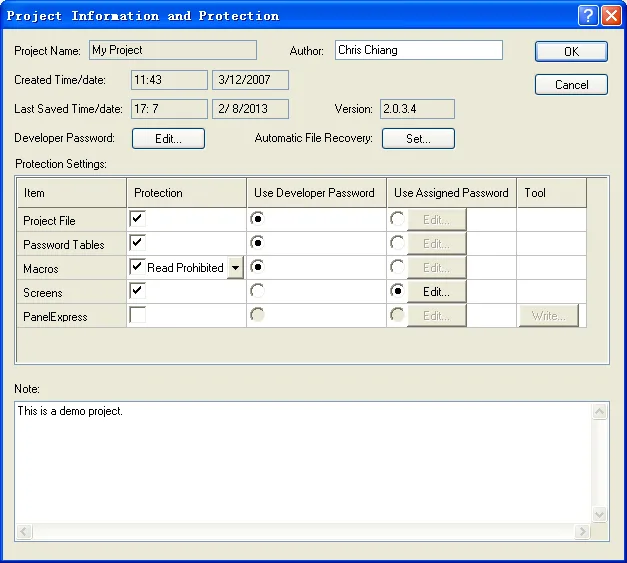
The following table describes how to read or use each of the items in the dialog box.
|
Item |
Description |
|
|---|---|---|
| Project Name | The name of the project. It is also the file name of the project. | |
| Author | The author of the project. | |
| Created Time/date | The time and date when the project was created. | |
| Last Saved Time/date | The last time and date when the project was saved. | |
| Version | The version number of the Software that was used to save the project last time. | |
| Developer Password |
 |
Click it to bring up the Edit Developer Password dialog
box and specify the developer password.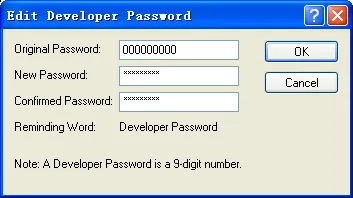 The developer password must be an unsigned integer and can have up to 9 digits. The default developer password is 000000000 (nine 0s) for new projects and new panels. When the runtime data of an application is downloaded to a panel, the panel compares its developer password with the developer password of the application. If the passwords match, the panel accepts the download operation immediately. If the passwords are different, the panel prompts for the entry of the developer password of the application. This ensures that one has the right to use the runtime data. After the entry of the application's developer password, the panel accepts the download operation and takes the developer password of the application as its own developer password. |
| Automatic File Recovery |
 |
Click it to bring up the File Recovery Settings dialog
box and specify the save interval for automatic file
recovery (max 60 minutes) and days to keep the backup
(Max 30 days).
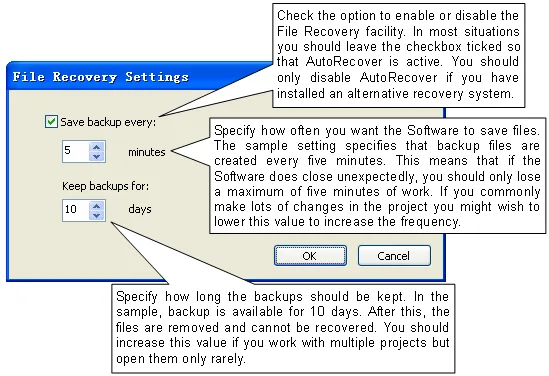 The Automatic File Recovery is a feature that automatically creates backup data for unsaved project files. If the software crashes or the power is lost or your solution is closed unexpectedly, this backup data can be used to recreate the unsaved files, mini-missing the loss of work. On reopening the Software, an option is given to recover the file or discard the backup data for the file. Backup File Location: You should not normally need to view backup files directly. If you do need to see them, they can be found in the Documents and Settings\Administrator folder. Open this folder and the subfolder named the same as the version of the Software you are using. This contains a "Backup" directory that holds the backup data, organized by project name. Note: Do not use the feature as a substitute for regularly saving your work by clicking Save  on the Standard toolbar. |
| Protection Settings | Item | The items that can be protected which include Project File, Password Tables, Macros, Screens and HMI Runtime. |
| Protection |
Check or uncheck this option to enable or disable the
protection of the corresponding item. You
need to enter the specified password to open the
corresponding item when this option is checked. You can protect the macros of a project in either one of the following two ways: 1) Read Prohibited - The macros are not viewable. 2) Read Only - The macros are viewable but not editable. Note: To disable the protection, you need to enter the original password in the following dialog box to proceed. 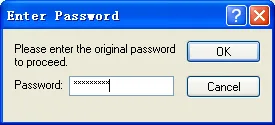 |
|
| Use Developer Password |
Available when the Protection option is checked. Check this
option if you want to use the developer password as the
protection.
Note: To switch between using develop password and using assigned password, you need to enter the original password in the Enter Password dialog box to proceed. |
|
| Use Assigned Password |
Available when the Use Developer Password option is
unchecked. Click it to bring up the Edit Password dialog
box and specify the password.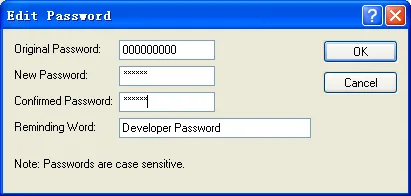 Note: The assigned password can have up to 12 characters and it is case sensitive. |
|
| Tool | Reserved feature not implemented yet. | |
| Note | You can type a note for the project. | |
| OK | Click it to close the dialog box and accept all changes. | |
| Cancel | Click it to close the dialog box and discard all changes. | |
 |
Click it to open the help document for more details about the dialog and how to use it. | |
 |
Click it to close the dialog box and discard all changes. | |
Need PM Designer itself?
V4 for current PK, PT, ITV and PM panels, V2 for older models. Free, sent by email.
Source.Section 2.1 of the PM Designer Software User Manual, Edition 2.0, © Cermate Technologies Inc. (www.cermate.com, service@cermate.com). Reproduced online, with the manual's own figures, by TSL Automation Solutions, authorised Cermate distributor, for users of Cermate HMI panels. PM Designer and PanelMaster are trademarks of Cermate Technologies Inc.
Text and figures are the manufacturer's and may describe features your panel or software version does not have. For a plain-language introduction read the PM Designer guide; for help with a specific panel contact TSL Automation.