
Section 2.3.3.1 · Chapter 2: Creating Projects
Tag Group Explorer
Tag explorer displays links, recipes, data loggers and their tag groups, if any. From tags explorer, you can:
■ Open a tag group of a link for editing by clicking the node
■ Double-click the node to expand or collapse the list of its sub-groups.
■ Right click the node to get a pop-up menu with the following menu items:
| Icon | Menu Item | Description |
|---|---|---|
 |
Add Subgroup | Create a new group and add it at the end of the list. |
 |
Insert Group Above | Insert a new group above the selected group. |
 |
Insert Group Below | Insert a new group below the selected group. |
 |
Delete Group | Delete the selected group. |
 |
Rename Group | Rename the selected group. |
 |
Preview/Import Tags... | Import tags from a CSV file [Tab delimited]. |
 |
Export Group... | Export all the tags in the selected group. |
 |
Export Group with Its Subgroups... | Export all the tags in the selected group and its sub groups. |
| Import Data Type | Import data types from a CSV file. Available only when the selected node is an internal memory or a link. | |
| Export Data Type | Export the data types of the selected link. Available only when the selected node is an internal memory or a link. | |
 |
Load tags From OPC Server | Load tags from the OPC Server. |
■ Import and export tags or data types of a link
Described in Section
2.3.4.
■ Add new groups or sub groups to a link and delete or rename the existing tag groups
Described in
Section 2.3.5.
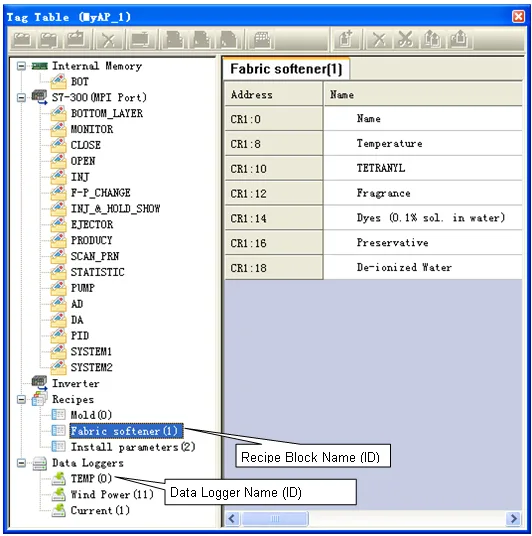
■ View tags (Data Items) of recipes and data loggers.
| If there are any recipes or data loggers in the application, the tags editor will display their data items as the tags. All the data items (tags) for the recipes or data loggers are read only in the tags editor. If you want to edit the data items (tags), please use the corresponding dialog box. | ||
 |
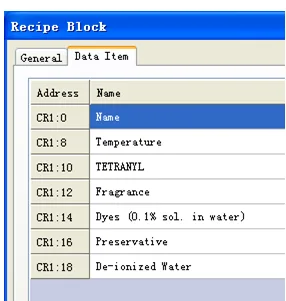
You can edit the data items of
the selected recipe block with the Recipe Block dialog box. Please see
Section 11.5 Setting up Recipe Blocks for details. |
 |
Need PM Designer itself?
V4 for current PK, PT, ITV and PM panels, V2 for older models. Free, sent by email.
Source.Section 2.3.3.1 of the PM Designer Software User Manual, Edition 2.0, © Cermate Technologies Inc. (www.cermate.com, service@cermate.com). Reproduced online, with the manual's own figures, by TSL Automation Solutions, authorised Cermate distributor, for users of Cermate HMI panels. PM Designer and PanelMaster are trademarks of Cermate Technologies Inc.
Text and figures are the manufacturer's and may describe features your panel or software version does not have. For a plain-language introduction read the PM Designer guide; for help with a specific panel contact TSL Automation.