
Section 2.2.3.3 · Chapter 2: Creating Projects
Picture Database Dialog Box
The following is an example of the Picture Database dialog box.
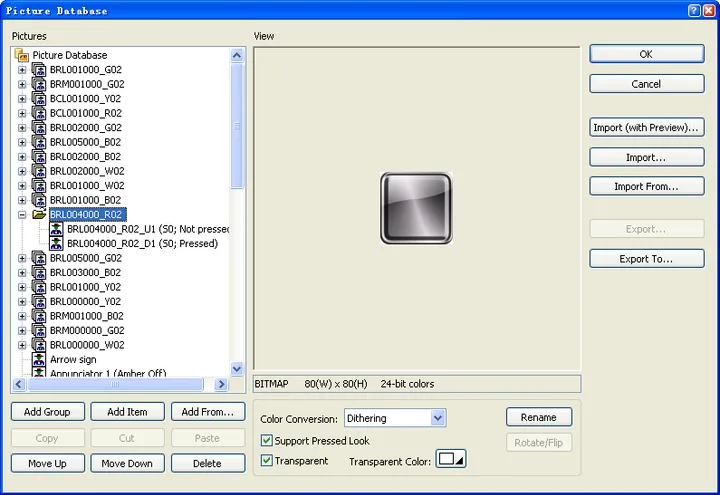
The following table describes how to read or use each of the items in the dialog box.
|
Item |
Description | ||
|---|---|---|---|
| Pictures | Lists the pictures and picture groups of the project. You can select a picture or a picture group as the current selection. You can also make multiple selections. View Shows the current selection. If the selection is a picture group, the first picture of the group will be shown. | ||
| Add Group | Adds one picture group to the picture database. | ||
| Add Item | Imports a picture from a picture file and adds the picture to the current picture group. | ||
| Add From... | Imports pictures from a picture database (PDB) file and adds those pictures to the current picture group. | ||
| Move Up | Moves the selection down in the list. | ||
| Move Down | Moves the selection up in the list. | ||
| Delete | Delete the selection. | ||
| View | Shows the selected picture and its properties such as file type, width x height in pixels and bit depth. | ||
| Color Conversion |
Select Dithering or Nearest Color as the color
conversion method. If the color resolution of a picture is not compatible with the target panel, the application compiler will use the specified method to convert the picture data so it can be displayed without too much color distortion at runtime. |
||
| Support Pressed Look | Available when the selection is a picture group. Check this item so the current picture group supports the pressed look. When a picture group supports the pressed look, it needs two pictures for each state; one picture is for the normal (released) look and another picture is for the pressed look. | ||
| Transparent |
Check this item to enable the transparent feature of the
selection; if the selection is a picture, the picture
will be transparent for the specified transparent color;
if the selection is a picture group, all the pictures of
the picture group will be transparent for the specified
transparent color. Note that this feature is effective
only when a picture or a picture group is shown as the
picture shape for an object. It is a common practice to make a picture transparent for a certain color so the picture can be shown as a non-rectangle shape. The following are some examples: |
||
| Original Picture | Transparent Color | Picture Shown | |
 |
 |
 |
|
 |
 |
 |
|
 |
 |
 |
|
| Transparent Color | Available when the Transparent item is checked. Select a color for the transparent color. | ||
| Rename | Click this button to rename the current picture or the current picture group. | ||
| Rotate/Flip |
Rotates or flips the current picture and saves it as
another picture in the picture database.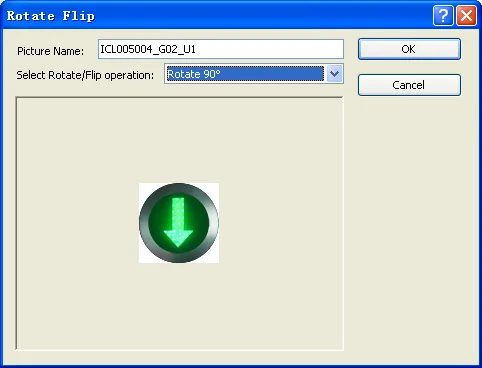 You can select one of the following 7 methods in the above dialog box for the Rotate/Flip operation. |
||
| Method | Description | ||
| Rotate 90° | Rotates the picture clockwise by 90 degrees. | ||
| Rotate 180° | Rotates the picture clockwise by 180 degrees. | ||
| Rotate 270° | Rotates the picture clockwise by 270 degrees. | ||
| Flip X | Flips the picture over the X axis. | ||
| Rotate 90° & Flip X | Rotates the picture clockwise by 90 degrees and flips it over the X Axis. | ||
| Flip Y | Flips the picture over the Y axis. | ||
| Rotate 90° & Flip Y | Rotates the picture clockwise by 90 degrees and flips it over the Y Axis. | ||
| OK | Closes the dialog box and accepts all changes to the picture database. | ||
| Cancel | Closes the dialog box and discards all changes to the picture database. | ||
| Import (with Preview...) | Previews every picture you select to import before importing a picture file. | ||
| Import... | Imports a picture from a picture file. The types of importable picture files include: BMP, JPG, GIF, WMF, SVG and PNG. | ||
| Import From... | Imports pictures from a picture database (PDB) file. | ||
| Export... | Exports the current picture to a picture file. | ||
| Export To... | Exports the current selection to a picture database (PDB) file. | ||
 |
Click it to open the help document for more details about the dialog and how to use it. | ||
 |
Click it to close the dialog box and discard all changes. | ||
Need PM Designer itself?
V4 for current PK, PT, ITV and PM panels, V2 for older models. Free, sent by email.
Source.Section 2.2.3.3 of the PM Designer Software User Manual, Edition 2.0, © Cermate Technologies Inc. (www.cermate.com, service@cermate.com). Reproduced online, with the manual's own figures, by TSL Automation Solutions, authorised Cermate distributor, for users of Cermate HMI panels. PM Designer and PanelMaster are trademarks of Cermate Technologies Inc.
Text and figures are the manufacturer's and may describe features your panel or software version does not have. For a plain-language introduction read the PM Designer guide; for help with a specific panel contact TSL Automation.