
Section 11.5.2 · Chapter 11: Recipes and Recipes Objects
Recipe Block - Data Item Settings
Use the Data Item page to define the data items of the data for a recipe block. The following is an example of the Data Item page.
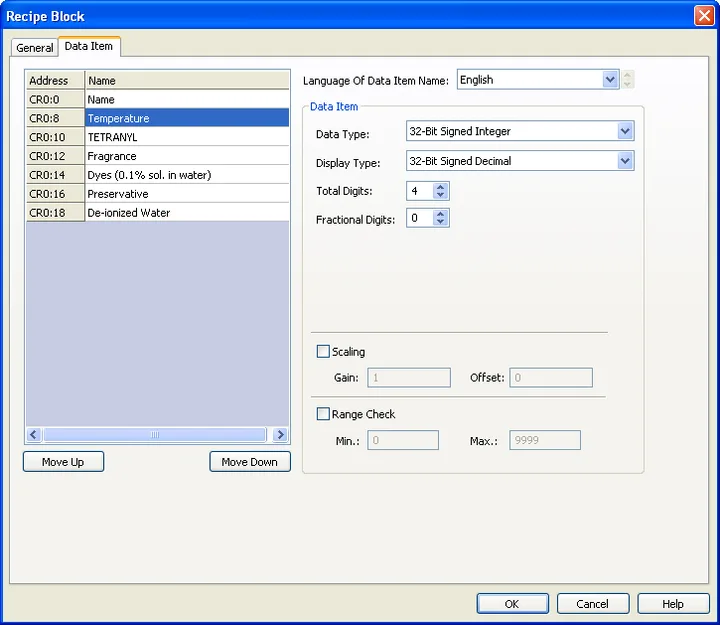
The Data Item page contains two parts. The left side of the data item list shows the address and name of each data item . The right side shows the properties of the selected data item. You need to make a selection before editing the data item. To select a data item, click the row of the data item in the data item list. To select multiple rows for moving up or down, click the row on its header column and use Ctrl + Click to add a row to the selection. The following table describes each property of the data item.
|
Property |
Description | |||||||||||||||||||||||||
|---|---|---|---|---|---|---|---|---|---|---|---|---|---|---|---|---|---|---|---|---|---|---|---|---|---|---|
| Address | The address of the latest value of the data item. | |||||||||||||||||||||||||
| Name | Click the cell to specify the name of the data item for the language specified in the Language field. | |||||||||||||||||||||||||
| Move Up | Click the button to move the selected data item(s) before the previous data item. The Move Up button will help you to reorder the display sequence of the data items. It will not be available when the first row is selected. | |||||||||||||||||||||||||
| Move Down | Click the button to move the selected data item(s) after the next data item. The Move Down button will help you to reorder the display sequence of the data items. It will not be available when the last row is selected. | |||||||||||||||||||||||||
| Language of Data Item Name | Select a language so you can view and edit the name of the data item for that language. | |||||||||||||||||||||||||
| Data Item | Data Type | The data type of the data item. The supported data types include: 16-Bit Unsigned Integer, 32-Bit Unsigned Integer, 16-Bit Signed Integer, 32-Bit Signed Integer, 16-Bit BCD, 32-Bit BCD, 32-Bit Floating Point, Byte Array (Character String), and Word Array (Double- Byte Character String). | ||||||||||||||||||||||||
| Display Type |
The display type for the value of the data item. The
following table shows the available display types for
each data type.
|
|||||||||||||||||||||||||
| Total Digits | Specifies the number of digits to be displayed for the value of the data item. | |||||||||||||||||||||||||
| Fractional Digits |
Specifies how to display the fractional part for the
value of the data item. When the Display Type is 32-bit
Floating Point, this property specifies the number of
fractional digits to be displayed. When the Display Type
is not 32-bit Floating Point, this property specifies
not only the number of fractional digits to be
displayed, but also the number of least significant
digits to be displayed as the fractional part. With this
feature, an integer can be shown as a fixed point
number. Example:
|
|||||||||||||||||||||||||
| Scaling |
Check this option if you want
the value of the data item to be
displayed in a scaled manner.
The following is the scaling
formula: DisplayedValue = SampledValue * Gain + Offset Note: The Gain and Offset are 32-bit floating point numbers. They have, at most, 6 significant digits. Rounding and truncation errors may happen. |
|||||||||||||||||||||||||
| Gain | Available when the Scaling option is checked. Specifies the Gain used in the scaling formula. | |||||||||||||||||||||||||
| Offset | Available when the Scaling option is checked. Specifies the Offset used in the scaling formula. | |||||||||||||||||||||||||
| Range Check | Check this option if you want the data item to verify the entered value according to the specified minimum and maximum. If the entered value is not within the allowable range, the entered value will not be output. | |||||||||||||||||||||||||
| Min | Specifies the minimum value. | |||||||||||||||||||||||||
| Max |
Specifies the maximum value. |
|||||||||||||||||||||||||
Need PM Designer itself?
V4 for current PK, PT, ITV and PM panels, V2 for older models. Free, sent by email.
Source.Section 11.5.2 of the PM Designer Software User Manual, Edition 2.0, © Cermate Technologies Inc. (www.cermate.com, service@cermate.com). Reproduced online, with the manual's own figures, by TSL Automation Solutions, authorised Cermate distributor, for users of Cermate HMI panels. PM Designer and PanelMaster are trademarks of Cermate Technologies Inc.
Text and figures are the manufacturer's and may describe features your panel or software version does not have. For a plain-language introduction read the PM Designer guide; for help with a specific panel contact TSL Automation.