
Section 11.6.4 · Chapter 11: Recipes and Recipes Objects
Recipe Selector - General Settings
This section describes how to define the general settings of a recipe selector. The following is an example of the General page.
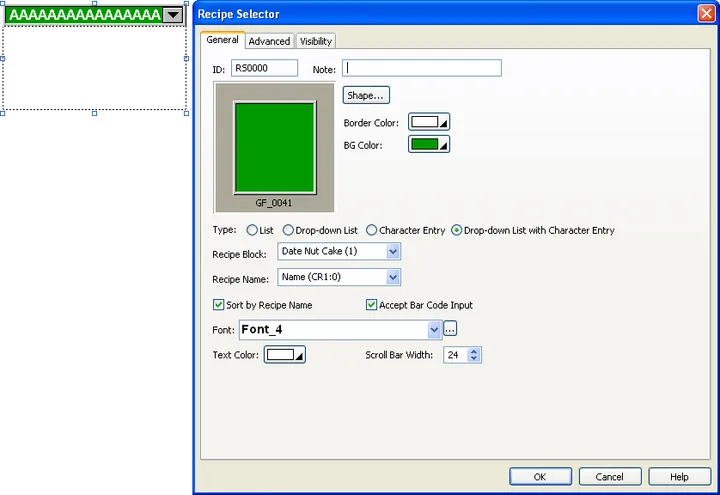
The following table describes each property in the General page.
|
Property |
Description | |
|---|---|---|
| ID | The object’s identifier. It is generated when the object is created and is unchangeable. The identifier is unique within the screen where the object is located. The format of the IDs for the recipe selectors is RSnnnn. | |
| Note | You can type a note for the object. | |
| Shape settings |
For details about the following properties,
Section 4.3.4 Setting up the Shape
of an Object.
 ,
Border Color, BG Color |
|
| Type | Select one of the following types for the recipe selector: | |
| Type | Description | |
| List | The list box is displayed at all times. You can select a recipe from all the listed recipes in the list box. | |
| Drop-down List | The list box is not displayed unless the user clicks the down arrow icon next to the static-text control. You can select a recipe from the drop-down list and the name of the selected recipe will be shown in the static-text control. | |
| Character Entry | Allows the operator to enter the full name or partial name of the recipe to be selected. The selectors will try to find the recipe whose name completely matches with the input string first. If such recipe does not exist, the selectors will try to find the first recipe that the preceding part of its name matches exactly with the input string. | |
| Drop-down List with Character Entry | You can click the character entry control on the left to select a recipe by entering the full name or partial name of the recipe in the popup keypad. Or you can click the down arrow icon to select a recipe from the drop-down list. | |
| Recipe Block | Select the recipe block whose recipe is to be selected by the Recipe Selector object. | |
| Recipe Name | Select a data item from the list as the recipe name. You can select any data items with Byte Array (Character String) or Word Array (Double-Byte Character String) data type as the name of the recipe from the drop down list. | |
| Sort by Recipe Name | Check this option to automatically sort all recipe names added to the list box. | |
| Accept Bar Code Input | Check this option if you want to select a recipe by the bar code input from a USB bar code reader. This item is available only when the type is Character Entry or Drop-down List with Character Entry. The bar code can be accepted in the popup keypad. | |
| Font | The font of the displayed string. | |
| Text Color | The color of the displayed string. | |
| Scroll Bar Width | Specify the width of the vertical scroll bar. | |
Need PM Designer itself?
V4 for current PK, PT, ITV and PM panels, V2 for older models. Free, sent by email.
Source.Section 11.6.4 of the PM Designer Software User Manual, Edition 2.0, © Cermate Technologies Inc. (www.cermate.com, service@cermate.com). Reproduced online, with the manual's own figures, by TSL Automation Solutions, authorised Cermate distributor, for users of Cermate HMI panels. PM Designer and PanelMaster are trademarks of Cermate Technologies Inc.
Text and figures are the manufacturer's and may describe features your panel or software version does not have. For a plain-language introduction read the PM Designer guide; for help with a specific panel contact TSL Automation.