
Section 12.3.2 · Chapter 12: Alarms and Alarm Displays
Importing and Exporting Alarm Blocks
■ Import Alarm blocks
To import alarm blocks, you may do the followings:
1) In the Project Manager tool window, right-click the Alarms node (
 ) of the
concerned panel application and select [ Import Alarm Blocks.... ]
or in the menu bar, click Panel to bring up the Panel sub-menu. Click
[ Import Alarm Blocks.... ] in the Panel sub-menu.
2) Click the *.csv or *.xml or *.alm file you want to create new alarm blocks from. To open an alarm file that was saved in a different folder, locate and open the folder first.
3) Click Open.
■ Export Alarm blocks
You can export the definition of an alarm block or multiple alarm blocks in CSV
format or XML format.
If CSV format is selected, you are allowed to customize the export items.
Exporting multiple alarm blocks to one file is supported too.
To export the alarm blocks of a panel application, you may do the followings:
1) In the Project Manager tool window, right-click the Alarms node (
) of the
concerned panel application and select [ Export Alarm Blocks… ].
or in the menu bar, click Panel to bring up the Panel sub-menu. Click
[ Export Alarm Blocks… ] in the Panel sub-menu.
The following is an example of the Export Alarm Blocks dialog.
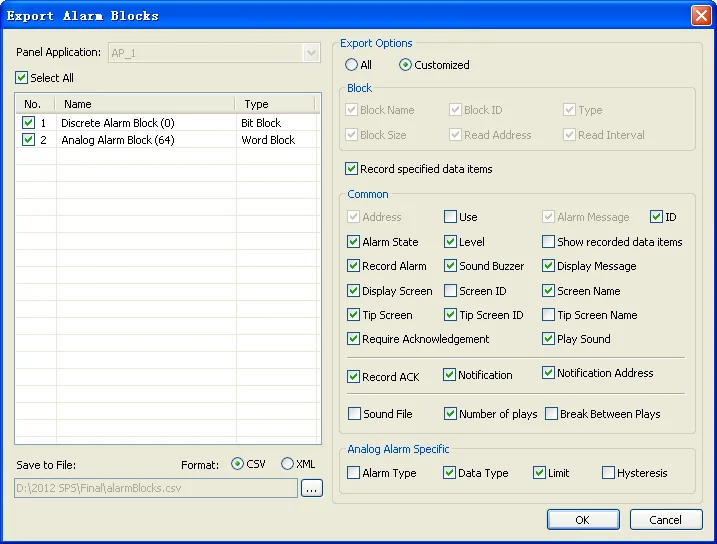
The following table describes each property in the Export Alarm Blocks dialog.
|
Property |
Description | |
|---|---|---|
| Panel Application | Specifies the current panel application where the alarm blocks locate. | |
| Select All | Check the box to select all the listed alarm blocks. Or uncheck the box to deselect all. | |
| No. | Check the button to select the related alarm block. | |
| Save to File | Format | The file format to save the alarm blocks. If CSV format is selected, you are allowed to customize the export items. |
 |
Click the button if you want to save alarm blocks in a different folder. In the Save As dialog box, locate and open the folder first, then click Save. | |
| Export Options | All/Customized | Select "All" option to export all properties of the selected alarm blocks. Select "Customized" option to export selected properties of the selected alarm blocks. The Customized option is available only when the file format is CSV. |
| Block | Select the properties of the alarm blocks you want to export. | |
| Record specified data items | ||
| Common | ||
| Analog Alarm Specific | ||
| OK | Click the button to export all the selected alarm blocks. | |
Need PM Designer itself?
V4 for current PK, PT, ITV and PM panels, V2 for older models. Free, sent by email.
Source.Section 12.3.2 of the PM Designer Software User Manual, Edition 2.0, © Cermate Technologies Inc. (www.cermate.com, service@cermate.com). Reproduced online, with the manual's own figures, by TSL Automation Solutions, authorised Cermate distributor, for users of Cermate HMI panels. PM Designer and PanelMaster are trademarks of Cermate Technologies Inc.
Text and figures are the manufacturer's and may describe features your panel or software version does not have. For a plain-language introduction read the PM Designer guide; for help with a specific panel contact TSL Automation.