
Section 12.6.1 · Chapter 12: Alarms and Alarm Displays
Alarm Display - Basic Operations
There are four types of alarm displays.
|
Type |
Description | ||||||||||
|---|---|---|---|---|---|---|---|---|---|---|---|
| Alarm History |
You can display a list of alarm records by using an
alarm history display.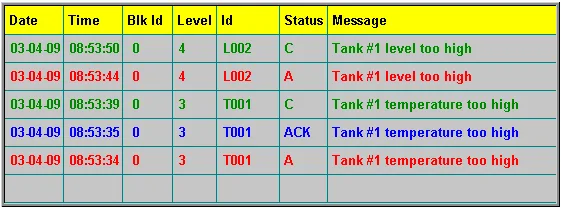 The above is an example of the alarm history display. The first row is the title row. It displays the title of each column. The other rows display one alarm record per row. You can create scroll button groups or scroll bars to scroll the contents. An alarm history display can have seven columns. The following table describes the content of each column of an alarm record. |
||||||||||
| Column | Description | ||||||||||
| Date | The date when the record is created. This column is optional. | ||||||||||
| Time | The time when the record is created. This column is optional. | ||||||||||
| Alarm Block ID | The ID of the alarm block in which the associated alarm is defined. This column is optional. | ||||||||||
| Alarm Level | The level of the associated alarm. This column is optional. | ||||||||||
| Alarm ID | The ID of the associated alarm. This column is optional. | ||||||||||
| Alarm Status |
The type of the alarm record. There are three types of
alarm records.
|
||||||||||
| ACK Time | Displays the time when an alarm was acknowledged. | ||||||||||
| Clear Time | Displays the time when an alarm was cleared. | ||||||||||
| Alarm Message | The message of the associated alarm. This column is optional. | ||||||||||
| The text color of a row is determined by the type of the alarm record. | |||||||||||
| Alarm Count |
You can display a list of the number of occurrences for
each alarm by using an alarm count display.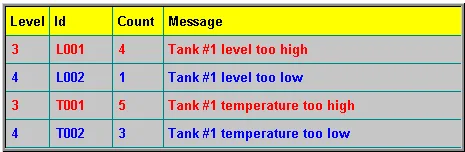 The above is an example of an alarm count display. The first row is the title row. It displays the title of each column. The other rows display one alarm per row. You can create scroll button groups or scroll bars to scroll the contents. An alarm count display can have five columns. The following table describes the content of each column of an alarm. |
||||||||||
| Column | Description | ||||||||||
| Alarm Block ID | The ID of the alarm block in which the alarm is defined. This column is optional. | ||||||||||
| Alarm Level | The level of the alarm. This column is optional. | ||||||||||
| Alarm ID | The ID of the alarm. This column is optional. | ||||||||||
| Alarm Count | The number of occurrences of the alarm. | ||||||||||
| Alarm Message | The message of the alarm. This column is optional. | ||||||||||
| The text color of a row is determined by the level of the alarm. | |||||||||||
| Active Alarm |
You can display a list of active alarms by using an
active alarm display.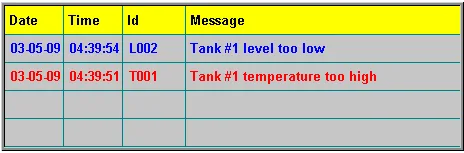 The above is an example of an active alarm display. The first row is the title row. It displays the title of each column. The other rows display one active alarm per row. You can create scroll button groups or scroll bars to scroll the contents. An active alarm display can have six columns. The following table describes the content of each column for an active alarm. |
||||||||||
| Column | Description | ||||||||||
| Date | The date when the alarm is activated. | ||||||||||
| Time | The time when the alarm is activated. | ||||||||||
| Alarm Block ID | The ID of the alarm block in which the alarm is defined. This column is optional. | ||||||||||
| Alarm Level | The level of the alarm. This column is optional. | ||||||||||
| Alarm ID | The ID of the alarm. This column is optional. | ||||||||||
| Alarm Message | The message of the alarm. This column is optional. | ||||||||||
| The text color of a row is determined by the level of the alarm. | |||||||||||
| Alarm Marquee |
You can display and scroll the messages of the active
alarms by using an alarm marquee. The above is an example of an alarm marquee. You can place the following texts in front of the alarm messages. |
||||||||||
| Text | Description | ||||||||||
| Alarm Block ID | The ID of the alarm block in which the alarm is defined. | ||||||||||
| Alarm Level | The level of the alarm. | ||||||||||
| Alarm ID | The ID of the alarm. | ||||||||||
| The text color for an alarm is determined by the level of that alarm. | |||||||||||
Note: You can sort the list of an alarm display at runtime by touching the title of the column that you want to be the sort field. Touching the same title again changes the sort order from ascending to descending, or vice versa. The columns that can be a sort field include: Date, Time, Alarm Block ID, Alarm Level, Alarm ID, Alarm Status, and Alarm Count.
Need PM Designer itself?
V4 for current PK, PT, ITV and PM panels, V2 for older models. Free, sent by email.
Source.Section 12.6.1 of the PM Designer Software User Manual, Edition 2.0, © Cermate Technologies Inc. (www.cermate.com, service@cermate.com). Reproduced online, with the manual's own figures, by TSL Automation Solutions, authorised Cermate distributor, for users of Cermate HMI panels. PM Designer and PanelMaster are trademarks of Cermate Technologies Inc.
Text and figures are the manufacturer's and may describe features your panel or software version does not have. For a plain-language introduction read the PM Designer guide; for help with a specific panel contact TSL Automation.