
Chapter 13 of 13 · PM Designer guide
PM Designer troubleshooting: panel not found, download fails, communication errors
Most PM Designer problems fall into five groups: the PC cannot see the panel, the download starts but fails, the panel shows a communication error with the PLC, the project will not compile, or something on the panel itself (password, touch, boot) is wrong. This page lists the causes we see most often in support, in the order to check them, with the manual section that documents each setting.
Applies to PM Designer V2.1 and V4.0Updated 11 Nov 2026Manual reference: Chapters 18 and 20
PM Designer cannot find the panel
Over USB
- Driver. With the panel connected and powered, open Device Manager. If the panel is missing or shows a warning, run
WinUSB4NuVCOM.exefrom theUsbfolder of the PM Designer installation as administrator, then reconnect. This is the cause in most USB cases. - Cable and port. Use a data-capable cable under 3 m on a port of the PC itself, not a hub or docking station. Try a second cable before anything else.
- Panel state. The panel must be running its application or sitting in Panel Setup. A panel stuck in the System Loader does not answer USB downloads; load a PRP from USB stick instead (see below).
- Another program holds the port. Close the PLC programming software, terminal programs and a second PM Designer session.
Over Ethernet
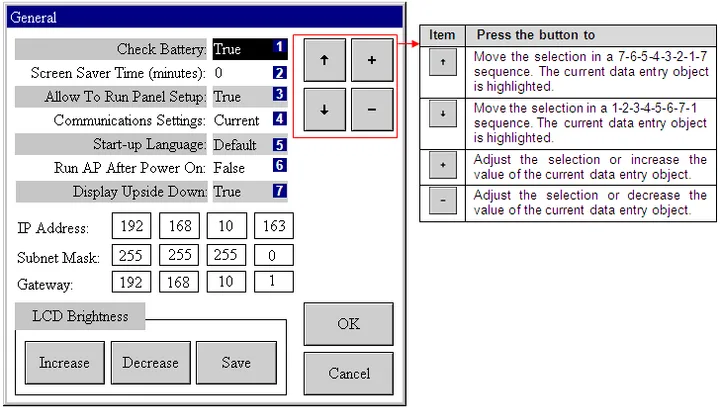
- IP address. On the panel, open Panel Setup > General and read the IP address, subnet mask and gateway (Section 20.2.2). Put the PC on the same subnet and ping the panel from a command prompt. No reply means a network problem, not a PM Designer problem.
- Duplicate address. A second device with the same IP answers some pings and not others. Change the panel to a free address outside the router's DHCP range.
- Firewall. A corporate firewall or endpoint agent on the PC can block the download port. Test with the Windows firewall off for a minute, or from a bare laptop.
- Wrong panel. Several panels on the same network with the factory default address all answer to that address; set each one before connecting it.
The download starts and then fails
- Transfer drops part-way. Switch Mode to Safe Mode in the Download dialog so the data is buffered in RAM and written to flash only when complete (Section 18.3.1). Then fix the physical cause: a cable, a USB hub, a Wi-Fi link to the panel's switch.
- "Model does not match". The project is compiled for a different panel model. Set the correct model in Panel > General Setup, recompile, download again.
- Panel asks for a developer password you do not know. The panel holds a project with a different developer password. You need that password from whoever programmed it; the default is 000000000. Without it, the only alternatives are a PRP file of the existing application (which carries the matching password) or a factory reset by Cermate's service channel. There is no bypass, and we do not provide one.
- Runtime too large. The compile result shows a size above the panel's limit (about 20 MB on the K series, 50 MB on the T series). Shrink pictures to native resolution and remove unused ones from the Picture Database.
- Panel OS too old for the project. Tick Runtime Data and System Programs so the OS is updated with the application, or load a PRP that contains both.
The panel shows a communication error with the PLC
The message names the link and often a status code. Work through the physical layer first, then the parameters, then the addresses.
- Prove the cable with on-line simulation from the PC (Tools > Run On-line Simulation) using the same settings. If the PC cannot talk to the PLC either, the problem is wiring, the PLC port configuration or the driver choice, not the panel.
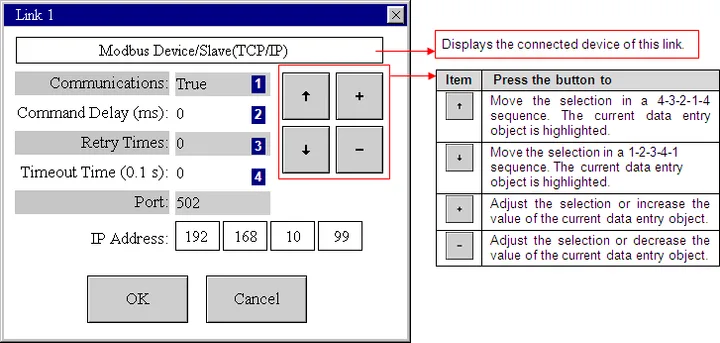
- Check the parameters on the panel itself. Panel Setup > Link n shows the serial parameters or IP address the panel is actually using (Sections 20.2.5 and 20.2.6). If someone edited them there, "Communications Settings" on the General page decides whether the downloaded defaults or the panel's own values win.
- RS-485 wiring and termination. Swap A and B if in doubt, and check the PLC station address matches the PLC Address in the Parameter page.
- Siemens S7 over Ethernet. Rack and slot must match the CPU, and every data block the panel reads must have "Symbolic access only" (optimized block access) unchecked in the PLC project (Section 3.4.11).
- Modbus driver role. "Device/Slave" drivers make the panel the master talking to a slave PLC; "Master" drivers make the panel the slave. Picking the wrong family gives silence, not an error (Section 3.4.9).
- One bad address. A single object reading an address outside the PLC's configured range can hold the whole link in error. Check the link status from a macro with
LINK_STS; the codes are listed in Chapter 3.
The project will not compile
- Address out of range: the driver does not support that register type or number. Compare with the driver's accessible memory table, or try the address in the Address Input Keypad, which only offers valid types.
- Start-up screen missing: General Setup points at a screen number that was deleted or renumbered.
- Macro errors: a label without a colon, an IF without ENDIF, a FOR without NEXT, or a constant that looks like an address (write
40001Kto force a constant). The Build List jumps to the line. - Tag errors: a global tag name must start with an underscore; a local one must not; names cannot start with a digit or match a macro keyword.
- Memory: data loggers, alarm logging and recipe blocks compete for battery-backed RAM; the compiler reports when it cannot allocate them. Reduce samples or move recipe storage to flash backup.
Problems on the panel itself
- Touch is offset or dead. Panel Setup > Touch Panel runs the calibration (Section 20.2.3): touch the dots with a blunt stylus, never a screwdriver or pen.
- Panel boots to Panel Setup instead of the application. Set Run AP After Power On to True on the General screen, press OK, then Run.
- Cannot get into Panel Setup from the running application. Allow To Run Panel Setup is False. Either download a version with the flag enabled or use the System Loader (hold the top-left corner for 3 seconds during power-up) and choose Run.
- "Battery backed RAM data error! All recorded data are cleared!" at power-up. The backup battery is flat or has been disconnected; recipes, alarm history and logged data in battery-backed RAM are lost. Replace the battery, restore recipes from the flash backup or a PRD file, and keep logs flowing to files or a USB stick.
- Clock drifts or resets. Set Time/Date in Panel Setup; the RTC Adjustment field corrects a steady drift in seconds per day. A clock that resets every power cycle is again the battery.
- Screen stays black. Screen Saver Time turns off the backlight after the set number of minutes; touch the screen. If brightness was lowered in the General screen, raise it there or in the System Loader.
- Lost operator password. A level 8 user can open the password table from a function button configured with Show Password Table (Section 20.1.6). If nobody has a level 8 login, the project file is the only place the passwords are readable; the panel does not display them.
Recovering a panel that no longer boots
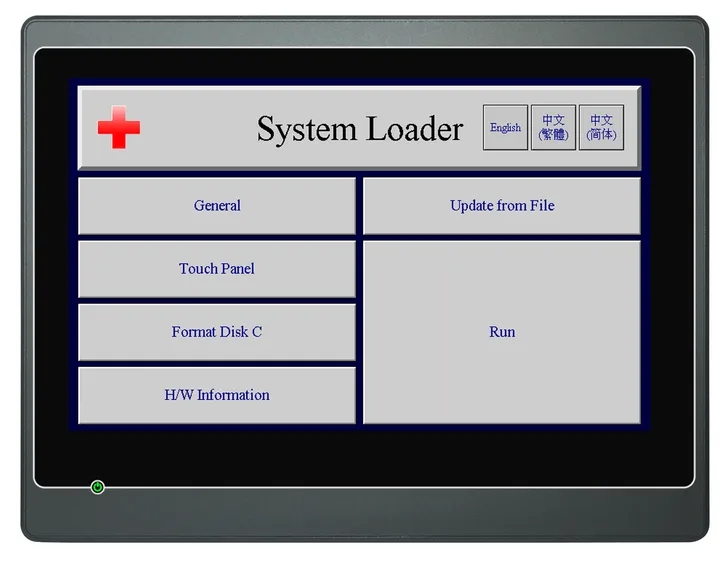
- Hold the upper-left corner of the screen while applying power until the panel beeps; the System Loader appears.
- If you have a PRP of the application, put it on a USB stick, choose Update from File and select it. The OS and application are rewritten and the panel restarts normally.
- If you have only the project, build a PRP with Panel > Build Panel Runtime Package on the PC first, or set the panel's IP address in the loader's General screen and download from PM Designer over Ethernet.
- Format Disk C is a last resort for a corrupted file system; it erases everything on the panel's built-in disk and needs a level 8 password.
The project file is lost
If Configuration Data was ticked on the last download, Panel > Upload recovers a PLF that imports as a panel application and can be edited. If not, the panel contains only compiled runtime and the project must be rebuilt. The PM Designer Automatic File Recovery feature (Project > Information & Protection) keeps timed backups of unsaved work in a Backup folder under the user's profile, which is worth checking after a crash. For every machine you ship, archive the .pm4 file, a PRP of the released version and the developer password together.
Frequently asked questions
PM Designer cannot find my Cermate panel over USB. What should I check first?
Install the USB driver (WinUSB4NuVCOM.exe in the Usb folder of the installation directory) as administrator, use a short data-capable cable on a port of the PC itself, make sure the panel is powered and running its application or Panel Setup, and check that it appears in Device Manager.
Why does the download fail part-way through?
Usually an unstable USB connection. Choose Safe Mode in the Download dialog so the transfer is buffered in the panel RAM, replace the cable or hub, or download over Ethernet.
The panel asks for a developer password I do not have. Can it be reset?
No. The panel protects the project that is in it with the developer password set in that project (default 000000000). You need the password from whoever programmed the panel, or a PRP of the same application. There is no bypass.
The panel shows a communication error although the PLC is connected. Why?
Check the link parameters on the panel in Panel Setup > Link, prove the cable and driver with on-line simulation from the PC, verify the PLC station address or IP, and look for a single object reading an address the PLC does not have. For Siemens S7 over Ethernet, rack, slot and non-optimized data blocks are the usual causes.
What does "Battery backed RAM data error" mean?
The panel backup battery is exhausted, so recipes, alarm history and logged data held in battery-backed RAM were cleared at power-up. Replace the battery and restore recipes from the flash backup or a PRD file.
How do I get into the Panel Setup screen?
Touch the top-left, top-right and top-left corners of the running screen in turn; a red square blinks at each. If nothing happens, Allow To Run Panel Setup is False in the panel settings, so use the System Loader: hold the top-left corner for three seconds while powering on, then choose Run.
How can I recover a panel that no longer boots?
Enter the System Loader by holding the upper-left corner during power-up until the beep, then Update from File with a PRP of the application on a USB stick, or set the IP address there and download from PM Designer over Ethernet.
Can I recover the project from the panel?
Only if Configuration Data was included in the download. Then Panel > Upload returns a PLF file that PM Designer imports as a panel application.
Stuck on a Cermate panel?
TSL Automation has supplied and supported Cermate HMIs since 2015. Send us the model, the PM Designer version and a screenshot of the error.
Written by TSL Automation Solutions from the PM Designer user manual and application notes that ship with the software, and from our own support work. Screenshots are from the manual and remain the property of Cermate Technologies Inc. PM Designer and PanelMaster are trademarks of Cermate Technologies Inc. Check your panel's own manual for model-specific limits.