
Section 7.2.4 · Chapter 7: Displaying and Inputting Data
Numeric Display - Advanced Settings
This section describes how to define the advanced settings for a numeric display. The following is an example of the Advanced page of the Numeric Display property sheet.
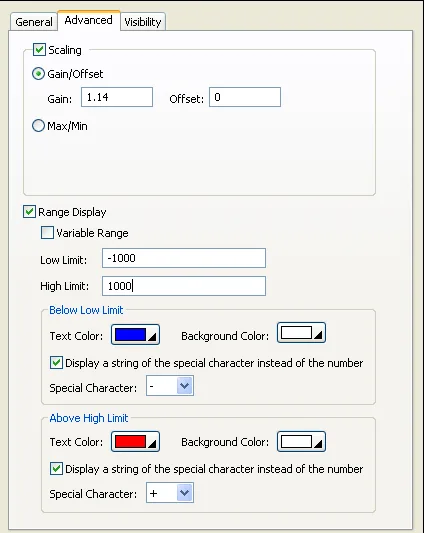
The following table describes each property in the Advanced page.
|
Property |
Description | ||
|---|---|---|---|
| Scaling | <Check Box> | Check this option if you want the value of the monitored variable to be displayed in a scaled manner. | |
| Gain/Offset |
The Gain and Offset of the scaling formula. If this option is selected, the monitored value will be scaled by the following formula with specified gain and offset. DisplayedValue = MonitoredValue * Gain + Offset Note: The Gain and Offset are 32-bit floating point numbers. They have at most 6 significant digits. The rounding and truncation may happen. |
||
| Max/Min |
Set the Display Min/Max corresponding to the
Data Min/Max. If this option is selected, the value of the monitored variable will be scaled to fit the display range before displayed. And the entered value will be scaled to fit the data range before it is output. |
||
| Range Display | <Check Box> | Check this option if you want the numeric display to display the value with a different color when it is below the specified low limit or above the specified high limit. | |
| Variable Range | Check this option if you want the low limit and high limit to be specified by the designated variables at runtime. | ||
| Low Limit |
Specifies the low limit when the Variable Range is not
selected. When the Variable Range is selected, this property specifies the variable that stores the low limit at runtime. Click  to enter an address. Click  to select a tag. |
||
| High Limit |
Specifies the high limit when the Variable Range is not
selected. When the Variable Range is selected, this property specifies the variable that stores the high limit at runtime. Click to enter an address. Click
to select a
tag. |
||
| Below Low Limit | Text Color | The text color for the low limit. | |
| Background Color | The shape’s BG color for the low limit. | ||
| Display a string of the special character instead of the number | Check the option if you want to show a string of the designated character instead of the number when the number is below the low limit. | ||
| Special Character | Select a character to indicate that the number is below the low limit. The character can be any of "! * + - ?". | ||
| Above High Limit | Text Color | The text color for the high limit. | |
| Background Color | The shape’s BG color for the high limit. | ||
| Display a string of the special character instead of the number | Check the option if you want to show a string of the designated character instead of the number when the number is above the high limit. | ||
| Special Character | Select a character to indicate that the number is above the high limit. The character can be any of "! * + - ?". | ||
Need PM Designer itself?
V4 for current PK, PT, ITV and PM panels, V2 for older models. Free, sent by email.
Source.Section 7.2.4 of the PM Designer Software User Manual, Edition 2.0, © Cermate Technologies Inc. (www.cermate.com, service@cermate.com). Reproduced online, with the manual's own figures, by TSL Automation Solutions, authorised Cermate distributor, for users of Cermate HMI panels. PM Designer and PanelMaster are trademarks of Cermate Technologies Inc.
Text and figures are the manufacturer's and may describe features your panel or software version does not have. For a plain-language introduction read the PM Designer guide; for help with a specific panel contact TSL Automation.