
Section 7.5.3 · Chapter 7: Displaying and Inputting Data
Character Display - General Settings
This section describes how to define the general settings for character displays. The following is an example of the General page of the Character Display property sheet.
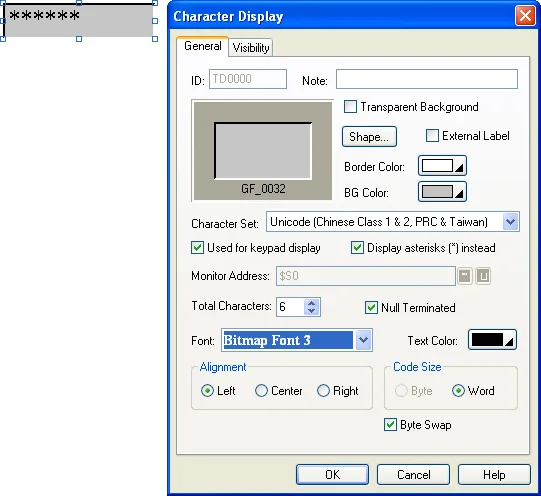
The following table describes each property in the General page.
|
Property |
Description |
|---|---|
| ID | The object’s identifier. It is generated when the object is created. The identifier is unique within the screen where the object is located. The format of the IDs for Character displays is TDnnnn. |
| Note | You can type a note for the object. |
| Transparent Background | Select this option if you want the object to have a transparent background. |
| Shape settings |
For details about the following properties,
see Section 4.3.4 Setting up the Shape of an Object.
 ,
Border Color, BG Color |
| External Label | Check this option if you want the object to have an external label. Set up the external label in the External Label page. |
| Character Set | The types of character codes of the string in the monitored variable. You can select ASCII (US) code or ISO-8859-1(Western European) or ISO-8859-5(Cyrillic) or Unicode (Chinese Class 1 & 2, PRC) or Unicode (Chinese Class 1 & 2, PRC & Taiwan) . If the target panel is a PC, the Unicode is also an option. |
| Used for keypad display | Check this option if the character display is used to display the input from a custom keypad. |
| Display asterisks(*) instead | If the character display is used for custom keypad, you can check this option to display asterisks instead of the character. |
| Monitor Address |
Specifies the monitored variable. Click  to enter an address for this field. Click  to select a tag for this field. |
| Total Characters | Specifies the number of characters that the Character display can display. |
| Null Terminated |
When Null Terminated is not selected, the object will
display all the characters in the associated memory up
to the specified length. For the character of code 0,
the object will display a space instead.
When Null Terminated is selected, the object will display all the characters in the associated memory up to the specified length if there is no character of code 0. If there is a character of code 0, the object will not display the character of code 0 and the remaining characters after it. |
| Font |
The font of the displayed string. You can use the
drop-down list to select a font, or click
 to bring up the Font Templates dialog box and select a
font for the current displayed string. You can change the font templates before
selecting a font in that dialog box. |
| Text Color | The color of the displayed string. |
| Alignment | The alignment of the displayed value. There are three types of alignment: Left, Center, and Right. |
| Code Size | The size of each character. You can select Byte or Word. |
| Byte Swap | Check this option to display high byte first and then low byte. |
Need PM Designer itself?
V4 for current PK, PT, ITV and PM panels, V2 for older models. Free, sent by email.
Source.Section 7.5.3 of the PM Designer Software User Manual, Edition 2.0, © Cermate Technologies Inc. (www.cermate.com, service@cermate.com). Reproduced online, with the manual's own figures, by TSL Automation Solutions, authorised Cermate distributor, for users of Cermate HMI panels. PM Designer and PanelMaster are trademarks of Cermate Technologies Inc.
Text and figures are the manufacturer's and may describe features your panel or software version does not have. For a plain-language introduction read the PM Designer guide; for help with a specific panel contact TSL Automation.