
Section 7.3.4 · Chapter 7: Displaying and Inputting Data
Advanced Numeric Display - General Settings
This section describes how to define the general settings for an advanced numeric display. The following is an example of the General page of the Advanced Numeric Display property sheet.
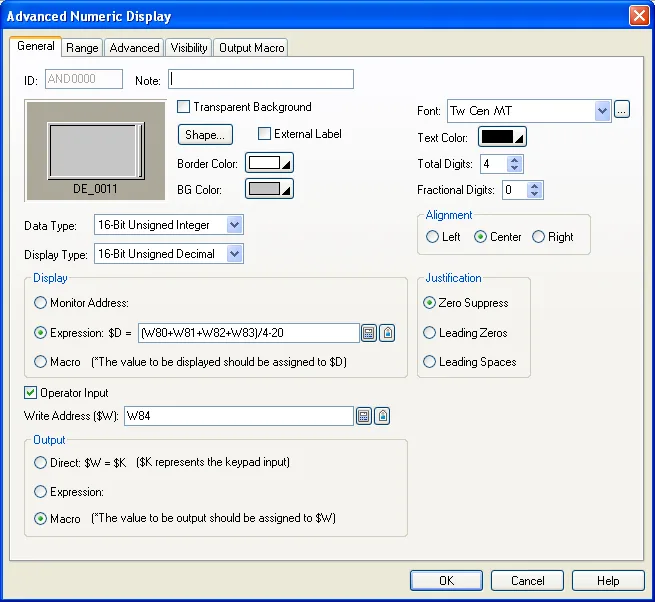
The following table describes each property in the General page.
|
Property |
Description | |||||||||||||||||||||||||||||||||||||||||||||||||||||||||||||||
|---|---|---|---|---|---|---|---|---|---|---|---|---|---|---|---|---|---|---|---|---|---|---|---|---|---|---|---|---|---|---|---|---|---|---|---|---|---|---|---|---|---|---|---|---|---|---|---|---|---|---|---|---|---|---|---|---|---|---|---|---|---|---|---|---|
| ID | The object’s identifier. It is generated when the object is created. The identifier is unique within the screen where the object is located. The format of the IDs for the advanced numeric displays is ANDnnnn. | |||||||||||||||||||||||||||||||||||||||||||||||||||||||||||||||
| Note | You can type a note for the object. | |||||||||||||||||||||||||||||||||||||||||||||||||||||||||||||||
| Transparent Background | Select this option if you want the object to have a transparent background. | |||||||||||||||||||||||||||||||||||||||||||||||||||||||||||||||
| Shape settings |
For details about the following properties, see
Section 4.3.4 Setting up the Shape
of an Object,
 ,
Border Color, BG Color |
|||||||||||||||||||||||||||||||||||||||||||||||||||||||||||||||
| External Label | Check this option if you want the object to have an external label. Set up the external label in the External Label page. | |||||||||||||||||||||||||||||||||||||||||||||||||||||||||||||||
| Data Type | The data type of the variables, arithmetic expressions, and macros of the advanced numeric display. The supported data types include: 16-Bit Unsigned Integer, 32-Bit Unsigned Integer, 16-Bit Signed Integer, 32-Bit Signed Integer, 16-Bit BCD, 32-Bit BCD, 32-Bit Floating Point, 16-Bit Signed BCD (LMB), 32-Bit Signed BCD (LMB), 16-Bit Signed BCD (LMD), and 32-Bit Signed BCD (LMD). | |||||||||||||||||||||||||||||||||||||||||||||||||||||||||||||||
| Display Type | The display type of the advanced numeric display. The following table shows the available display types for each data type. | |||||||||||||||||||||||||||||||||||||||||||||||||||||||||||||||
| Data Type | Available Display Types | |||||||||||||||||||||||||||||||||||||||||||||||||||||||||||||||
| 16-Bit Unsigned Integer | 16-Bit Unsigned Decimal, 16-Bit Hexadecimal, 16-Bit Octal | |||||||||||||||||||||||||||||||||||||||||||||||||||||||||||||||
| 32-Bit Unsigned Integer | 32-Bit Unsigned Decimal, 32-Bit Hexadecimal, 32-Bit Octal | |||||||||||||||||||||||||||||||||||||||||||||||||||||||||||||||
| 16-Bit Signed Integer | 16-Bit Signed Decimal | |||||||||||||||||||||||||||||||||||||||||||||||||||||||||||||||
| 32-Bit Signed Integer | 32-Bit Signed Decimal | |||||||||||||||||||||||||||||||||||||||||||||||||||||||||||||||
| 16-Bit BCD | 16-Bit Unsigned Decimal | |||||||||||||||||||||||||||||||||||||||||||||||||||||||||||||||
| 32-Bit BCD | 32-Bit Unsigned Decimal | |||||||||||||||||||||||||||||||||||||||||||||||||||||||||||||||
| 32-Bit Floating Point | 32-Bit Floating Point, Exponential Format | |||||||||||||||||||||||||||||||||||||||||||||||||||||||||||||||
| 16-Bit Signed BCD (LMB) | 16-Bit Signed Decimal | |||||||||||||||||||||||||||||||||||||||||||||||||||||||||||||||
| 32-Bit Signed BCD (LMB) | 32-Bit Signed Decimal | |||||||||||||||||||||||||||||||||||||||||||||||||||||||||||||||
| 16-Bit Signed BCD (LMD) | 16-Bit Signed Decimal | |||||||||||||||||||||||||||||||||||||||||||||||||||||||||||||||
| 32-Bit Signed BCD (LMD) | 32-Bit Signed Decimal | |||||||||||||||||||||||||||||||||||||||||||||||||||||||||||||||
| Display | Monitor Address |
Select this option so the advanced numeric display will
monitor the variable specified in the Monitor Address
field and display its value. When this option is
selected, you need to specify the monitored variable. Click  to enter an address for this field. Click  to select a tag for this field. |
||||||||||||||||||||||||||||||||||||||||||||||||||||||||||||||
| Expression |
Select this option so the advanced numeric display will
display the result of the arithmetic expression
specified in the Expression field. ?When this option is
selected, you need to specify the arithmetic expression
that calculates the value to be displayed. Click
to enter an address for this field. Click
to select a tag for this field. |
|||||||||||||||||||||||||||||||||||||||||||||||||||||||||||||||
| Macro | Select this option so the advanced numeric display will run the macro defined in the Display Macro page before displaying the value of the internal variable $D. The macro can decide the value displayed by saving the desired value in the internal variable $D. | |||||||||||||||||||||||||||||||||||||||||||||||||||||||||||||||
| Operator Input | Select this option so the advanced numeric display will allow the operator to enter values for it. | |||||||||||||||||||||||||||||||||||||||||||||||||||||||||||||||
| Write Address |
Specifies the destination variable where the entered
value will be written to when the Operator Input is
selected. Click
to enter an address for this field. Click
to select a tag for this field. |
|||||||||||||||||||||||||||||||||||||||||||||||||||||||||||||||
| Output | Direct | Select this option so the advanced numeric display will write the entered value to the destination variable specified in the Write Address field directly. | ||||||||||||||||||||||||||||||||||||||||||||||||||||||||||||||
| Expression |
Select this option so the advanced numeric display will
write the result of the arithmetic expression specified
in the Expression field. When this option is selected,
you need to specify the arithmetic expression that
calculates the value to be output. To use the entered
value as an operand in the expression, specify the
internal variable $K for the entered value. Click
to enter an address for this field. Click
to select a tag for this field. |
|||||||||||||||||||||||||||||||||||||||||||||||||||||||||||||||
| Macro | Select this option so the advanced numeric display will run the macro defined in the Output Macro page before writing the value of the internal variable $W to the destination variable. The macro can decide the value to be output by saving the desired value in the internal variable $W. To use the entered value in macro commands as a parameter, specify the internal variable $K for the entered value. | |||||||||||||||||||||||||||||||||||||||||||||||||||||||||||||||
| Font |
The font of the displayed value. You can use the
drop-down list to select a font, or click
 to bring up the Font Templates dialog box and select a
font for the current displayed value. You can change the font templates before
selecting a font in that dialog box. |
|||||||||||||||||||||||||||||||||||||||||||||||||||||||||||||||
| Text Color | The color of the displayed value. | |||||||||||||||||||||||||||||||||||||||||||||||||||||||||||||||
| Total Digits |
The number of digits to be displayed. Note: This property applies to the display of the initial value, the allowable minimum, and the allowable maximum on the numeric keypad. |
|||||||||||||||||||||||||||||||||||||||||||||||||||||||||||||||
| Fractional Digits |
When the Display Type is 32-bit Floating Point, this
property specifies the number of fractional digits to be
displayed. When the Display Type is not 32-bit Floating Point, this property specifies not only the number of fractional digits to be displayed, but also the number of least significant digits to be displayed as the fractional part. With this feature, an integer can be shown and entered as a fixed point number. When the Fractional Digits is nonzero, say N, the entered value will be converted to an integer according to the following formula before being output. OutputValue = EnteredValue * (Nth power of 10) Example 1:
Example2:
|
|||||||||||||||||||||||||||||||||||||||||||||||||||||||||||||||
| Alignment | The alignment of the displayed value. There are three types of alignment: Left, Center, and Right. | |||||||||||||||||||||||||||||||||||||||||||||||||||||||||||||||
| Justification |
The justification of the displayed value. There are
three types of justification: |
|||||||||||||||||||||||||||||||||||||||||||||||||||||||||||||||
| Option | Description | |||||||||||||||||||||||||||||||||||||||||||||||||||||||||||||||
| Zero Suppress | The leading digits will not be displayed when they are 0. | |||||||||||||||||||||||||||||||||||||||||||||||||||||||||||||||
| Leading Zeros | All digits will be displayed. | |||||||||||||||||||||||||||||||||||||||||||||||||||||||||||||||
| Leading Spaces | The leading digits will be displayed as blank characters when they are 0. | |||||||||||||||||||||||||||||||||||||||||||||||||||||||||||||||
Need PM Designer itself?
V4 for current PK, PT, ITV and PM panels, V2 for older models. Free, sent by email.
Source.Section 7.3.4 of the PM Designer Software User Manual, Edition 2.0, © Cermate Technologies Inc. (www.cermate.com, service@cermate.com). Reproduced online, with the manual's own figures, by TSL Automation Solutions, authorised Cermate distributor, for users of Cermate HMI panels. PM Designer and PanelMaster are trademarks of Cermate Technologies Inc.
Text and figures are the manufacturer's and may describe features your panel or software version does not have. For a plain-language introduction read the PM Designer guide; for help with a specific panel contact TSL Automation.