
Section 9.2.3 · Chapter 9: Animated Objects
Dynamic Circle - General Settings
This section describes how to define the general settings for dynamic circles. The following is an example of the General page of the Dynamic Circle property sheet.
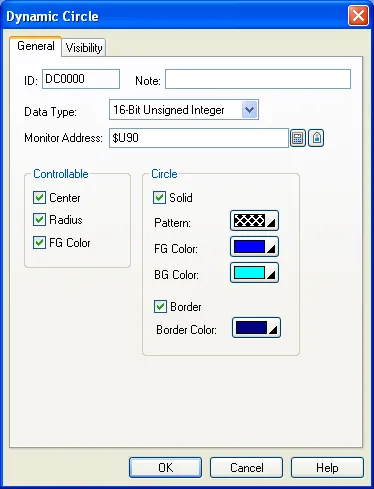
The following table describes each property in the General page.
|
Property |
Description | ||
|---|---|---|---|
| ID | The object’s identifier. It is generated when the object is created. The identifier is unique within the screen where the object is located. The format of the IDs for the dynamic circles is DCnnnn. | ||
| Note | You can type a note for the object. | ||
| Data Type | The data type of the variable that controls the dynamic circle. The supported data types include: 16-Bit Unsigned Integer, 32-Bit Unsigned Integer, 16-Bit Signed Integer, 32-Bit Signed Integer, 16-Bit BCD, and 32-Bit BCD. | ||
| Monitor Address |
Specifies the variable that
controls the dynamic circle. Click  to enter an address for this
field. Click  to select a tag for this field. The following table shows the data arrangement of the variable. 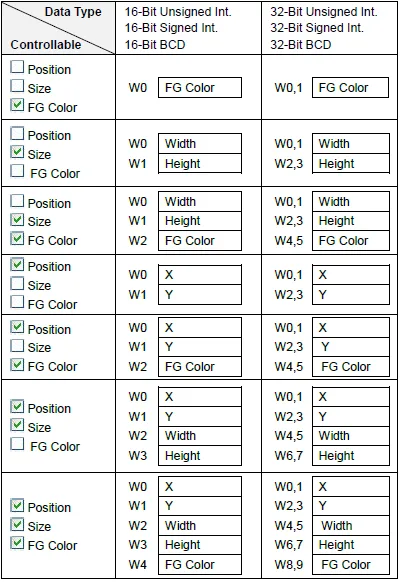 Note: About color values, see Section 9.2.4. |
||
| Controllable | Center | Check this option if you want to control the center. | |
| Radius | Check this option if you want to control the radius. | ||
| FG Color | Check this option if you want to control the FG color. This option is available when the Circle is Solid and the Pattern is not solid white. | ||
| Circle | Solid | <Check Box> | Check this option if you want the dynamic circle to be filled with the selected pattern. |
| Pattern | Select a pattern for filling the dynamic circle. | ||
| FG Color | Select a color to paint the black part of the pattern. This item is available when the Pattern is not solid white. | ||
| BG Color | Select a color to paint the white part of the pattern. | ||
| Border | <Check Box> | Check this option if you want the dynamic circle to have a border. | |
| Border Color | The border color. | ||
Need PM Designer itself?
V4 for current PK, PT, ITV and PM panels, V2 for older models. Free, sent by email.
Source.Section 9.2.3 of the PM Designer Software User Manual, Edition 2.0, © Cermate Technologies Inc. (www.cermate.com, service@cermate.com). Reproduced online, with the manual's own figures, by TSL Automation Solutions, authorised Cermate distributor, for users of Cermate HMI panels. PM Designer and PanelMaster are trademarks of Cermate Technologies Inc.
Text and figures are the manufacturer's and may describe features your panel or software version does not have. For a plain-language introduction read the PM Designer guide; for help with a specific panel contact TSL Automation.