
Section 9.6.3 · Chapter 9: Animated Objects
Animated Graphic - General Settings
This section describes how to define the general settings for animated graphics. The following is an example of the General page of the Animated Graphic property sheet.
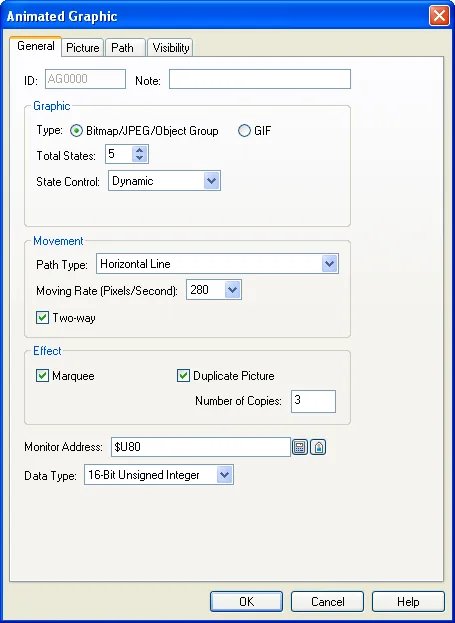
The following table describes each property in the General page.
|
Property |
Description | ||
|---|---|---|---|
| ID | The object’s identifier. It is generated when the object is created. The identifier is unique within the screen where the object is located. The format of the IDs for the animated graphics is AGnnnn. | ||
| Note | You can type a note for the object. | ||
| Graphic | Type | Select one of the following graphic types for the animated graphic: | |
| Type | Description | ||
| Bitmap/JPEG/Object Group | You can configure the animated graphic to have up to 256 pictures. The pictures can be bitmap images, JPEG images, or object groups. Define the pictures in the Picture page. For details, see Section 4.3.7 Picture Settings. | ||
| GIF | The animated graphic can have one GIF image. Define the GIF image in the GIF page. The speed of the animation for the GIF image is specified in the Change Rate field. | ||
| Total States | The number of graphic states. You can specify a picture for each state. The animated graphic displays the associated picture for the current state. | ||
| State Control | Select one of the following methods to control the state of the animated graphic. | ||
| State Control | Description | ||
| Automatic | The animated graphic changes the state in sequence starting from state 0 at a rate specified in the Change Rate field. When the current state is the last state, it will change back to state 0. | ||
| Position | The state is determined by where the animated graphic is. In the Path page, you can define the associated state for each path point. For details, see Section 9.6.5 Path Settings. | ||
| Dynamic | The state is determined at run time by the variable specified in the Monitor Address field. | ||
| The animated graphic displays the associated picture for the current state. | |||
| Change Rate (Hz) | Select a rate when the State Control is Automatic or the Graphic Type is GIF. | ||
| Movement | Path Type |
There are six path types: Still,
Horizontal Line, Vertical Line,
Polyline, Dynamic, and Dynamic;
Predefined Positions. Select one of the following path types for the animated graphic: |
|
| Path Type | Description | ||
| Still |
The animated graphic does not
move.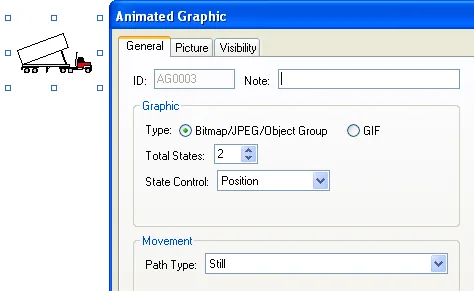 |
||
| Horizontal Line |
The animated graphic moves along
a horizontal line.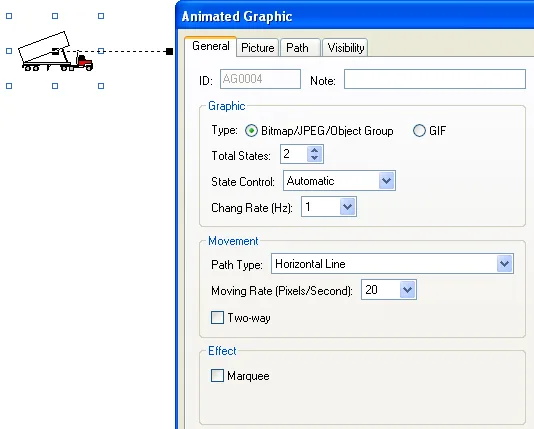 |
||
| Vertical Line | The animated graphic moves along a vertical line. | ||
| Polyline |
The animated graphic moves along
a set of connected lines. Tips: You can right-click anywhere on the connected line and use the Insert Point command on the pop-up menu to insert a new point to the polyline. You can also right-click the existing point and use the Delete Point command to delete the point. 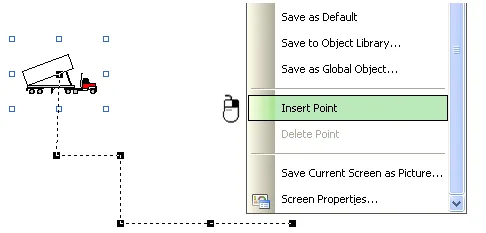 You can also position the mouse pointer over one of the points. When the cursor changes to  , drag the point to the position
you want. 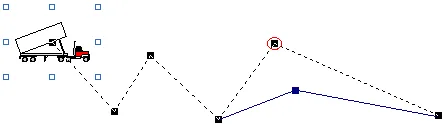 |
||
| Dynamic |
The position of the animated
graphic is determined at runtime
by the variable specified in the
Monitor Address field. The data
elements of the variable that
specify the position are X and
Y. They specify the coordinate
of the position.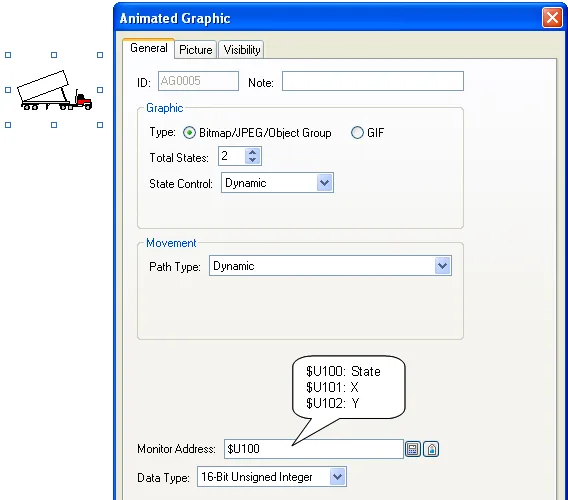 |
||
| Dynamic; Predefined Positions | The position of the animated graphic is determined at runtime by the variable specified in the Monitor Address field. The data element of the variable that specifies the position is Point. It specifies which point of the predefined path that the animated graphic should move to. | ||
| Effect | Marquee | Check this option if you want the current picture of the animated graphic to scroll into both ends of its path. This option is available when the Path Type is Horizontal Line or Vertical Line. | |
| Duplicate Picture | Check this option so the current picture of the animated graphic will be duplicated by a specified number of times. All the copies will display and move together. This option is available when the Marquee option is selected. | ||
| Number of Copies | Specifies the number of copies to make for the Duplicate Picture option. | ||
| Monitor Address |
Specifies the variable that
controls the animated graphic. Click  to enter an address for this
field. Click  to select a tag for this field. The following table shows the data arrangement of the variable: 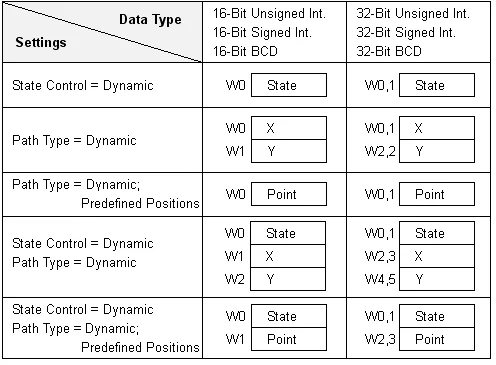 |
||
| Data Type | The data type of the variable that controls the animated graphic. The supported data types include: 16-bit Unsigned Integer, 32-bit Unsigned Integer, 16-bit Signed Integer, 32-bit Signed Integer, 16-bit BCD, and 32-bit BCD. | ||
In this section
Need PM Designer itself?
V4 for current PK, PT, ITV and PM panels, V2 for older models. Free, sent by email.
Source.Section 9.6.3 of the PM Designer Software User Manual, Edition 2.0, © Cermate Technologies Inc. (www.cermate.com, service@cermate.com). Reproduced online, with the manual's own figures, by TSL Automation Solutions, authorised Cermate distributor, for users of Cermate HMI panels. PM Designer and PanelMaster are trademarks of Cermate Technologies Inc.
Text and figures are the manufacturer's and may describe features your panel or software version does not have. For a plain-language introduction read the PM Designer guide; for help with a specific panel contact TSL Automation.