
Section 4.3.7 · Chapter 4: Designing Screens
Picture Settings
This section describes how to define the picture settings for the following types of objects:
Multi-state Switch, Radio Button Group, Step Button, Page Selector, Multi-state Lamp, Picture Display, and Animated Graphic.
The property sheets of the above mentioned objects provide you the Picture page to define the picture settings of the objects. The following is an example of the Picture page.
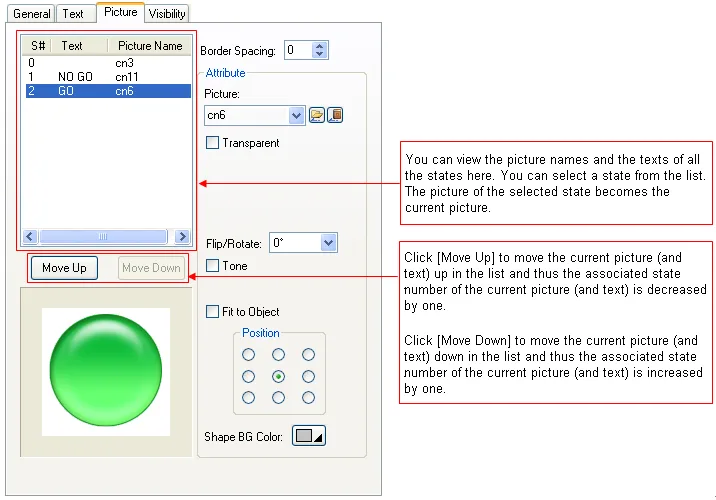
The following table describes each property in the Picture page.
| Property | Description | |
|---|---|---|
| Border Spacing | The distance (in pixels) between picture border and shape border. | |
| Picture |
The name of the current picture. You can use the
drop-down list to select a picture from the picture
database. Click  to select a picture from a file as the current picture.
After the selection, the software imports the picture of
the selected file and saves the picture in the picture
database. Click  to bring up the Select/Import from Library dialog box.
Select a picture from a picture library file as the
current picture. After the selection, the software
imports the selected picture from the selected library
and saves the picture in the picture database. |
|
| Transparent | Check this item to make parts of the picture transparent. The transparent parts are pixels whose colors are the same as the specified transparent color. This item is available when the picture is not a black and white picture. | |
| Transparent Color | The transparent color. | |
| FG Color | The color to paint the black part of a black and white picture. This item is available when the picture is a black and white picture. | |
| BG Color | The color to paint the white part of a black and white picture. This item is available when the picture is a black and white picture. | |
| Flip/Rotate | Specifies the method to flip or rotate the picture before drawing it. There are 8 options: | |
| Method | Description | |
| 0° | No rotation | |
| 90° | Rotates the picture clockwise by 90 degrees | |
| 180° | Rotates the picture clockwise by 180 degrees | |
| 270° | Rotates the picture clockwise by 270 degrees | |
| X | Flips the picture over the X axis | |
| 90° & X | Rotates the picture clockwise by 90 degree and flips it over the X axis | |
| Y | Flips the picture over Y axis | |
| 90° & Y | Rotates the picture clockwise by 90 degree and flips it over the Y axis | |
| Tone | Check this item to tone the current picture. | |
| Toning Color | The color to tone the current picture. | |
| Fit to Object | heck this item so the current picture can change its size automatically to fit inside the border of the object’s shape. | |
Position |
The position of the current picture within the object. | |
| Shape BG Color | The BG color of the object’s shape for the current state. | |
Need PM Designer itself?
V4 for current PK, PT, ITV and PM panels, V2 for older models. Free, sent by email.
Source.Section 4.3.7 of the PM Designer Software User Manual, Edition 2.0, © Cermate Technologies Inc. (www.cermate.com, service@cermate.com). Reproduced online, with the manual's own figures, by TSL Automation Solutions, authorised Cermate distributor, for users of Cermate HMI panels. PM Designer and PanelMaster are trademarks of Cermate Technologies Inc.
Text and figures are the manufacturer's and may describe features your panel or software version does not have. For a plain-language introduction read the PM Designer guide; for help with a specific panel contact TSL Automation.