
Section 20.1.2 · Chapter 20: Setting up Target Panel
Calculator
The target panel displays the calculator when you press the button
 in the Decimal Numeric Keypad. You can use Calculator which is an
immediate execution calculator to perform simple calculations such as addition,
subtraction, multiplication, and division. On the calculator, the user presses a
key for each operation, by pressing keys to calculate all the intermediate
results, before the final value is shown. With the immediate execution
calculator, each operation is executed as soon as the next operator is pressed,
therefore the order of operations in a mathematical expression is not taken into
account. The calculator accepts at most 13 characters including numbers, +/-
sign and point. The
following is an example of the Calculator.
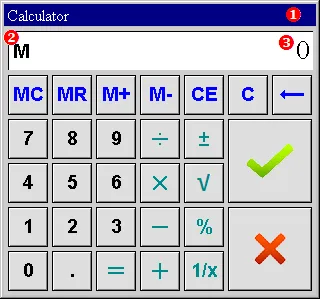
The following table describes each item on the Calculator screen.
|
Item |
Description | |
|---|---|---|
 Title Bar |
Press and hold the title bar to move the window screen. |
|
 M |
When memory has value, "M" will show up on the left. | |
 Display |
Display the current input value or the intermediate result or the error message if any. If you get an error, the calculator display will contain an appropriate message, and possibly some further descriptive information. In the case of certain errors, the calculator functions are disabled and you need to press the C or CE button to clear the error. | |
| Buttons |
 |
Stands for Memory Clear. Press it to clear the memory. |
 |
Stands for Memory Recall. Press it to bring the number of the memory into the display. | |
 |
Stands for Memory Plus. Press it to add the currently displayed number to the number in memory. To see the new number, press MR. | |
 |
Stands for Memory Minus. Press it to subtract the currently displayed number from the number in memory. To see the new number, press MR. | |
 |
Stands for
Clear Entry. Press it to erase the last number or
operation entered. For example:      Result: 3 (Number 3 is cleared) |
|
 |
Stands for Clear. Press it to remove the whole of an entry.
For example: Result: 1 |
|
 |
Press it to remove the most recently entered numbers, digit by digit. | |
| 0-9 | Press the number buttons to enter a number from 0 to 9. | |
 |
Press it to perform division. | |
 |
Press the sign button to change the sign of the number currently displayed. To get the right answer, +/− must be pressed last, even though the minus sign isn’t written last in the formula. | |
 |
Press it to perform multiplication. | |
 |
Press it to compute the square root of the number currently displayed. Note that the number is entered first then the operator. | |
 |
Press it to perform subtraction. | |
 |
Press the percent button to display the result of an
arithmetic operation as a percentage. It works the same
way as the pocket calculators. For example: Calculate a
$15 sweater after 6% tax.
   Result: 15 x (1 + 6%) = 15 + (15 x 6%) = 15.9 |
|
 |
Press it to enter a decimal point to separate the fractional part of a decimal from the whole. | |
 |
Press the equal button to display the result of an arithmetic operation. It can be used during a calculation to ensure that an intermediate result has been evaluated. Unless the "=" button is pressed, it is possible that an operation is incomplete. That means pressing "=" button ensures that no arithmetic operations are pending. | |
 |
Press it to perform addition. | |
 |
Press it to compute the reciprocal of the number currently displayed. | |
 |
Press it to close the screen and accept all changes. | |
 |
Press it to close the screen and discard all changes. | |
Need PM Designer itself?
V4 for current PK, PT, ITV and PM panels, V2 for older models. Free, sent by email.
Source.Section 20.1.2 of the PM Designer Software User Manual, Edition 2.0, © Cermate Technologies Inc. (www.cermate.com, service@cermate.com). Reproduced online, with the manual's own figures, by TSL Automation Solutions, authorised Cermate distributor, for users of Cermate HMI panels. PM Designer and PanelMaster are trademarks of Cermate Technologies Inc.
Text and figures are the manufacturer's and may describe features your panel or software version does not have. For a plain-language introduction read the PM Designer guide; for help with a specific panel contact TSL Automation.