
Section 20.2.7 · Chapter 20: Setting up Target Panel
LAN Printer Address
To use a LAN printer, you need to assign an IP address and a port for the printer on the target panel. You can press the LAN Printer Address button on the Panel Setup screen to bring out the screen. The following is an example:
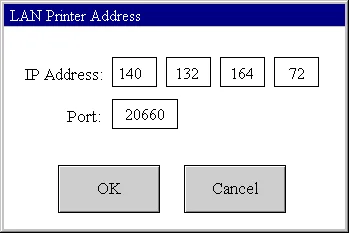
The LAN Printer Address screen appears with the following options:
|
Property |
Description |
|---|---|
| IP Address |
Specifies the IP address of the connected network
printer. You can press the corresponding field to bring
out the Decimal Numeric Keypad to input an integer value
from 0 to 255. |
| Port | Specifies the used IP port. You can press the corresponding field to bring out the Decimal Numeric Keypad to input an integer value from 0 to 65535. |
| OK | Click it to close the dialog box and accept all changes. |
| Cancel | Click it to close the dialog box and discard all changes. |
Need PM Designer itself?
V4 for current PK, PT, ITV and PM panels, V2 for older models. Free, sent by email.
Source.Section 20.2.7 of the PM Designer Software User Manual, Edition 2.0, © Cermate Technologies Inc. (www.cermate.com, service@cermate.com). Reproduced online, with the manual's own figures, by TSL Automation Solutions, authorised Cermate distributor, for users of Cermate HMI panels. PM Designer and PanelMaster are trademarks of Cermate Technologies Inc.
Text and figures are the manufacturer's and may describe features your panel or software version does not have. For a plain-language introduction read the PM Designer guide; for help with a specific panel contact TSL Automation.