
Section 20.3 · Chapter 20: Setting up Target Panel
Recovering System by System Loader
When there is a system-critical problem that interferes with the normal operation of the target panel, users may need to boot into the system loader mode, which allows them to troubleshoot their target panel or update the application. Once you have corrected the problem, you can reboot and the target panel will run normally.
To get the target panel into the system loader mode, press the upper-left corner for 3 seconds while the power is on, once there is a beeping sound, the System Loader screen will be displayed as shown below:
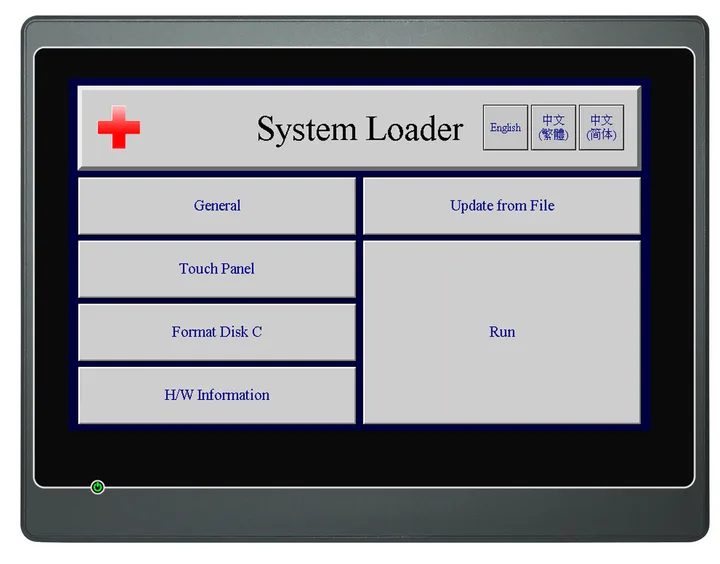
The following table describes the function of each button on the System Loader screen of the target panel.
|
Property |
Press the button to | |||||||||||||||||||
|---|---|---|---|---|---|---|---|---|---|---|---|---|---|---|---|---|---|---|---|---|
| English/中文(繁體)/中文(簡体) |
Display the texts of the screen in the corresponding
language. |
|||||||||||||||||||
| General |
Set the IP address and brightness of the display. The
following is an example of the General screen.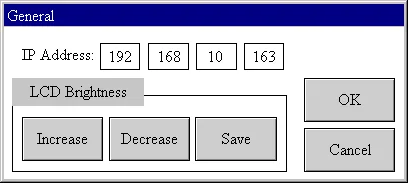 The following table describes each property in the General screen.
|
|||||||||||||||||||
| Touch Panel | Calibrate the touch panel. Please see Section 20.2.3 for details. | |||||||||||||||||||
| Format Disk C | Format the built-in flash disk (C:). This operation requires a user level of 8 or higher. | |||||||||||||||||||
| H/W Information |
Display the hardware information of the target panel.
The following is an example of the hardware information
screen: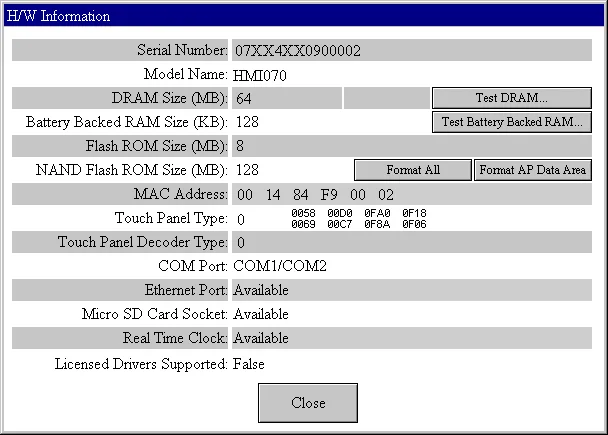 |
|||||||||||||||||||
| Update from File | Update the system programs and the application runtime data from a PRP file. The original system programs and the application runtime data are replaced by the new ones. | |||||||||||||||||||
| Run | Get into the Panel Setup mode. | |||||||||||||||||||
Need PM Designer itself?
V4 for current PK, PT, ITV and PM panels, V2 for older models. Free, sent by email.
Source.Section 20.3 of the PM Designer Software User Manual, Edition 2.0, © Cermate Technologies Inc. (www.cermate.com, service@cermate.com). Reproduced online, with the manual's own figures, by TSL Automation Solutions, authorised Cermate distributor, for users of Cermate HMI panels. PM Designer and PanelMaster are trademarks of Cermate Technologies Inc.
Text and figures are the manufacturer's and may describe features your panel or software version does not have. For a plain-language introduction read the PM Designer guide; for help with a specific panel contact TSL Automation.