
Section 20.2.6 · Chapter 20: Setting up Target Panel
Link Settings (Ethernet Port)
This section describes how to set up the communication parameters for the Ethernet communication links using the link screen of the target panel. The default setting of the link screen is transmitted to the target panel along with other data when you download an application.
You can press the corresponding Link button on the Panel Setup screen to bring out the link screen. If the link is an Ethernet link, the target panel will display the Ethernet parameters screen. The following is an example:
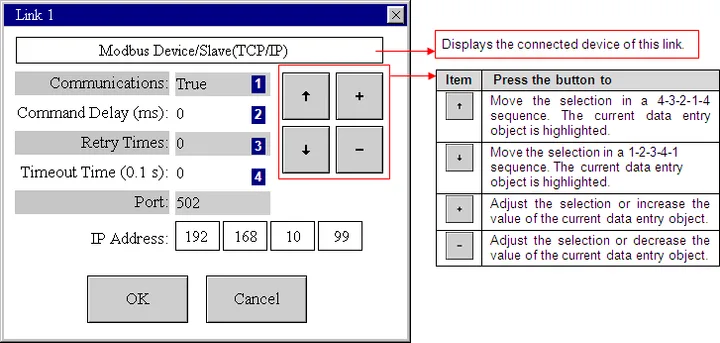
The screen for an Ethernet link appears with the following options:
|
Property |
Description |
|---|---|
| Communications |
Select False if you want to disable the communication
between the target panel and the controller. When
communication is disabled, the target panel doesn’t
communication with the controller but can still display
screens. |
| Command Delay | If the Command Delay is 0, the communication driver immediately sends the next request to the connected device after it received a reply from the last request. If the Command Delay is nonzero, the communication driver delays for a specified amount time before sending the next request to the connected device. |
| Retry Count | The number of times that the communication driver will retry to get a successful reply from the connected device for each request. If the number is zero, the communication driver will use a default retry count. |
| Timeout Time | The maximum time allowed for the communication driver to wait for a reply from the connected device. When the elapsed time exceeds the Timeout Time, the communication driver assumes that the communication failed. |
| Port | Displays the IP port for use |
| IP Address | Specify the IP address of the connected device. You can press the corresponding field to bring out the Decimal Numeric Keypad to input numbers. |
| OK | Click it to close the dialog box and accept all changes. |
| Cancel | Click it to close the dialog box and discard all changes. |
Need PM Designer itself?
V4 for current PK, PT, ITV and PM panels, V2 for older models. Free, sent by email.
Source.Section 20.2.6 of the PM Designer Software User Manual, Edition 2.0, © Cermate Technologies Inc. (www.cermate.com, service@cermate.com). Reproduced online, with the manual's own figures, by TSL Automation Solutions, authorised Cermate distributor, for users of Cermate HMI panels. PM Designer and PanelMaster are trademarks of Cermate Technologies Inc.
Text and figures are the manufacturer's and may describe features your panel or software version does not have. For a plain-language introduction read the PM Designer guide; for help with a specific panel contact TSL Automation.