
Section 20.1.7 · Chapter 20: Setting up Target Panel
Select File
The Select File screen is only for the panels that support file operations. It allows the user to select a file from the system for the following operations:
|
No. |
Operations | No. | Operations |
|---|---|---|---|
| 1 |
Select a file to update the OS & AP |
15 | Read recipe data from TXT file |
| 2 | Select a file and run the OS & AP in it | 16 | Read recipe data from DAT file |
| 3 | Select a file to read data | 17 | Write OS and AP to file |
| 4 | Select a file to write data | 18 | Print screen to file (256 colors) |
| 5 | Select a file to append data | 19 | Print screen to file (64K colors) |
| 6 | Select a file to delete | 20 | Write logged data to .LDF file |
| 7 | Select a file to rename | 21 | Read logged data from .LDF file |
| 8 | Write recipe data to TXT file | 22 | Write line chart data to file |
| 9 | Write recipe data to DAT file | 23 | Read line chart data from file |
| 10 | Write logged data to file | 24 | Write scatter chart data to file |
| 11 | Write logged alarms to file | 25 | Read scatter chart data from file |
| 12 | Write alarm counts to file | 26 | Select a file to copy |
| 13 | Write logged operations to file | 27 | Read logged data file from file |
| 14 | Write panel data to file |
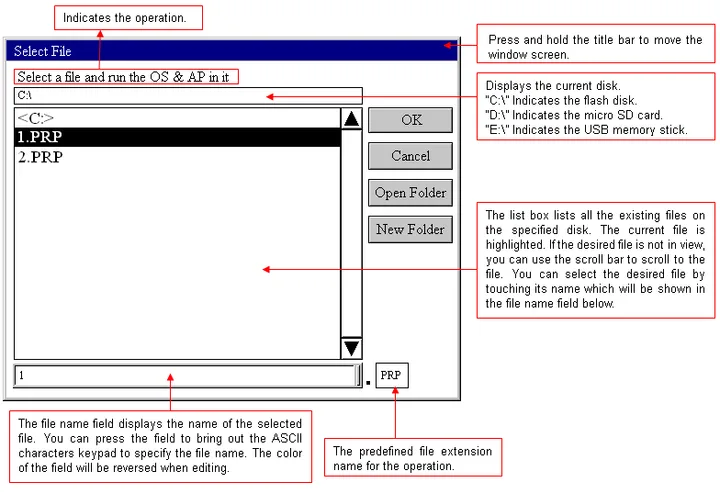
The following is an example of the Select File screen.
Need PM Designer itself?
V4 for current PK, PT, ITV and PM panels, V2 for older models. Free, sent by email.
Source.Section 20.1.7 of the PM Designer Software User Manual, Edition 2.0, © Cermate Technologies Inc. (www.cermate.com, service@cermate.com). Reproduced online, with the manual's own figures, by TSL Automation Solutions, authorised Cermate distributor, for users of Cermate HMI panels. PM Designer and PanelMaster are trademarks of Cermate Technologies Inc.
Text and figures are the manufacturer's and may describe features your panel or software version does not have. For a plain-language introduction read the PM Designer guide; for help with a specific panel contact TSL Automation.