
Section 20.1.6 · Chapter 20: Setting up Target Panel
Password Table
To register new passwords or modify existing passwords for your application, you have to create a function button on a screen and assign the function “Show Password Table” to the button. When the panel is running the application, a level 8 user can get the password table as shown below when he presses and releases the function button that shows the password table.
Note: The user can only get the passwords whose levels are lower than or equal to the user’s level for editing. For example, if the current user lever is 5, the password table will only show the passwords for levels 1 to 5.
The following is an example of the Password Table when the current user lever is 8.
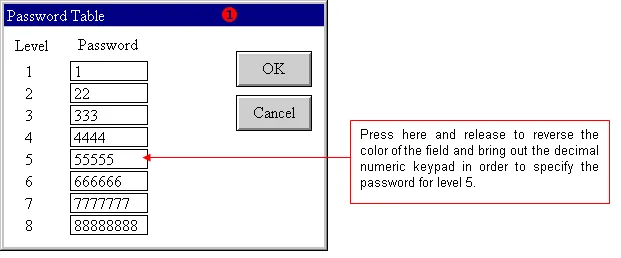
The following table describes each item on the keypad screen.
|
Item |
Description |
|---|---|
 Title Bar |
Press and hold the title bar to move the window screen. |
| Password | Press the field to bring out the decimal numeric keypad to specify the password for the corresponding user level. A password is a positive integer of up to 8 digits. A password must be unique within the application. |
| OK | Press it to close the dialog box and accepts all changes. |
| Cancel | Press it to close the dialog box and discard all changes. |
Need PM Designer itself?
V4 for current PK, PT, ITV and PM panels, V2 for older models. Free, sent by email.
Source.Section 20.1.6 of the PM Designer Software User Manual, Edition 2.0, © Cermate Technologies Inc. (www.cermate.com, service@cermate.com). Reproduced online, with the manual's own figures, by TSL Automation Solutions, authorised Cermate distributor, for users of Cermate HMI panels. PM Designer and PanelMaster are trademarks of Cermate Technologies Inc.
Text and figures are the manufacturer's and may describe features your panel or software version does not have. For a plain-language introduction read the PM Designer guide; for help with a specific panel contact TSL Automation.