
Section 8.1.5 · Chapter 8: Graphs and Charts
Bar Graph - Forward and Backward Marker Settings
This section describes how to define the forward marker and the backward marker settings for a bar graph. The following is an example of the Forward Marker page.
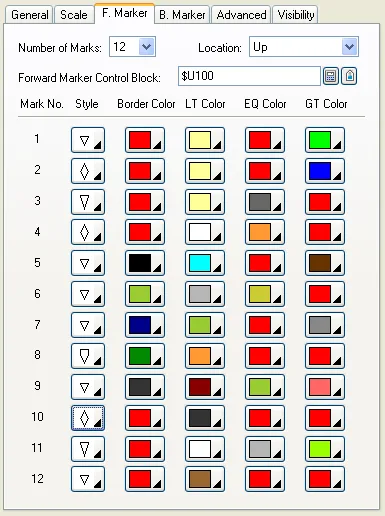
The following table describes each property in the Forward Marker page and the Backward Marker page.
|
Property |
Description | ||
|---|---|---|---|
| Number of Marks | Specifies the maximum number of marks this marker can support. | ||
| Location | Select Up or Down for the location of the marker when the bar direction is Leftward or Rightward. Select Left or Right for the location of the marker when the bar direction is Upward or Downward. | ||
| Forward/Backward Marker Control Block |
Specifies the variable that stores the marker control
block. Click  to enter an address for this field. Click  to select a tag for this field. The following table shows the data arrangement of the marker control block when the data type is 16-bit. |
||
| Word | Description | ||
| 0 | Specifies the actual number of marks that the marker will display. | ||
| 1 | The value of mark 1. | ||
| 2 | The value of mark 2 | ||
| … | … | ||
| 12 | The value of mark 12 | ||
| The following table shows the data arrangement of the marker control block when the data type is 32-bit. | |||
| Word | Description | ||
| 0,1 | Specifies the actual number of marks that the marker will display. | ||
| 2,3 | The value of mark 1. | ||
| 4,5 | The value of mark 2 | ||
| … | … | ||
| 24,25 | The value of mark 12 | ||
| Note: The data format of the mark values should be the same as that of the monitored variable. | |||
| Mark No. 1 - No. 12 | Style |
Specifies the mark style. There
are four mark styles:
 |
|
| Border Color | The border color of the mark. | ||
| LT Color | The fill color of the mark when the monitored value is less than the mark’s value. | ||
| EQ Color | The fill color of the mark when the monitored value is equal to the mark’s value. | ||
| GT Color | The fill color of the mark when the monitored value is greater than the mark’s value. | ||
Need PM Designer itself?
V4 for current PK, PT, ITV and PM panels, V2 for older models. Free, sent by email.
Source.Section 8.1.5 of the PM Designer Software User Manual, Edition 2.0, © Cermate Technologies Inc. (www.cermate.com, service@cermate.com). Reproduced online, with the manual's own figures, by TSL Automation Solutions, authorised Cermate distributor, for users of Cermate HMI panels. PM Designer and PanelMaster are trademarks of Cermate Technologies Inc.
Text and figures are the manufacturer's and may describe features your panel or software version does not have. For a plain-language introduction read the PM Designer guide; for help with a specific panel contact TSL Automation.