
Section 8.4.6 · Chapter 8: Graphs and Charts
Line Chart/Scatter Chart - Axis Settings
This section describes how to define the X axis and the Y axis for the line charts and the scatter charts.
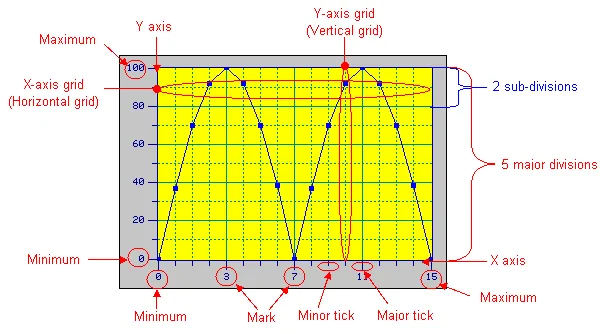
The following is an example of the Axis page.
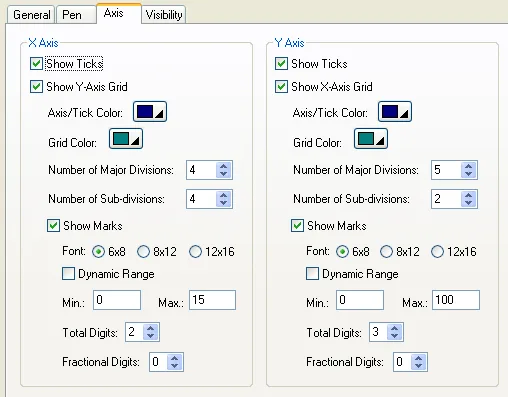
The following table describes each property in the Axis page.
|
Property |
Description | |
|---|---|---|
| X Axis | Show Ticks | Check this option if you want the X axis to have ticks. |
| Show Y-axis Grid | Select this option if you want the X axis to have vertical grids. | |
| Axis/Tick Color | Select a color for the X axis and its ticks. | |
| Grid Color | Select a color for the vertical grids. | |
| Number of Major Divisions | The number of major divisions for the X axis. The minimum you can specify is one. | |
| Number of Sub-divisions | The number of divisions between two adjacent major ticks. The minimum you can specify is one. | |
| Mark | Show Marks | Check this option if you want the major ticks to have marks. |
| Font | The font of the marks. | |
| Dynamic Range | Check this option if you want the minimum and maximum of the marks to be controlled by the dynamic range parameter block of the associated object at runtime. | |
| Min. | The minimum of the marks. It is a 32-bit integer. | |
| Max. | The maximum of the marks. It is a 32-bit integer. | |
| Total Digits | The total digits to be displayed for the marks. | |
| Fractional Digits | The number of fractional digits for the marks. For example, when the Maximum is 5000, the Total Digits is 4, and the Fractional Digits is 2, the mark for the Maximum will be 50.00. | |
| Y Axis | Show Ticks | Check this option if you want the Y axis to have ticks. |
| Show X-axis Grid | Select this option if you want the Y axis to have horizontal grids. | |
| Axis/Tick Color | Select a color for the Y axis and its ticks. | |
| Grid Color | Select a color for the horizontal grids. | |
| Number of Major Divisions | The number of major divisions for the Y axis. The minimum you can specify is one. | |
| Number of Sub-divisions | The number of divisions between two adjacent major ticks. The minimum you can specify is one. | |
| Mark | Show Marks | Check this option if you want the major ticks to have marks. |
| Font | The font of the marks. | |
| Dynamic Range | Check this option if you want the minimum and maximum of the marks to be controlled by the dynamic range parameter block of the associated object at runtime. | |
| Min. | The minimum of the marks. You can specify a 32-bit signed integer. | |
| Max. | The maximum of the marks. You can specify a 32-bit signed integer. | |
| Total Digits | The total digits to be displayed for the marks. | |
| Fractional Digits | The number of fractional digits for the marks. For example, when the Maximum is 5000, the Total Digits is 4, and the Fractional Digits is 2, the mark for the Maximum will be 50.00. | |
Need PM Designer itself?
V4 for current PK, PT, ITV and PM panels, V2 for older models. Free, sent by email.
Source.Section 8.4.6 of the PM Designer Software User Manual, Edition 2.0, © Cermate Technologies Inc. (www.cermate.com, service@cermate.com). Reproduced online, with the manual's own figures, by TSL Automation Solutions, authorised Cermate distributor, for users of Cermate HMI panels. PM Designer and PanelMaster are trademarks of Cermate Technologies Inc.
Text and figures are the manufacturer's and may describe features your panel or software version does not have. For a plain-language introduction read the PM Designer guide; for help with a specific panel contact TSL Automation.