
Section 8.1.2 · Chapter 8: Graphs and Charts
Bar Graph - Operation Options
The following operation options can be added to a bar graph to make it more informative. You need to select and set these options in the Bar Graph property sheet.
|
Options |
Description | ||
|---|---|---|---|
| Bipolar Bar |
A bar graph can be configured to display the difference
between the monitored value and a specified value called
the middle point. The bar can move at both ends, hence
bipolar bar.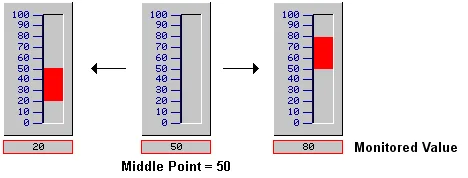 Select and set this option in the General page. |
||
| Scale |
A bar graph can have a scale. Select and set this option
in the
Scale page. |
||
| Forward / Backward Marker |
The forward/backward markers of a bar graph can have up
12 marks. You can select equilateral triangle, triangle,
diamond, or cone as the mark. The actual number of marks
and the value of each mark is specified at runtime by
the forward/backward marker control block. The position
of a mark is determined by that mark’s value. The color
of a mark is determined by comparing the monitored value
to the mark’s value.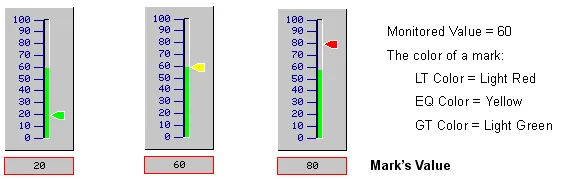 Select and set Forward Marker option in the F. Marker page. Select and set Backward Marker option in the B. Marker page. |
||
| Range Display |
You can specify a low limit and a high limit for a bar
graph. The limits can be constants or variables. At
runtime, when the monitored value is equal to or below
the low limit, the bar graph shows the bar with the FG
color and the BG color set for the low limit. When the
monitored value is equal to or above the high limit, the
bar graph shows the bar with the FG color and the BG
color set for the high limit.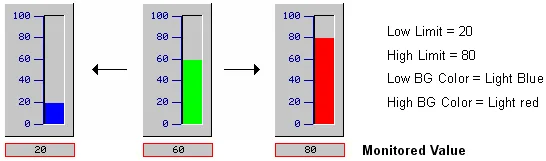 Select and set this option in the Advanced page. |
||
| Percentage Display |
A bar graph can show the current bar length as a
percentage of the full bar length. |
||
| Type | Percentage | ||
| Polar Bar |
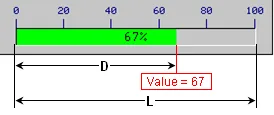 |
D / L x 100% | |
| Bipolar Bar |
Value < Middle Point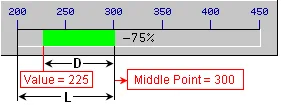 |
-D / L x 100% | |
Value > Middle Point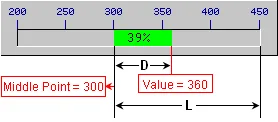 |
D / L x 100% | ||
| Select and set this option in the Advanced page. | |||
| Visibility Control | A bar graph can be shown or hidden either by a specified bit or by the current user level. Select and set this option in the Visibility page. | ||
Need PM Designer itself?
V4 for current PK, PT, ITV and PM panels, V2 for older models. Free, sent by email.
Source.Section 8.1.2 of the PM Designer Software User Manual, Edition 2.0, © Cermate Technologies Inc. (www.cermate.com, service@cermate.com). Reproduced online, with the manual's own figures, by TSL Automation Solutions, authorised Cermate distributor, for users of Cermate HMI panels. PM Designer and PanelMaster are trademarks of Cermate Technologies Inc.
Text and figures are the manufacturer's and may describe features your panel or software version does not have. For a plain-language introduction read the PM Designer guide; for help with a specific panel contact TSL Automation.