
Section 4.4.6 · Chapter 4: Designing Screens
Visibility Settings
In the Visibility page of an object's property sheet, you can define how to
show and hide the object. You can also modify the position and size of an object
with the Visibility page.
The following are examples of the Visibility page:
|
The option “Controlled by Bit” is checked |
The option “Controlled by User Level” is checked |
|---|---|
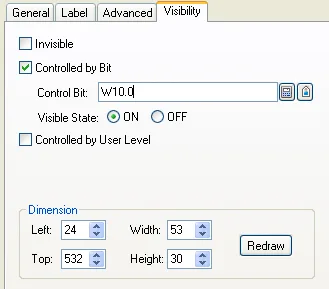 |
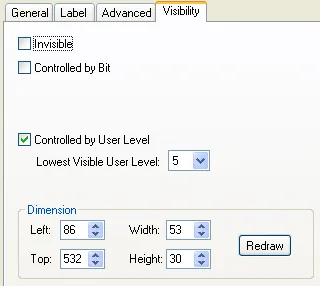 |
The following table describes each property in the Visibility page.
| Property | Description | |
|---|---|---|
| Invisible |
Check this option so the object will always be
invisible. Note: The touch operation is still enabled with this setting. |
|
| Controlled by Bit | Controlled by Bit | Check this option so the object will be shown and hidden by the specified bit or a word's bit. |
| Control Bit |
Specifies the bit that will show or hide the object.
Click  to enter the bit address. Click  to enter the bit tag. |
|
| Visible State | Specifies the state (On or Off) that makes the object visible. | |
| Controlled by User Level | Controlled by User Level | Check this option so the object will be shown and hidden by the current user level. |
| Lowest Visible User Level | Specifies the lowest user level that is required to show the object. | |
| Dimension | Left | Specifies the X coordinate of the object’s upper-left corner on the screen. |
| Top | Specifies the Y coordinate of the object’s upper-left corner on the screen. | |
| Width | Specifies the width (in pixels) of the object. | |
| Height | Specifies the height (in pixels) of the object. | |
 |
Click this button to redraw the object with the new
settings. |
|
Need PM Designer itself?
V4 for current PK, PT, ITV and PM panels, V2 for older models. Free, sent by email.
Source.Section 4.4.6 of the PM Designer Software User Manual, Edition 2.0, © Cermate Technologies Inc. (www.cermate.com, service@cermate.com). Reproduced online, with the manual's own figures, by TSL Automation Solutions, authorised Cermate distributor, for users of Cermate HMI panels. PM Designer and PanelMaster are trademarks of Cermate Technologies Inc.
Text and figures are the manufacturer's and may describe features your panel or software version does not have. For a plain-language introduction read the PM Designer guide; for help with a specific panel contact TSL Automation.