
Section 4.1.13.2 · Chapter 4: Designing Screens
Table - Cell Settings
The following is an example of the Cell page of the Table Object dialog box and the Select Object Dialog box when the Insert Button is clicked.
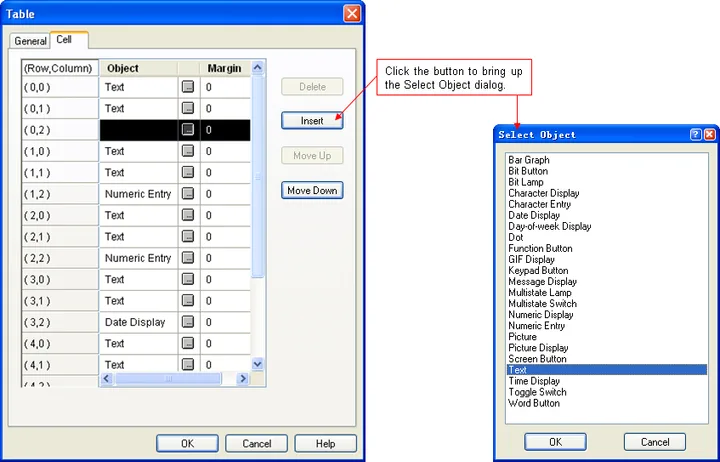
The following table describes each property in the Cell page of the Table dialog box. To make the buttons available, you need to select a row. To select a row, left-click the (Row, Column) column.
|
Property |
Description |
|---|---|
| (Row, Column) | The location of the cell. |
| Object | The type of the specified object. If the field is empty, the cell has no object inserted and it is called empty cell. |
 |
Click the button to bring up the properties dialog box of the specified object and define the settings of the object for the selected cell. The button is available when the Object field is not empty. |
| Margin | The distance in pixels between the object boundary and the cell border. Select a number between 0 and 10. |
| Delete | Click the button to clear the contents of the selected cell. The button is available when the selected cell is not empty. |
| Insert |
Click the button to bring up the Select Object dialog
box shown above. Select an object type listed in the
dialog to create a new object for the selected cell. The
button is available when the selected cell is empty. Note: The table won’t allow the insertion of the type of object which is not listed in the dialog. |
| Move Up | Click the button to move the selected cell before the previous cell. It will not be available when multiple rows are selected, no row is selected, or the first row is selected. |
| Move Down | Click the button to move the selected cell after the next cell. It will not be available when multiple rows are selected, no row is selected, or the last row is selected. |
Need PM Designer itself?
V4 for current PK, PT, ITV and PM panels, V2 for older models. Free, sent by email.
Source.Section 4.1.13.2 of the PM Designer Software User Manual, Edition 2.0, © Cermate Technologies Inc. (www.cermate.com, service@cermate.com). Reproduced online, with the manual's own figures, by TSL Automation Solutions, authorised Cermate distributor, for users of Cermate HMI panels. PM Designer and PanelMaster are trademarks of Cermate Technologies Inc.
Text and figures are the manufacturer's and may describe features your panel or software version does not have. For a plain-language introduction read the PM Designer guide; for help with a specific panel contact TSL Automation.