
Section 4.2.6.1 · Chapter 4: Designing Screens
Changing the Order of Objects
The object order in the software is the order in which the selection cursor moves the input focus from one object to the next within a screen. Usually the order proceeds from left to right and from top to bottom in a screen. In the model with programmable keys such as 037-LSK, the Data Entry Object receives input focus in the specified order by clicking direction keys. In a touch panel, you can use the function button to select a data entry object with the order number previous or next to the current selection.
The object order is also the display order. If the screen contains overlapping objects, changing the order will change the display sequence of the objects. The objects that come later in the order are always displayed on top of any overlapping objects that precede them in the order.
■ Viewing order
To view the current order of all objects in the screen, click Set Order on the
Edit menu.
■ Changing order
To change the order for all objects in the screen
- On the Edit menu, click Set Order
A Number in the upper-left corner of each object shows its place in the current order - Set the order by clicking each object in the order that you want the objects to be displayed. The ordering number starts from 1.
- Click the blank field on the screen to exit Set Order mode
The following is an example of the object ordering.
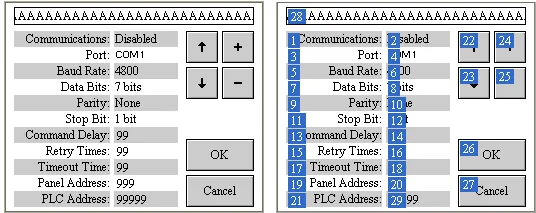
If the screen is running on 037-LSK, click the down or right direction key to
move the selection in 2-4-6-8-10-12-14-16-18 -20-29 sequence. If the screen is
running on the touch panel, click the function button
 to move the selection
in the same sequence. The text objects with 1,3,5…order number are not data
entry object, so they won’t receive the selection and are not listed in the
sequence.
Need PM Designer itself?
V4 for current PK, PT, ITV and PM panels, V2 for older models. Free, sent by email.
Source.Section 4.2.6.1 of the PM Designer Software User Manual, Edition 2.0, © Cermate Technologies Inc. (www.cermate.com, service@cermate.com). Reproduced online, with the manual's own figures, by TSL Automation Solutions, authorised Cermate distributor, for users of Cermate HMI panels. PM Designer and PanelMaster are trademarks of Cermate Technologies Inc.
Text and figures are the manufacturer's and may describe features your panel or software version does not have. For a plain-language introduction read the PM Designer guide; for help with a specific panel contact TSL Automation.