
Section 4.3.3 · Chapter 4: Designing Screens
Selecting a Graphical Shape
■ Shape Buttons
In an object’s property dialog box, you can click the shape button to bring up
the Shape palette. With the Shape palette, you can select a graphical shape as
the shape of the associated object.
■ Shape Palette
With the Shape palette, you can select a graphical shape for an object. Usually,
you click
 /
 to bring up
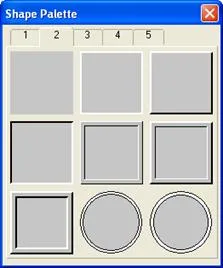
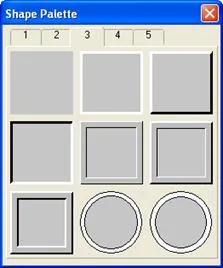
the Shape palette. The Shape palette contains several pages of graphical shapes.
To select a graphical shape, click on that graphical shape. To select a page,
click on that page’s number tab. To cancel the operation, click the close button
 to close the Shape
palette.
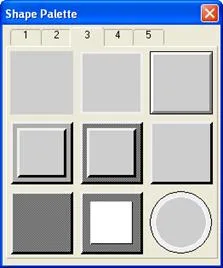
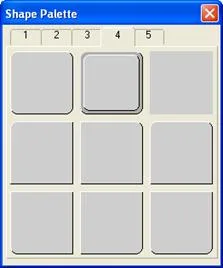
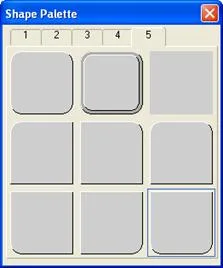
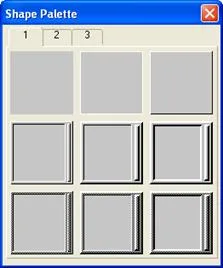
There are four sets of graphical shapes available for your applications. Each of
them is suitable for certain kinds of objects. The Shape palette shows the set
that is suitable for the type of object concerned. The four sets of shapes are
shown below.
Graphical shapes for buttons and switches
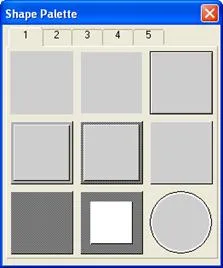
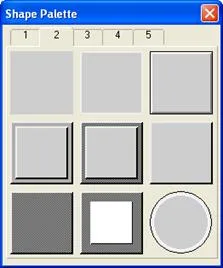
Graphical shapes for data entry objects
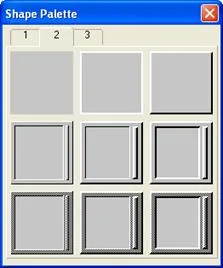
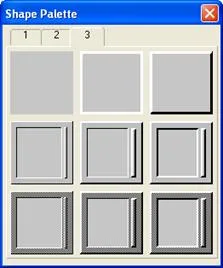
Graphical shapes for data display objects
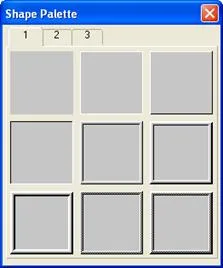
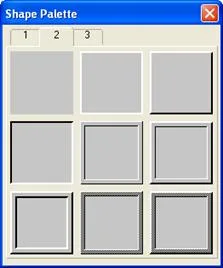
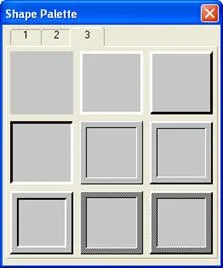
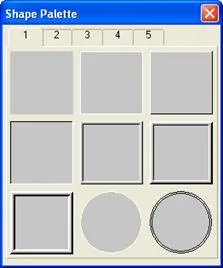
Graphical shapes for lamps
Need PM Designer itself?
V4 for current PK, PT, ITV and PM panels, V2 for older models. Free, sent by email.
Source.Section 4.3.3 of the PM Designer Software User Manual, Edition 2.0, © Cermate Technologies Inc. (www.cermate.com, service@cermate.com). Reproduced online, with the manual's own figures, by TSL Automation Solutions, authorised Cermate distributor, for users of Cermate HMI panels. PM Designer and PanelMaster are trademarks of Cermate Technologies Inc.
Text and figures are the manufacturer's and may describe features your panel or software version does not have. For a plain-language introduction read the PM Designer guide; for help with a specific panel contact TSL Automation.