
Section 4.1 · Chapter 4: Designing Screens
Drawing Basic Shapes
The software provides a drawing tool you can use to create simple or elaborate drawing shapes such as lines, rectangles, circles, arcs etc.
To create a drawing shape, click the shape on the Draw Toolbar (See Section 1.2.2.3 Draw Toolbar for details), or use the command on the Draw menu (See Section 1.2.1.5 Draw menu for details). Then, move the mouse to the position you want to place the shape and click the left button. To set up a drawing shape, double-click the shape to bring up the corresponding properties dialog, which can then allow you to set up the color and style of the line/outlined, pattern, FG/BG Color…of the shape.
Note: If you don’t see the Draw Toolbar pictured below in the lower left corner of the program window, please click the Draw Toolbar command on the View menu.

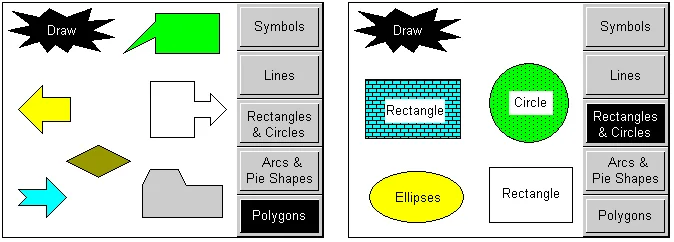
The following is a sample of the basic shapes:
In this section
Need PM Designer itself?
V4 for current PK, PT, ITV and PM panels, V2 for older models. Free, sent by email.
Source.Section 4.1 of the PM Designer Software User Manual, Edition 2.0, © Cermate Technologies Inc. (www.cermate.com, service@cermate.com). Reproduced online, with the manual's own figures, by TSL Automation Solutions, authorised Cermate distributor, for users of Cermate HMI panels. PM Designer and PanelMaster are trademarks of Cermate Technologies Inc.
Text and figures are the manufacturer's and may describe features your panel or software version does not have. For a plain-language introduction read the PM Designer guide; for help with a specific panel contact TSL Automation.