
Section 4.3.8 · Chapter 4: Designing Screens
External Label Settings
This section describes how to set up the external label for the following types of objects:
Bit Button, Toggle Switch, Screen Button, Slide Switch, Word Button, Multi-state Switch, Radio Button Group, Step Button, Numeric Entry, Numeric Display, Advanced Numeric Display, ASCII String Entry, ASCII String Display, Bit Lamp, Multi-state Lamp, Message Display, Picture Display, and Bar Graph.
You can use the External Label page of an object's property sheet to set up the external label of that object. The following is an example of the External Label page.
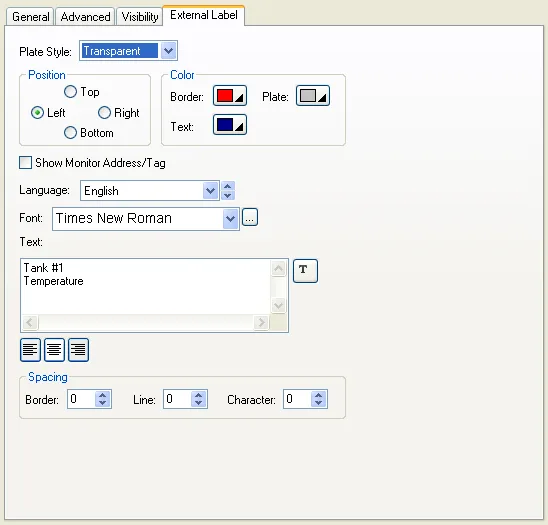
The following table describes each property in the External Label page.
|
Property |
Description | ||
|---|---|---|---|
| Plate Style | Specifies the plate type of the external label. There are four plate types as shown below: | ||
| Plate Type | Example | ||
| Transparent |
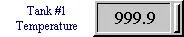 |
||
| Flat |
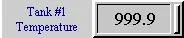 |
||
| Outlined |
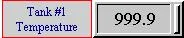 |
||
| Raised |
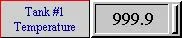 |
||
| Position | Specifies the position of the external label relative to the object. There are four positions as shown below: | ||
| Position | Example | ||
| Top |
 |
||
| Left |
|
||
| Right |
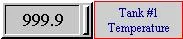 |
||
| Bottom |
 |
||
| Color | Border | The border color of the plate. To specify the color, click the corresponding Color icon and select a color from the Color palette. | |
| Plate | The color of the plate. To specify the color, click the corresponding Color icon and select a color from the Color palette. | ||
| Text | The color of the text. To specify the color, click the corresponding Color icon and select a color from the Color palette. | ||
| Language | The language that you are setting the text to. | ||
| Font | <Drop-down List> | The font of the text for the current language. | |
 |
Click this button to bring up the Font Templates dialog box and select a font for the text. You can change the font templates before selecting a font in that dialog box. | ||
| Text | <Edit Box> / <Combo Box> | The text for the current language. | |
 /  |
Click
to view and edit the text for the selected language in
this edit box, or click
to select a text from dropdown text table that lists all
the texts from Text Database. You can change the text
database before selecting a text. |
||
 |
The alignment of the text. | ||
| Spacing | Border | The distance (in pixels) between the plate border and the text body. | |
| Line | The distance (in pixels) between two adjacent lines of the text. | ||
| Character | The distance (in pixels) between two adjacent characters of the text. | ||
Need PM Designer itself?
V4 for current PK, PT, ITV and PM panels, V2 for older models. Free, sent by email.
Source.Section 4.3.8 of the PM Designer Software User Manual, Edition 2.0, © Cermate Technologies Inc. (www.cermate.com, service@cermate.com). Reproduced online, with the manual's own figures, by TSL Automation Solutions, authorised Cermate distributor, for users of Cermate HMI panels. PM Designer and PanelMaster are trademarks of Cermate Technologies Inc.
Text and figures are the manufacturer's and may describe features your panel or software version does not have. For a plain-language introduction read the PM Designer guide; for help with a specific panel contact TSL Automation.