
Section 4.2.3 · Chapter 4: Designing Screens
Duplicating Objects
To duplicate the selected object, use the Duplicate… command on the Edit menu or on the object pop-up menu. After the duplicate command is executed, the following dialog will pop-up and allow you to set how to duplicate objects.
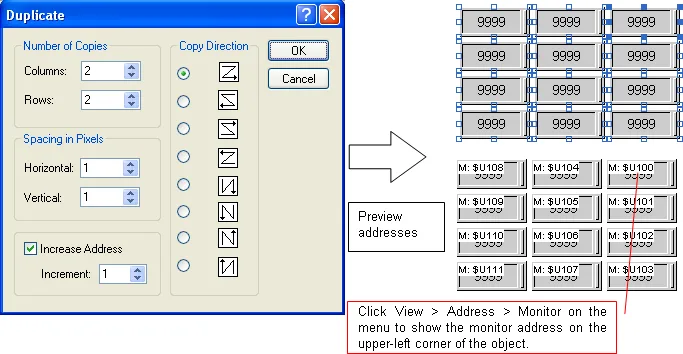
The following table describes each property in the Duplicate dialog.
|
Property |
Description | |
|---|---|---|
| Number of Copies | Columns | The total number of columns. |
| Rows | The total number of rows. | |
| Spacing in Pixels | Vertical | The distance (in pixels) between two adjacent objects in the vertical direction. |
| Horizontal | The distance (in pixels) between two adjacent objects in the horizontal direction. | |
| Increase Address | Check this item so the address of each duplicate will be increased to a specified increment over the previous object. | |
| Increment | The increase amount. | |
| Copy Direction |
 |
From top to bottom, place the duplicates row by row. In the same row, place the duplicate to the right of the previous object. |
 |
From top to bottom, place the duplicates row by row. In the same row, place the duplicate to the left of the previous object. | |
 |
From bottom to top, place the duplicates row by row. In the same row, place the duplicate to the right of the previous object. | |
 |
From bottom to top, place the duplicates row by row. In the same row, place the duplicate to the left of the previous object. | |
 |
From left to right, place the duplicates column by column. In the same column, place the duplicate below the previous object. | |
 |
From right to left, place the duplicates column by column. In the same column, place the duplicate below the previous object. | |
 |
From left to right, place the duplicates column by column. In the same column, place the duplicate above the previous object. | |
 |
From right to left, place the duplicates column by column. In the same column, place the duplicate above the previous object. | |
Need PM Designer itself?
V4 for current PK, PT, ITV and PM panels, V2 for older models. Free, sent by email.
Source.Section 4.2.3 of the PM Designer Software User Manual, Edition 2.0, © Cermate Technologies Inc. (www.cermate.com, service@cermate.com). Reproduced online, with the manual's own figures, by TSL Automation Solutions, authorised Cermate distributor, for users of Cermate HMI panels. PM Designer and PanelMaster are trademarks of Cermate Technologies Inc.
Text and figures are the manufacturer's and may describe features your panel or software version does not have. For a plain-language introduction read the PM Designer guide; for help with a specific panel contact TSL Automation.