
Section 3.9.7 · Chapter 3: Creating Panel Applications
Protecting Screens
You can make a screen or screens protected by using password. Any screen under protection is read only and it cannot be edited.
■ Join Protection
To protect a screen and add it to a protection list, you can do the following:
- Do one of the following:
* On the Screen menu, click Join Protection
* In the Project Manager window, right-click the panel application > Screens item and then click Join Protection on the pop-up menu.
* In the Screen Manager window, select a screen or screens you want to protect and then click icon.
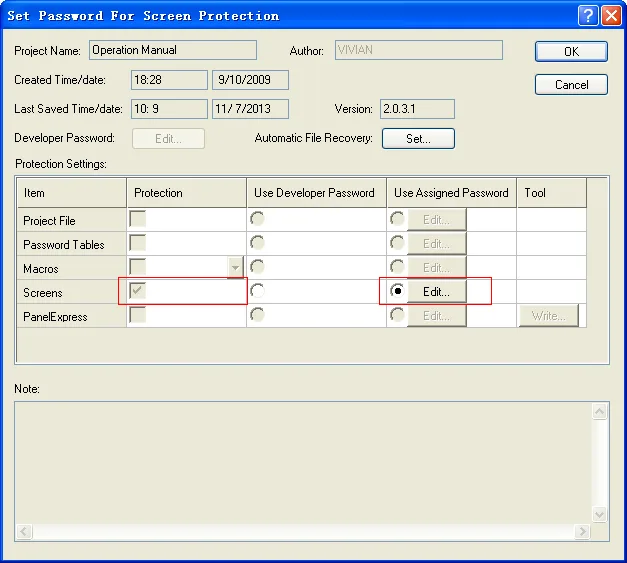
- You need to enter the original password to proceed. If there is no protection setting for the screens, the Set Password For Screen Protection dialog box will show up with screens protection checked. You need to define the desired password for the screen protection list, and hit the ENTER key or click the OK button to validate your choice. The following is an example of the dialog box.
■ Quit Protection
To unprotect a screen and remove it from the protection list, you can do the following:
- Do one of the following:
* On the Screen menu, click Quit Protection
* In the Project Manager window, right-click the panel application > Screens item and then click Quit Protection on the pop-up menu.
* In the Screen Manager window, select a screen or screens you want it unprotected and then click icon
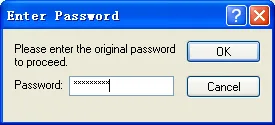
- To quit the protection, you need to enter the original password in the following dialog box to proceed.
■ Enable Protection
To resume the protection of all the previously protected screens in the protection list, you can do the following:
- Do one of the following:
* On the Screen menu, click Enable Protection
* In the Project Manager window, right-click the panel application > Screens item and then click Enable Protection on the pop-up menu.* In the Screen Manager window, click
 icon to enable all.
■ Disable Protection
To unprotect all the protected screens in protection list, you can do the following:
- Do one of the following:
* On the Screen menu, click Disable Protection
* In the Project Manager window, right-click the panel application > Screens item and then click Disable Protection on the pop-up menu.* In the Screen Manager window, click
 icon to disable all.
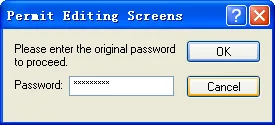
- To disable the protection, you need to enter the original password in the following dialog box to proceed.
Need PM Designer itself?
V4 for current PK, PT, ITV and PM panels, V2 for older models. Free, sent by email.
Source.Section 3.9.7 of the PM Designer Software User Manual, Edition 2.0, © Cermate Technologies Inc. (www.cermate.com, service@cermate.com). Reproduced online, with the manual's own figures, by TSL Automation Solutions, authorised Cermate distributor, for users of Cermate HMI panels. PM Designer and PanelMaster are trademarks of Cermate Technologies Inc.
Text and figures are the manufacturer's and may describe features your panel or software version does not have. For a plain-language introduction read the PM Designer guide; for help with a specific panel contact TSL Automation.