
Section 3.6.4 · Chapter 3: Creating Panel Applications
Status Word Settings (Type A)
This section describes how to configure the type A status words for your application using the Status Word page of the Command & Status dialog box. The following is an example of the Status Word page.
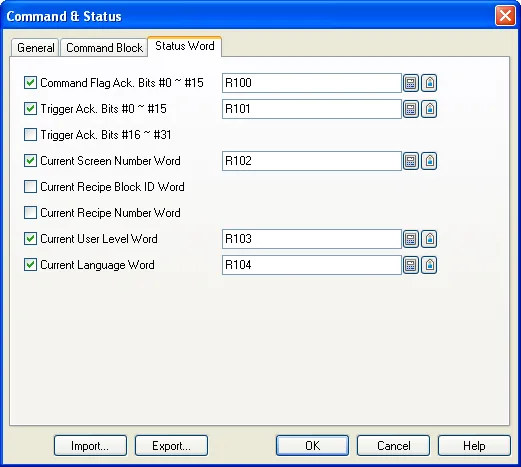
In the Status Word page, check the needed status words for your application, and specify a word variable that will receive the status value for each checked status word.
The following table describes when and what the panel will write to each status word.
|
Status Word |
Description |
|---|---|
| Command Flag Ack. Bits #0 - #15 | The states of all the effective command flags to this word whenever a state change occurs on the effective command flags. |
| Trigger Ack. Bits #0 - #15 | The states of trigger bits #0 - #15 to this word whenever a state change occurs on trigger bits #0 - #15. |
| Trigger Ack. Bits #16 - #31 | The states of trigger bits #16 - #31 to this word whenever a state change occurs on trigger bits #16 - #31. |
| Current Screen Number Word | The number of the current main screen to this word whenever the main screen changes. |
| Current Recipe Block ID Word | The current recipe block ID to this word whenever a different recipe block becomes the current recipe block. |
| Current Recipe Number Word | The current recipe number of the current recipe block to this word whenever a different recipe becomes the current recipe of the current recipe block. |
| Current User Level Word | The current user level to this word whenever the current user level changes. |
| Current Language Word | The current language number to this word whenever it changes the language. |
Need PM Designer itself?
V4 for current PK, PT, ITV and PM panels, V2 for older models. Free, sent by email.
Source.Section 3.6.4 of the PM Designer Software User Manual, Edition 2.0, © Cermate Technologies Inc. (www.cermate.com, service@cermate.com). Reproduced online, with the manual's own figures, by TSL Automation Solutions, authorised Cermate distributor, for users of Cermate HMI panels. PM Designer and PanelMaster are trademarks of Cermate Technologies Inc.
Text and figures are the manufacturer's and may describe features your panel or software version does not have. For a plain-language introduction read the PM Designer guide; for help with a specific panel contact TSL Automation.